
Access
Access covers everything to do with getting into the premises — typically a code on a keypad at the entrance, but it can also be a key box, an app, or something else the facility controls outside Velpr.
Access is built from access points that you link rental units to. Older code setups without an access point still work (see Migrating from old access codes further down).
Concepts
Section titled “Concepts”| Concept | What it is |
|---|---|
| Access point | An entrance to an area. Each rental unit can belong to one access point. |
| Type | Velpr (kode-utsending) (code delivery) — Velpr sends a code — or Eksternt system (external system) — the customer gets instructions. |
| Access codes | The codes that belong to an access point of the Velpr type, with rules for which days and times they apply. |
| Notification settings | When the code or the instructions become visible and are sent to the customer: a number of hours before the slot, or a number of hours after midnight the same day. |
The idea is that you set up the access points the facility has once, link the rental units to the right access point, and then describe how the customer gets in — with a code or with instructions.
Access point types
Section titled “Access point types”Velpr (code delivery)
Section titled “Velpr (code delivery)”The customer gets a code that applies to the slot. It is shown in the slot details, on My page and in the confirmation when the slot is close enough, and is sent by email before the slot.
For a Velpr access point you set up one or more access codes:
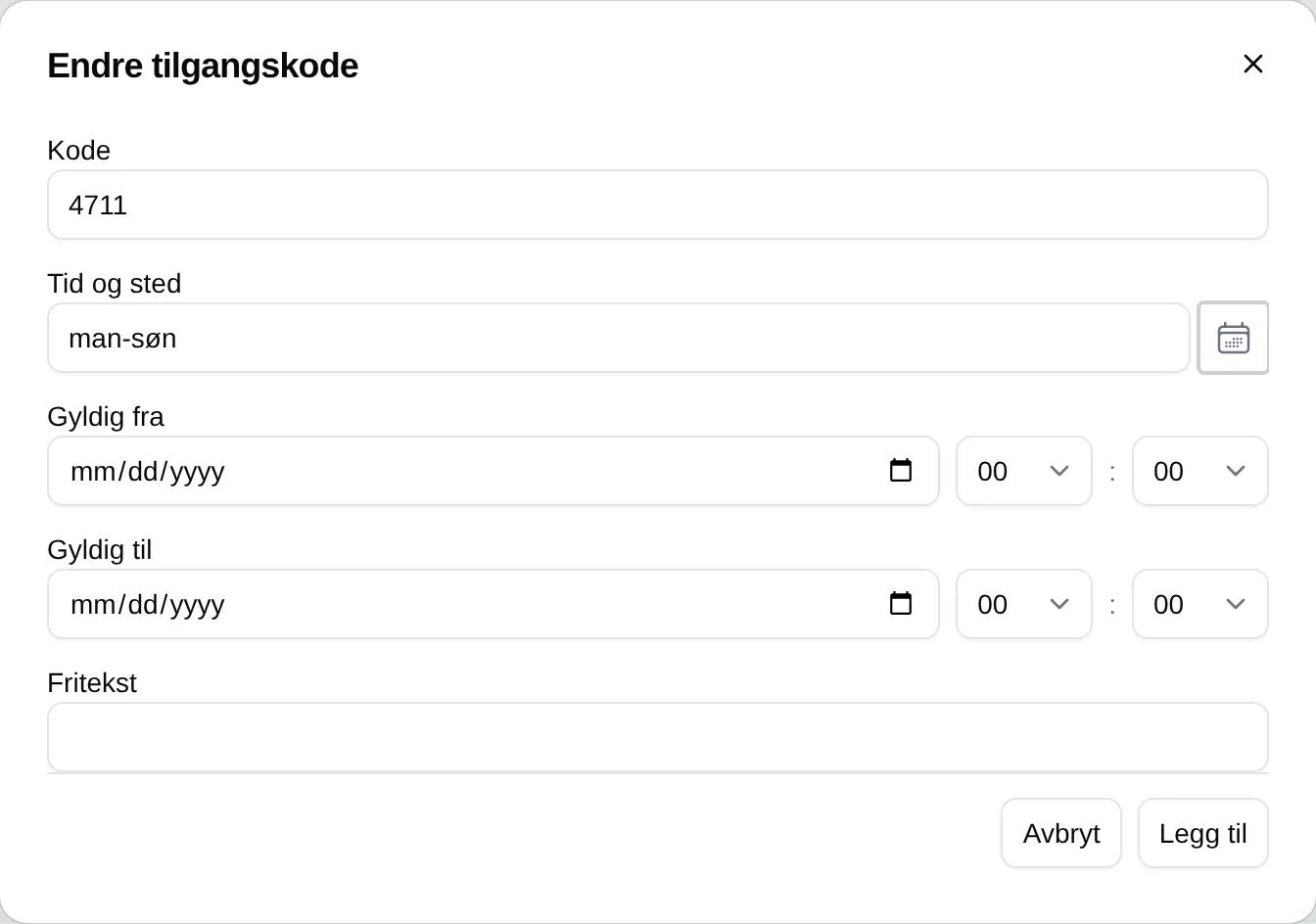
- Code — the code the customer enters.
- Time and place — which days and times the code applies to (see time and
place). For a code under an access point,
manmeans all of Monday, around the clock. - Valid from / to — the date range when the code is active.
- Free text — an optional internal description.
Velpr uses the first code in the list that matches the slot. Everyone who has a slot matching the same code gets the same code — the codes are not unique per booking. Visualise shows the codes as blocks in a week calendar, so it is easy to see that the setup covers what it should.
External system
Section titled “External system”Use this type when the entrance is not controlled by Velpr — typically a key box, a third-party app, or a door that is controlled by hand.
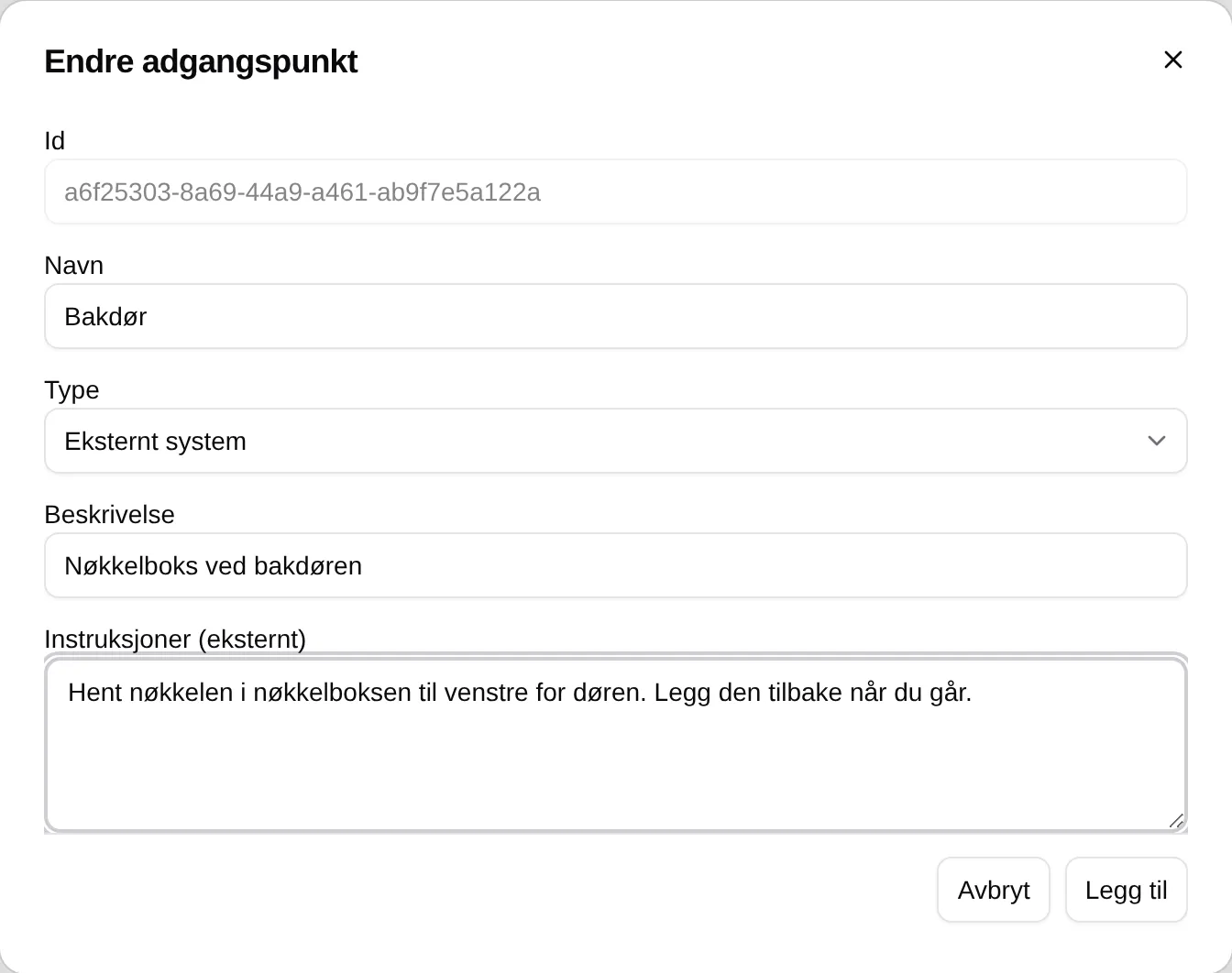
For an external access point you fill in Instructions (external) — markdown text that describes how the customer gets in. The customer sees them in the confirmation after booking, behind the More info button in the slot details, and in a separate email before the slot.
Setting up access from scratch
Section titled “Setting up access from scratch”- Turn on Door codes under Site → Modules and press Save. Access then appears in the admin menu.
- Go to Access. In Notification settings, choose when the code should become visible and be sent out: Hours (1–6) and before the slot or after midnight.
- Open Access points and press Add access point for each entrance. Give it a Name (e.g. “Main entrance”), choose Type, write a Description, and — for an external system — Instructions (external).
- Press Save at the bottom. Each access point now gets its own section
further down the page, where you:
- tick which Rental units belong to the access point
- (for the Velpr type) press Add code under Codes
- Press Save again.

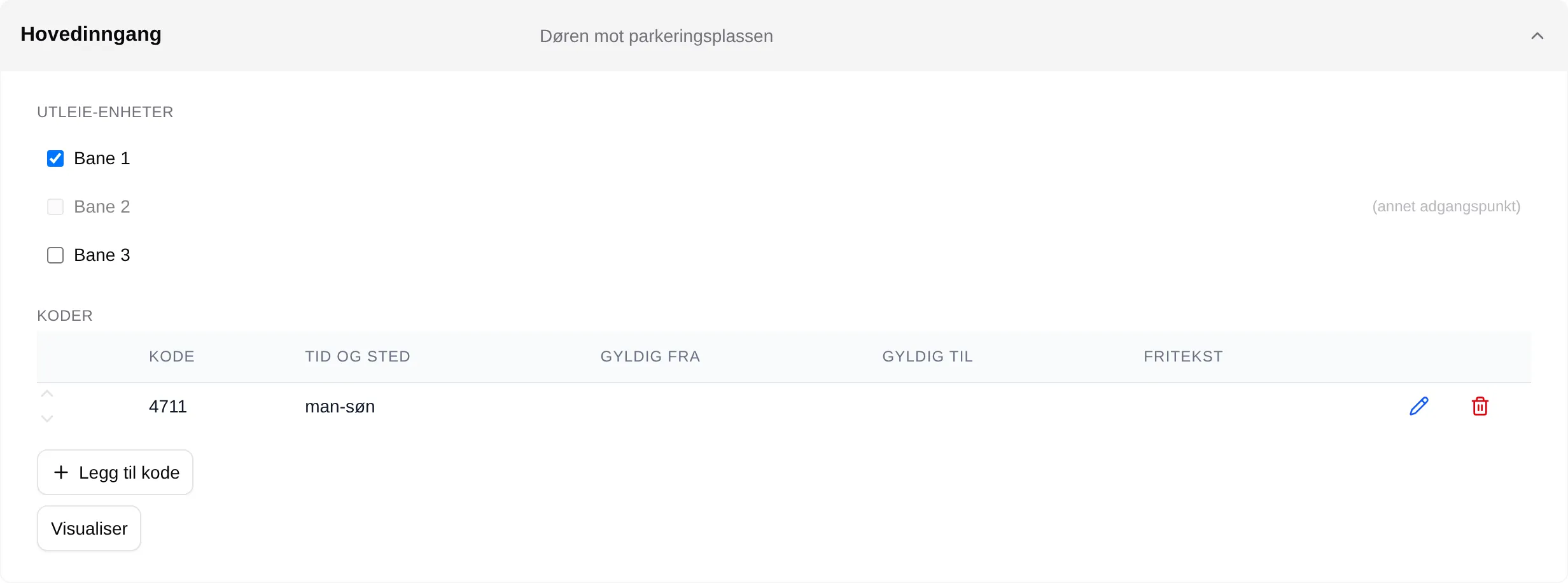
A rental unit can only belong to one access point. If it is linked to another one, it is greyed out with (annet adgangspunkt) (other access point) — go to the other access point to free it first. You can also choose the access point for a unit under Rental → Rental units → Access point.
Migrating from old access codes
Section titled “Migrating from old access codes”Codes that were made before access points existed are listed in the Codes without an access point section at the bottom of the Access page. They are matched against slots only by their Time and place expression.
Reasons to move them to an access point:
- Clearer setup — the codes are gathered under the entrance they belong to.
- External access — you can have some rental units with a code and others with instructions, side by side.
- Visualisation per access point — Visualise shows only the codes for the access point you are looking at.
How to migrate
Section titled “How to migrate”- Create an access point for each entrance. If you have one shared entrance, one is enough.
- Make the codes again under the access point, with the same codes and time-and-place expressions. Since the codes are now linked to the rental units through the access point, you only need days and hours in the expression.
- Link the rental units to the access point.
- Save everything at once.
- Delete the old codes once you have seen that the new ones work.
Club codes vs. access codes
Section titled “Club codes vs. access codes”- Club codes (under Club codes) are entered by the customer in the cart to unlock slots or get a discount. See Club codes.
- Access codes (under Access) are used by the customer to get into the premises.
They are controlled by two different modules and do not affect each other.
Every field and every rule: the admin reference for access. How it looks for customers: Access to the premises.