
Payment
The cart — SHOPPING CART
Section titled “The cart — SHOPPING CART”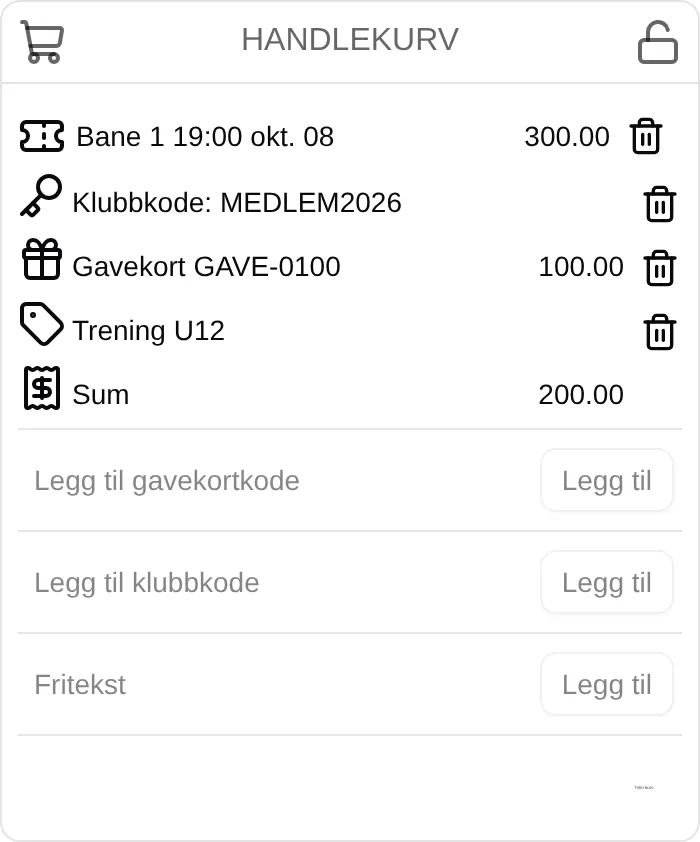
The padlock at the top right shows whether you can change the cart. Open padlock: The cart is open for more bookings. Closed padlock: The cart is locked until payment is completed or cancelled.
The lines
Section titled “The lines”| Line | What it means |
|---|---|
| Ticket — “Bane 1 19:00 okt. 08” | A slot you are booking, at full price. |
| Indented line below a slot | What gave you a discount — a punch card, a group or a price you chose yourself — and how much it takes off. |
| Calendar — event | A registration for an event. |
| Punch card / Season pass | A card you are buying. |
| Buy gift card: … | A gift card you are buying, with the amount it gets. |
| Gift card … | A gift card you are using. The amount is what is deducted from the total, even though it has no minus sign. |
| Club code: … | A club code you have added. It gives access to slots or a discount, and has no amount. |
| Tag — your text | Free text you have added. It is shown on the receipt. |
| Total | What you will pay. Shows The cart is empty when there is nothing in it. |
The bin removes the line. Empty cart at the bottom removes everything.
The fields
Section titled “The fields”| Field | What it does |
|---|---|
| Add gift card code | Uses a gift card. Only shown when the facility sells gift cards. |
| Add club code | Adds a club code. Only shown when the facility uses club codes. |
| Free text | A note on the order, under 20 characters. Letters, numbers, spaces and common punctuation are allowed. |
You must be signed in to use the fields.
Gift cards
Section titled “Gift cards”The gift card covers as much of the total as there is money on the card, but never more than the total. A gift card worth 500 kroner on an order of 300 deducts 300, and the remaining 200 stays on the card for next time.
If the code is wrong or the card is used up, you get Invalid gift card. A wrong club code gives Invalid club code.
Checkout — RESERVE AND PAY
Section titled “Checkout — RESERVE AND PAY”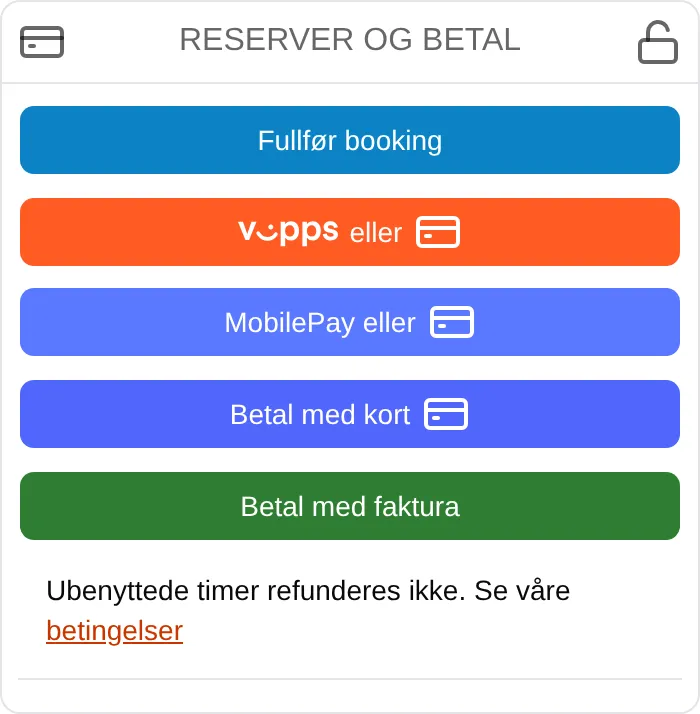
The heading is RESERVE AND PAY when the facility takes payment, and COMPLETE when it does not.
The payment buttons
Section titled “The payment buttons”| Button | What happens |
|---|---|
| Complete booking | The order is confirmed without payment. Shown when the total is 0, or when the facility lets you book without paying. |
| Vipps eller | You are sent to Vipps to approve. When you are done, you come back here. |
| MobilePay or | The same, with MobilePay. |
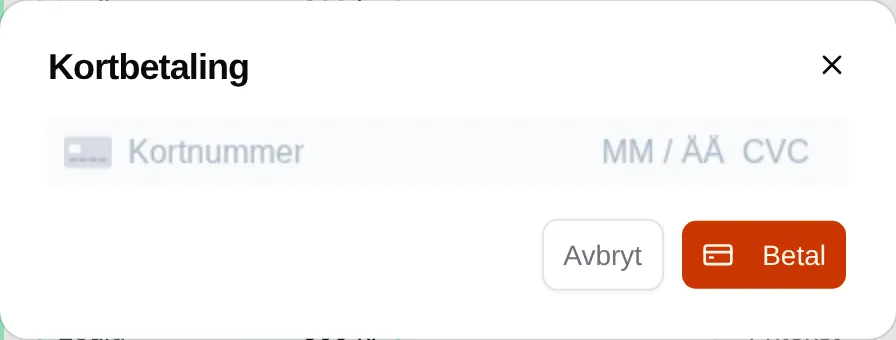
| Pay by card | Opens Card payment, where you enter the card number, expiry date and CVC. |
| Pay by invoice | The order is confirmed straight away, and you get an invoice. If the button is grey, the reason is shown below it — see When invoicing is not possible. |
The buttons are grey while the cart is empty, while it is being saved, or while a payment is already in progress.
Rules you must accept
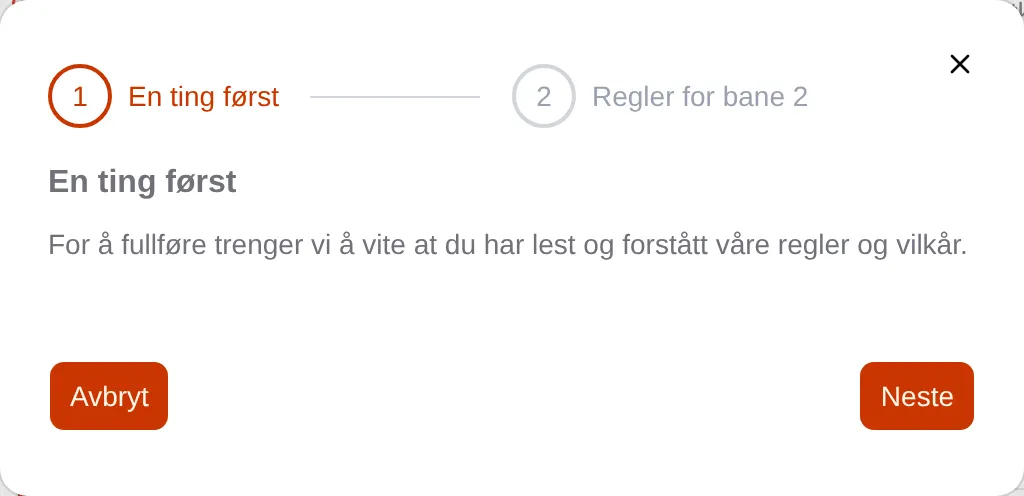
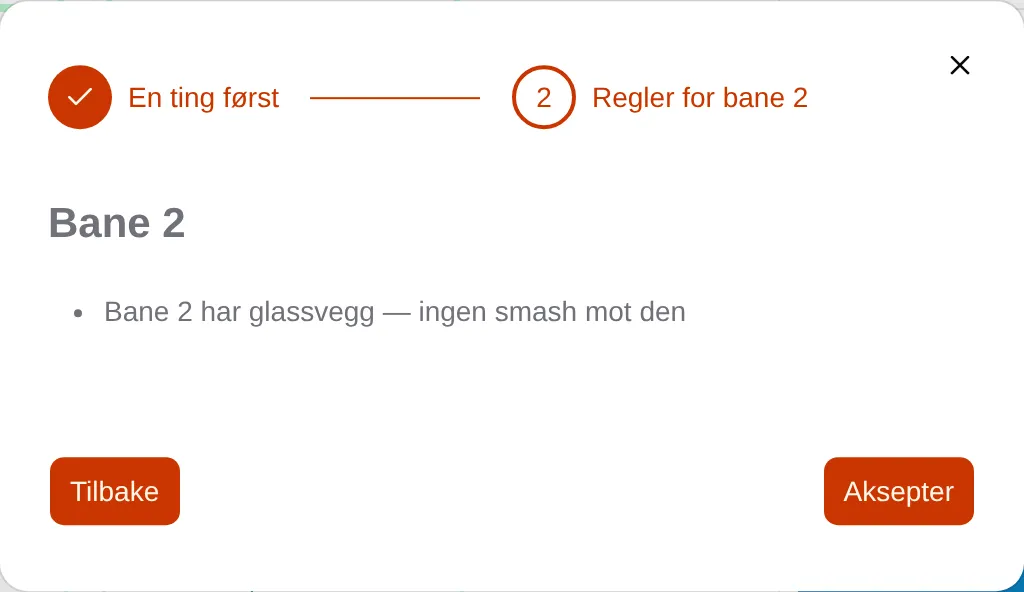
Section titled “Rules you must accept”If the facility has rules or terms that require acceptance, the payment button first opens the One thing first window. You must press Accept before the payment starts. The facility decides how often you are asked — once, every time, or when the rules change.
Messages along the way
Section titled “Messages along the way”| Message | Means |
|---|---|
| Waiting for authorisation… | We are waiting for you to approve in Vipps or with your card. A countdown shows how much time is left. |
| Processing order… | The payment is approved, or the order needs no payment. The slots are being confirmed. |
| Completing order… | The money has been taken. The receipt is being created. |
| The order is complete | Done. You get a receipt by email. |
| Payment cancelled / Payment declined | The payment was cancelled or declined. You have not been charged. |
| Payment session expired | You did not approve in time. The slots have been released. |
| The payment session has expired. Reset to try again. | The payment has waited for more than five minutes without a response. |
| Something went wrong | The order failed. Check Min side → Receipts before you try again. |
During the payment you see Cancel. When the payment is done, has failed or has waited too long, you see Reset payment session or Cancel and reset instead. It clears the checkout so you can start again.
When invoicing is not possible
Section titled “When invoicing is not possible”If Pay by invoice is grey, the text below the button explains why:
| Text | Means |
|---|---|
| Invoicing is not available for rentals (or events, punch cards, gift cards) | The facility does not offer invoicing for anything in the cart. |
| The minimum amount for invoicing is … kr | The total is too low. |
| You have … unpaid invoices (max …) | You have too many unpaid invoices with the facility. |
| You have … kr outstanding (max … kr) | You owe the facility too much. |
| You have overdue invoices that must be paid first | An invoice is past its due date. |
| You do not have access to invoice payment | The facility only offers invoicing to some people. |
| Invoicing is not configured | The facility has not finished the setup. Contact them. |
When it is not possible to pay
Section titled “When it is not possible to pay”| Text | Means |
|---|---|
| This site is not set up to process transactions. | The facility has not turned on any payment method. |
| This site is not permitted to process transactions. | The facility cannot take orders right now. Contact the facility. |
| The selected time is no longer available. | Someone else booked the slot before you. Reload the page and pick another one. |
| You have reached your booking quota for this facility. | The facility limits how many slots you can have booked at the same time. |
The receipt
Section titled “The receipt”All orders are under Min side (My page) → Receipts.

| Column | Content |
|---|---|
| Order | The order number. Press it to open the receipt. |
| Date | When the order was placed. |
| Status | booked means the order is complete. |
| Price | What you paid. |
| The account the order was placed from. | |
| Free text | The note you added in the cart. |
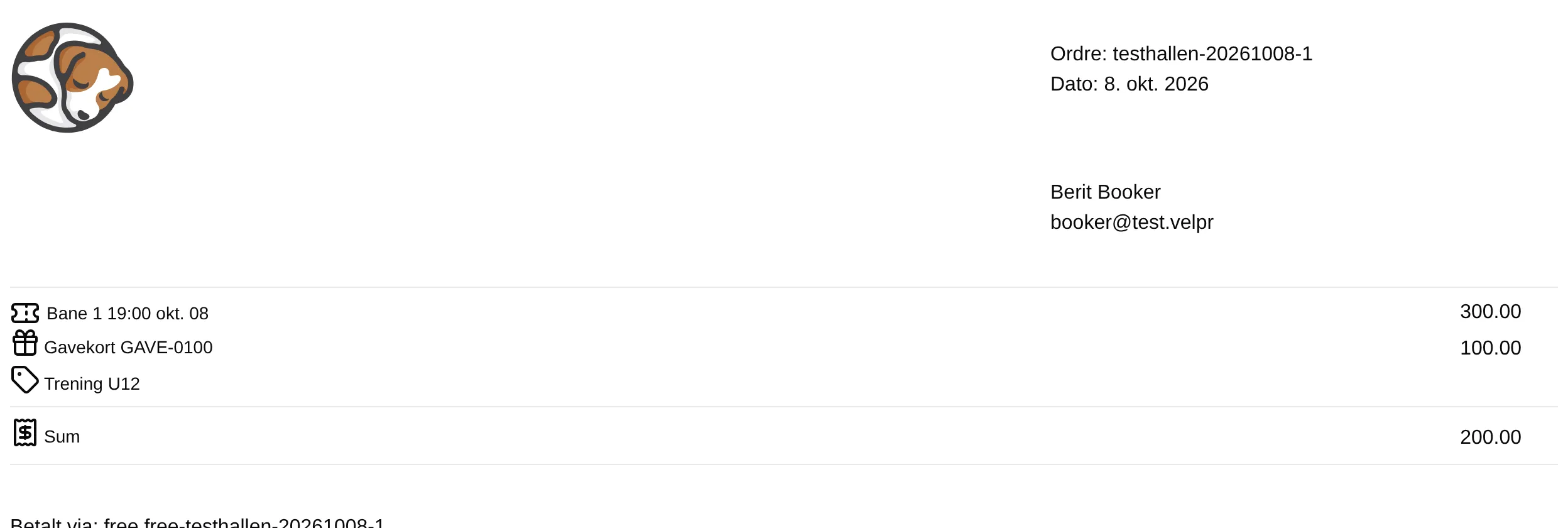
The receipt shows the order number and date, who placed the order, each line from the cart and the total. At the bottom is Betalt via (paid via) — the payment method and the payment ID — and when the order was reserved and completed.
How to pay, step by step: Paying. For administrators: the admin reference for payment.