
Registration
Courses, competitions and other events each have their own page, with information, the people signed up and tickets. You sign up there, and pay in the same cart as when you book slots.
Find the event
Section titled “Find the event”Go to Events in the menu. The facility may have given the menu item a different name, for example Course.
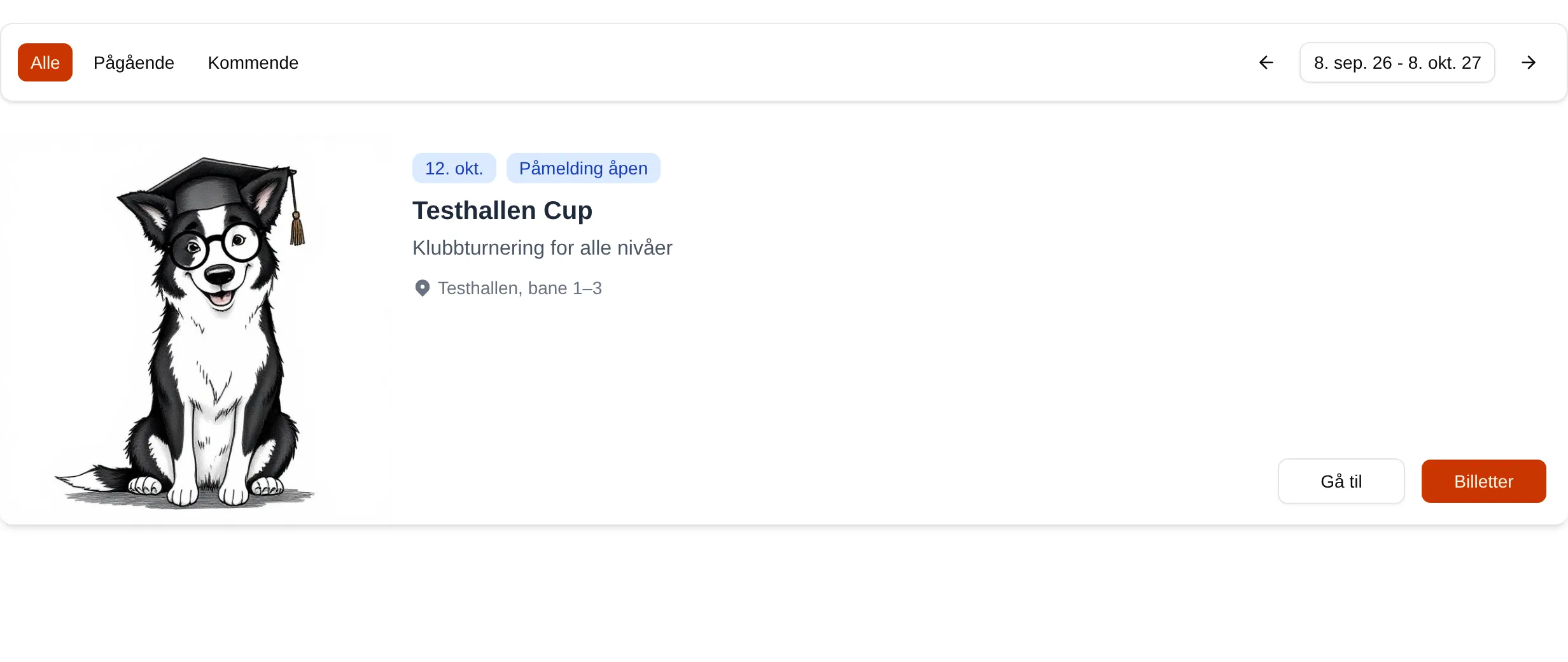
- All, Ongoing and Upcoming filter the list.
- The dates on the right are the period shown. Use the arrows to move it, or tap the dates to choose for yourself.
- Tap an event, or Go to, to open it.
How to sign up
Section titled “How to sign up”- Open the event and go to the Tickets tab. The Tickets or Sign up button on the event takes you straight there.
- Under TICKETS you see the classes or ticket types. Tap the price of the one you want to sign up for.
- Fill in the steps in the Sign-up window and tap Next for each step. Fields marked with * must be filled in before you can continue.
- Check the price under Confirm, choose a price if offered, and tap Finish. The ticket is added to the cart.
- Pay under SHOPPING CART and RESERVE AND PAY, as when you book. See Paying.
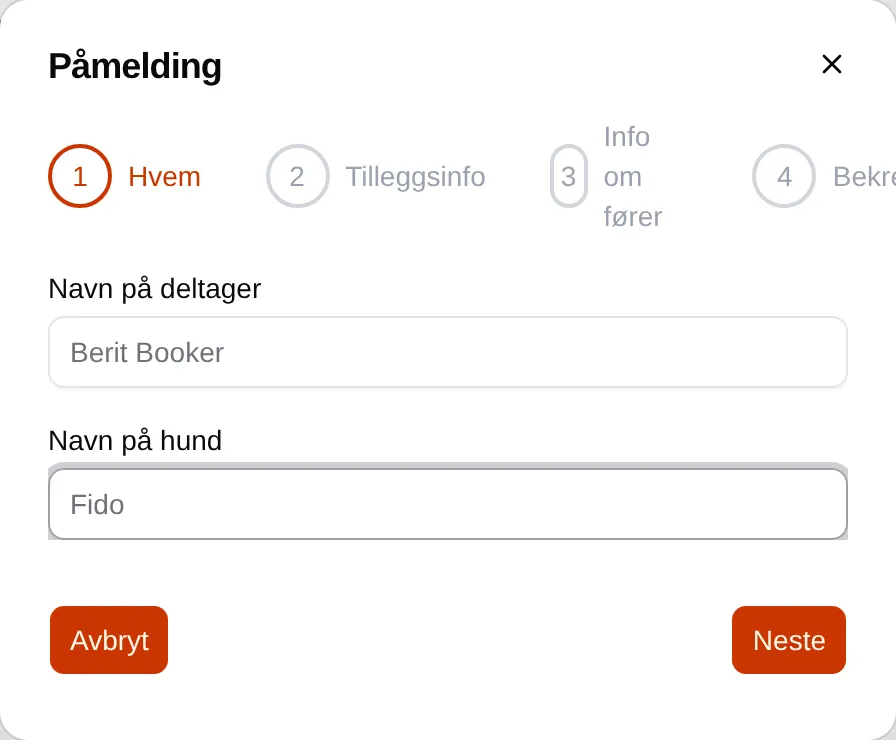
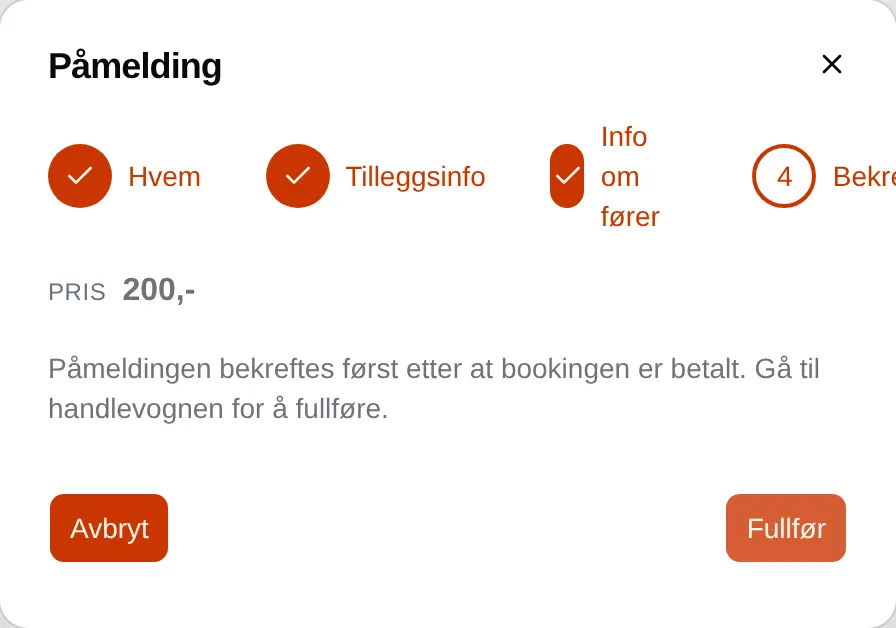
You are not registered until you have paid. Dogs and handlers you have signed up before are suggested when you start typing the name.
Your tickets
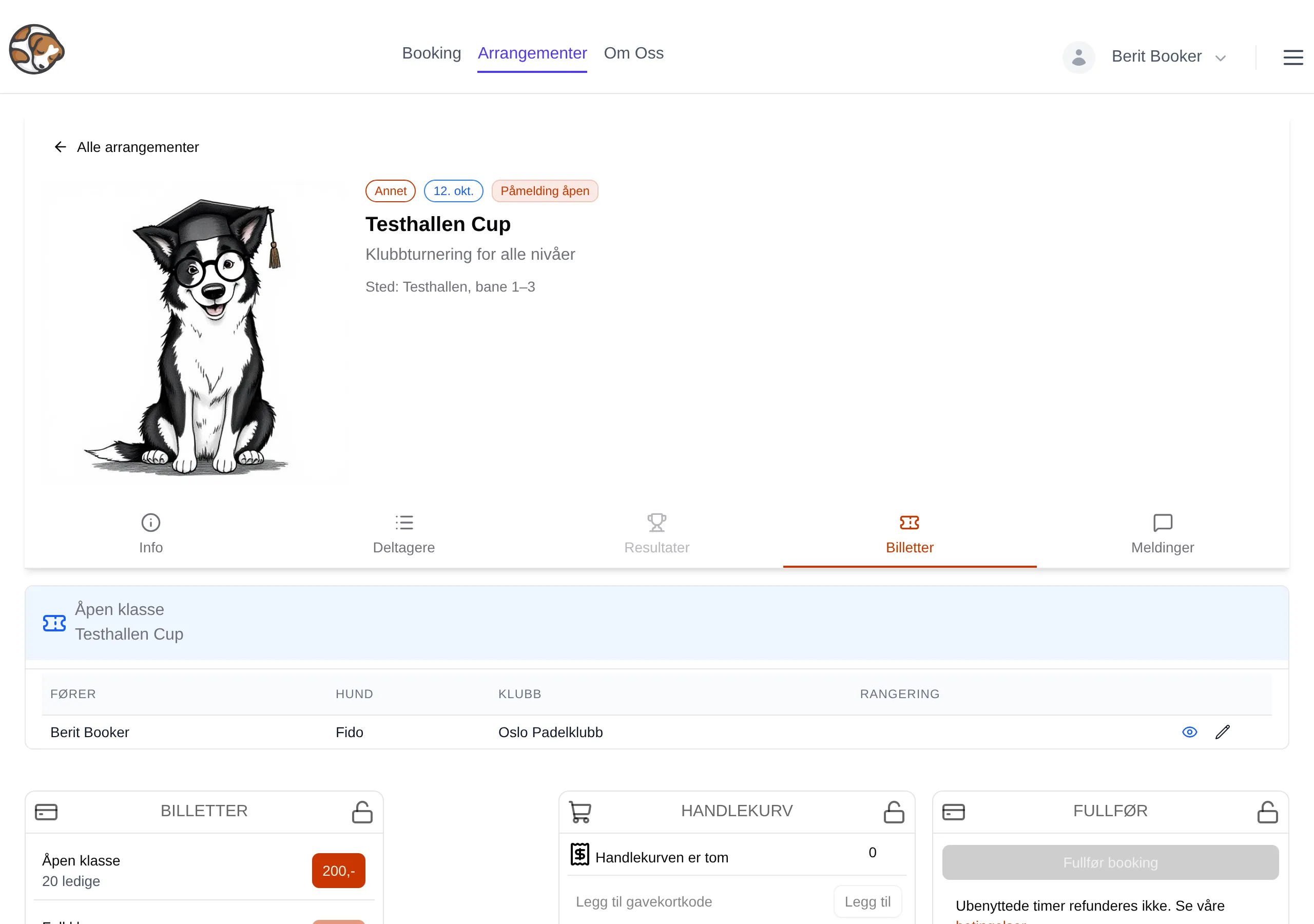
Section titled “Your tickets”Once you have paid, the ticket is shown at the top of the Tickets tab, with handler, dog and your answers. The event is also listed under Min side (My page) → Events.
Change your registration
Section titled “Change your registration”- Tap the pencil next to the ticket.
- Correct the details under Edit details.
- Tap Save changes.
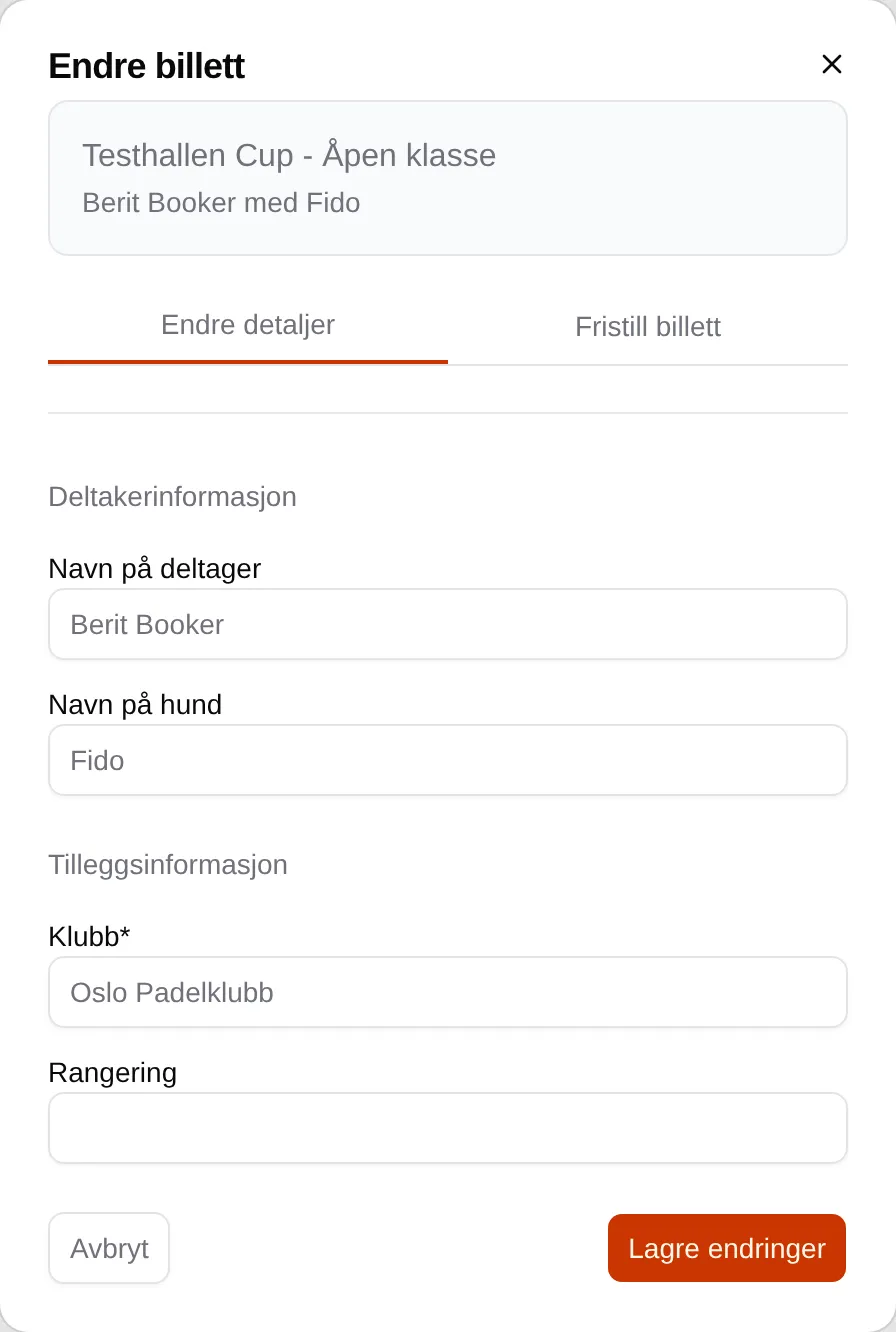
If the organizer has set a deadline, it is shown at the top: You can change the ticket until …. After the deadline you can no longer make changes.
Withdraw
Section titled “Withdraw”- Tap the pencil next to the ticket.
- Choose the Release ticket tab.
- Tick I understand that the ticket is released without a refund and tap Release ticket.
After the event
Section titled “After the event”If the organizer has made a feedback form, you get an email with the link Gi tilbakemelding (Give feedback), usually the morning after. You can answer anonymously, and change your answer as long as the link is valid — one week after the event.
What each tab, status and message means: the registration reference. If you are an organizer: the admin guide for events.