
Installing a Shelly controller
This guide covers the physical side: how a Shelly device is mounted and wired up as a light controller for Velpr. The configuration itself — controllers, zones and control — is described in Light control.
In short: the facility owner provides the hardware and an electrician, Velpr handles the configuration. Once the device is mounted and online, you paste in one ready-made script from Velpr, and it starts controlling the lights.
Prerequisites
Section titled “Prerequisites”- A Shelly Pro (Gen2 or newer) with enough relays/channels for the lighting circuits you want to control. One zone in Velpr = one channel on the device.
- Internet to the device — WiFi or a wired network to where the device sits (see The device needs internet).
- An authorised electrician for mounting and wiring.
- Light control set up in Velpr — the module enabled, and a controller with zones created. See Light control.
Step 1 — The electrician mounts the controller
Section titled “Step 1 — The electrician mounts the controller”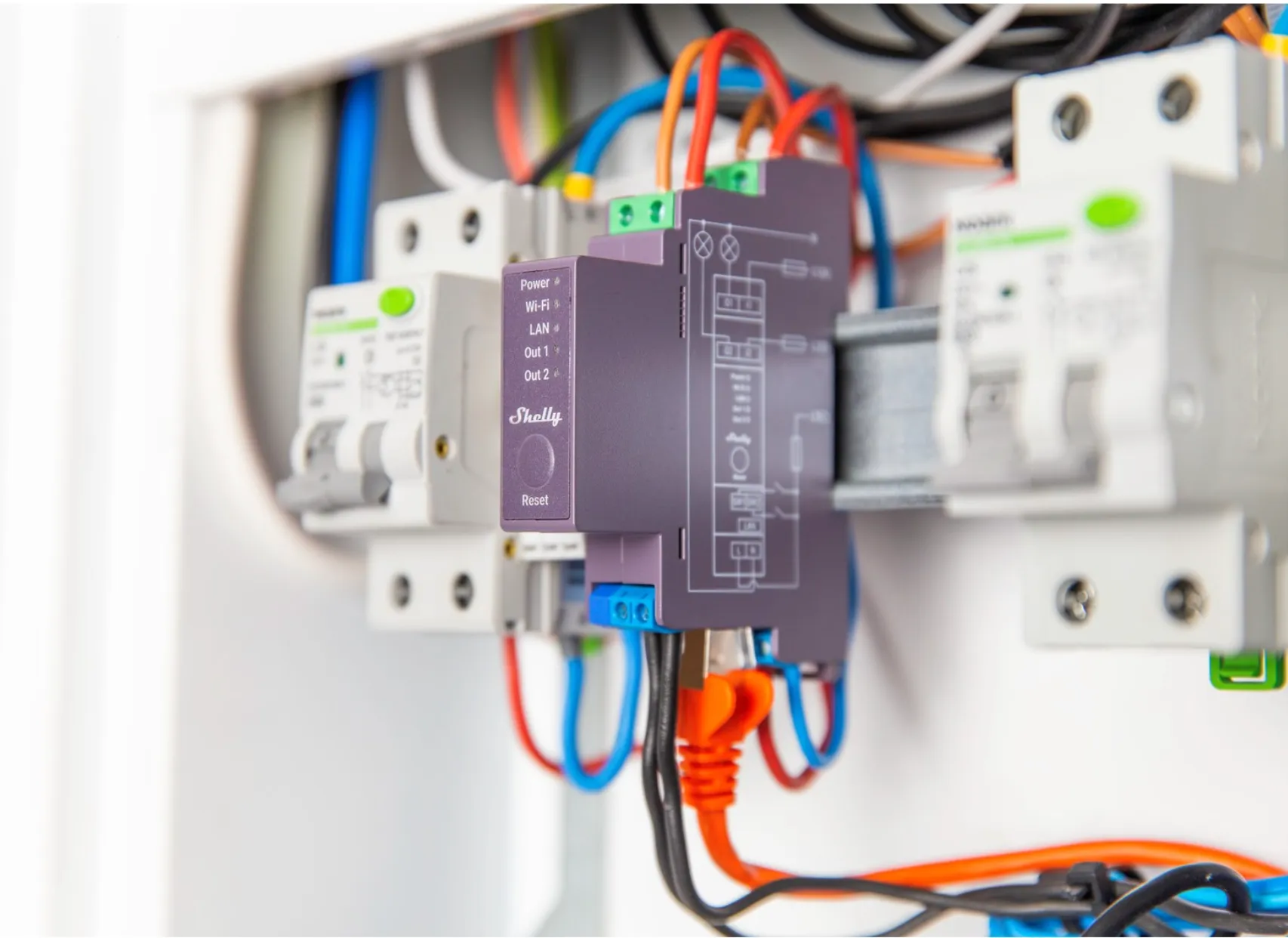
The electrician mounts the Shelly device in the fuse box (on a DIN rail) and wires each channel to the lighting circuit it should control. For larger loads the relay controls a contactor instead of the lighting circuit directly — the electrician weighs the current draw against the relay’s rating.
Note which channel number (0, 1, 2 …) goes to which lighting circuit — you need it when you set the channel on the zones in Velpr.
Hand–off–auto: local override
Section titled “Hand–off–auto: local override”We recommend that the electrician fits a hand–off–auto selector (HOA) for each circuit, so that staff can override the automation on site — independently of Velpr and the internet:
- Hand — the lights are forced on (e.g. for an unforeseen event or a group that turns up without a booking).
- Off — the lights are forced off (e.g. during maintenance).
- Auto — the Shelly is in control, that is the Velpr automation.
The Shelly then sits on the “auto” leg. This is a physical safeguard that works even if the network is down, and a useful supplement to the manual override in Velpr (which is software and controlled remotely).
The device needs internet
Section titled “The device needs internet”The controller fetches its schedule from Velpr about once a minute, so it depends on the internet. Set up WiFi (or a wired network) on the device through the Shelly app or the device’s web interface before you continue. The device also uses the internet to set its clock (NTP), and without the right time it does not switch the lights.
Step 2 — Paste in the script from Velpr
Section titled “Step 2 — Paste in the script from Velpr”Once the device is mounted and online:
- In Velpr: go to Admin → Light control, find the controller, and open Device and connection.
- Press Create new key / script. Velpr then shows a ready-made script with the URL and key already filled in.
- Press Copy script.
- On the Shelly device (the web interface or the Shelly app): go to Settings → Scripts → Add new script, paste in the whole script, and save.
- Start the script, and turn on “Run on startup” so that it starts again by itself after a power cut.
Within a minute or two the controller should show Connected in Velpr, with a fresh “last seen” time.
Step 3 — Verify
Section titled “Step 3 — Verify”- In Velpr, on a zone: use Manual override and turn on for 1 hour.
- See that the right light comes on in the hall within a minute. Press Cancel once you have confirmed.
- Scheduled lighting for the next 48 h shows the lighting windows the device will actually run — use it to double-check that channels and bookings line up.
If you have fitted a hand–off–auto switch, you can also test the wiring with Hand before the script is in place.
Troubleshooting
Section titled “Troubleshooting”| Symptom | Check |
|---|---|
| Disconnected in Velpr | Does the device have internet? Is the script running (and is “Run on startup” on)? Try Create new key / script again and paste in a new script. |
| The lights do not switch | Does the Channel on the zone match the relay? Is the hand–off–auto switch set to Auto? |
| Right zone, but wrong time | Check Min. before / Min. after on the zone, and that the device has set its clock (internet). |
| The lights go off too early | See whether Scheduled lighting for the next 48 h reports that a window was shortened — then Max on (min) is too low for a real booking. |
If you need help with the setup, get in touch — and we will help with the configuration.