
Payment
The fields on the Payment page are described under Payment. This page explains what they do to the checkout.
Which buttons the customer sees
Section titled “Which buttons the customer sees”| Button | Shown when | Can be pressed when |
|---|---|---|
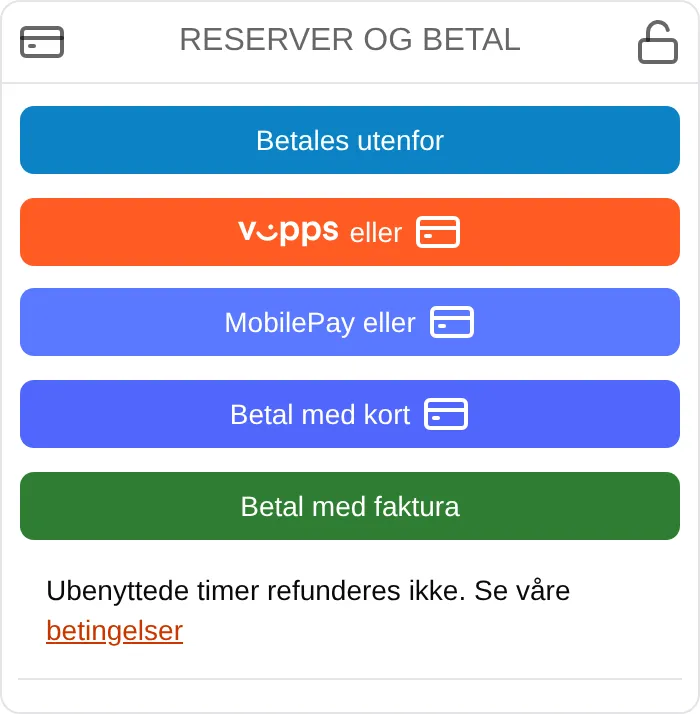
| Complete booking | The total is 0, or the customer has at least the role in Allow payment outside the system. | The cart is not empty. |
| Paid outside the system | The signed-in user is a supporter, administrator or owner, and the total is above 0. | The role is at least the one in Allow payment outside the system. |
| Vipps eller | Vipps MobilePay is on. With Checkout, Show Vipps button must also be on. | The total is above 0. |
| MobilePay or | Vipps MobilePay is on with Checkout, and Show MobilePay button is on. | The total is above 0. |
| Pay by card | Stripe is on. | The total is above 0. |
| Pay by invoice | Invoice is on. | The total is above 0 and the customer meets the invoice requirements. |
All the buttons are grey while the cart is being saved and while a payment is in progress.
An order of 0 kroner — for example a slot fully covered by a gift card or a period card — can always be completed, whichever modules are on.
What administrators see in the cart
Section titled “What administrators see in the cart”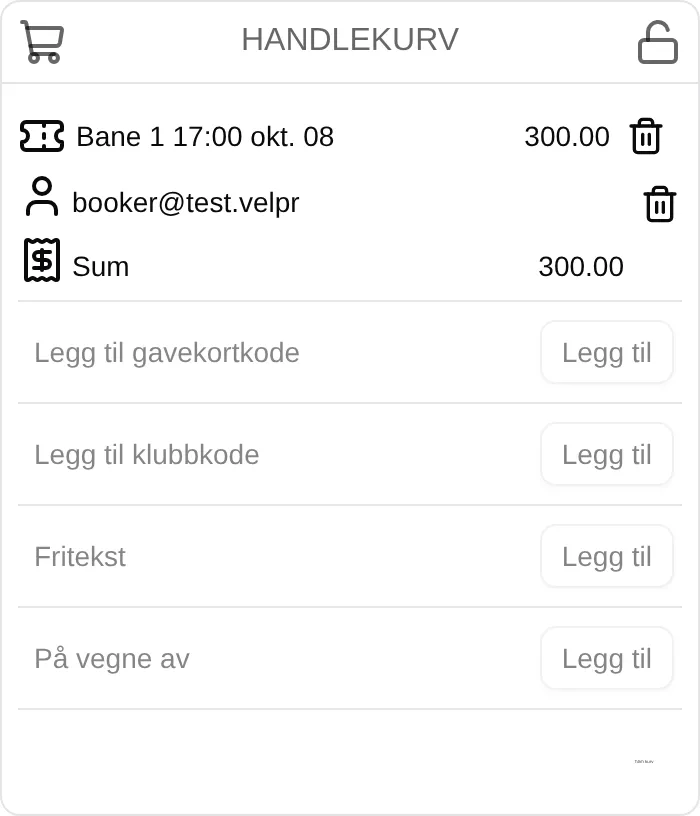
On behalf of
Section titled “On behalf of”Supporters, administrators and owners get the field On behalf of at the bottom of the cart. Type the customer’s email address and press Add. If the user exists, the email is added as a line with a person icon.
The order then belongs to the customer: the slots show up on the customer’s Min side (My page), and the receipt shows the customer’s email as a separate line below the booked slots. The person who placed the order is shown at the top of the receipt.
If no user has that email, you get an error message.
Paid outside the system
Section titled “Paid outside the system”When you book for someone who pays on site, in cash or on a separate invoice, press Paid outside the system. The order is confirmed without Velpr taking payment, and the receipt shows Betalt via: admin (paid via: admin).
Reservations and locked cart
Section titled “Reservations and locked cart”When the customer presses a payment button, the slots are reserved and the cart is locked. Nobody else can book the slots while the payment is in progress.
| When | What happens |
|---|---|
| After 5 minutes | The checkout treats the payment as stuck and shows Cancel and reset, so the customer can start again. |
| After 10 minutes | The cart is unlocked automatically the next time the customer tries to pay. |
| After 11 minutes | The slots count as available again for other customers. |
A payment that is approved after the slots have been released is picked up by a job that either completes the order or cancels the payment.
Gift cards
Section titled “Gift cards”A gift card covers as much of the total as there is money on the card, but never more than the total. The rest stays on the card.
Invoice requirements
Section titled “Invoice requirements”Pay by invoice can only be pressed when all of the following are true. The first one that is not met is shown below the button.
- The customer has at least the role in Who can use invoicing.
- Owner legal name, Org. no., Address line 1 and Email are filled in under Site → Owner information.
- Everything in the cart is allowed: Allow for rentals, Allow for events, Allow for punch cards, Allow for gift cards.
- The total is at least Minimum invoice amount (kr) (0 means no limit).
- The customer has fewer unpaid invoices than Maximum unpaid invoices per customer.
- The customer owes less than Maximum outstanding amount per customer (kr) (0 means no limit).
- The customer has no overdue invoices, if Block new invoices when there are overdue ones is on. This stops nobody today — see Invoice.
An invoice order is confirmed straight away — the slots belong to the customer before the invoice is paid.
Rules that must be accepted
Section titled “Rules that must be accepted”Before the payment starts, the One thing first window shows the rule sets the customer has not yet accepted. A rule set is included when
- it applies to something in the cart (Applies to, and possibly Applies only to these units:), and
- Acceptance required says the customer must accept it again: Once asks only the first time, Every time always asks, On major changes asks when the first number in Version changes, and Every version asks at every new version. Never, information only never asks.
If the Rules module is off, only the terms are asked for. See Rules.
When the checkout is closed
Section titled “When the checkout is closed”| The customer sees | Cause |
|---|---|
| This site is not set up to process transactions. | No payment module is on, and neither is No payment. |
| This site is not permitted to process transactions. | The site’s account cannot take orders right now — see Account status under Site → Account. |
Step-by-step setup: the admin guide to payment. The customer’s side of the checkout: the payment reference.