
Booking
The fields on the Rental page are listed section by section on Rental. This page explains what they do to booking.
Which rule applies to a slot
Section titled “Which rule applies to a slot”For each slot, Velpr looks for a rule in this order:
- Fixed slots, from the top down.
- Rental slots, from the top down.
The first row that matches decides everything about the slot — price, seats, sales window and who can book. No matching row means the slot does not exist. A fixed slot therefore always takes precedence over a rental slot for the same times.
Valid from and Valid to limit the row to a period. Empty fields mean no limit.
Sales window
Section titled “Sales window”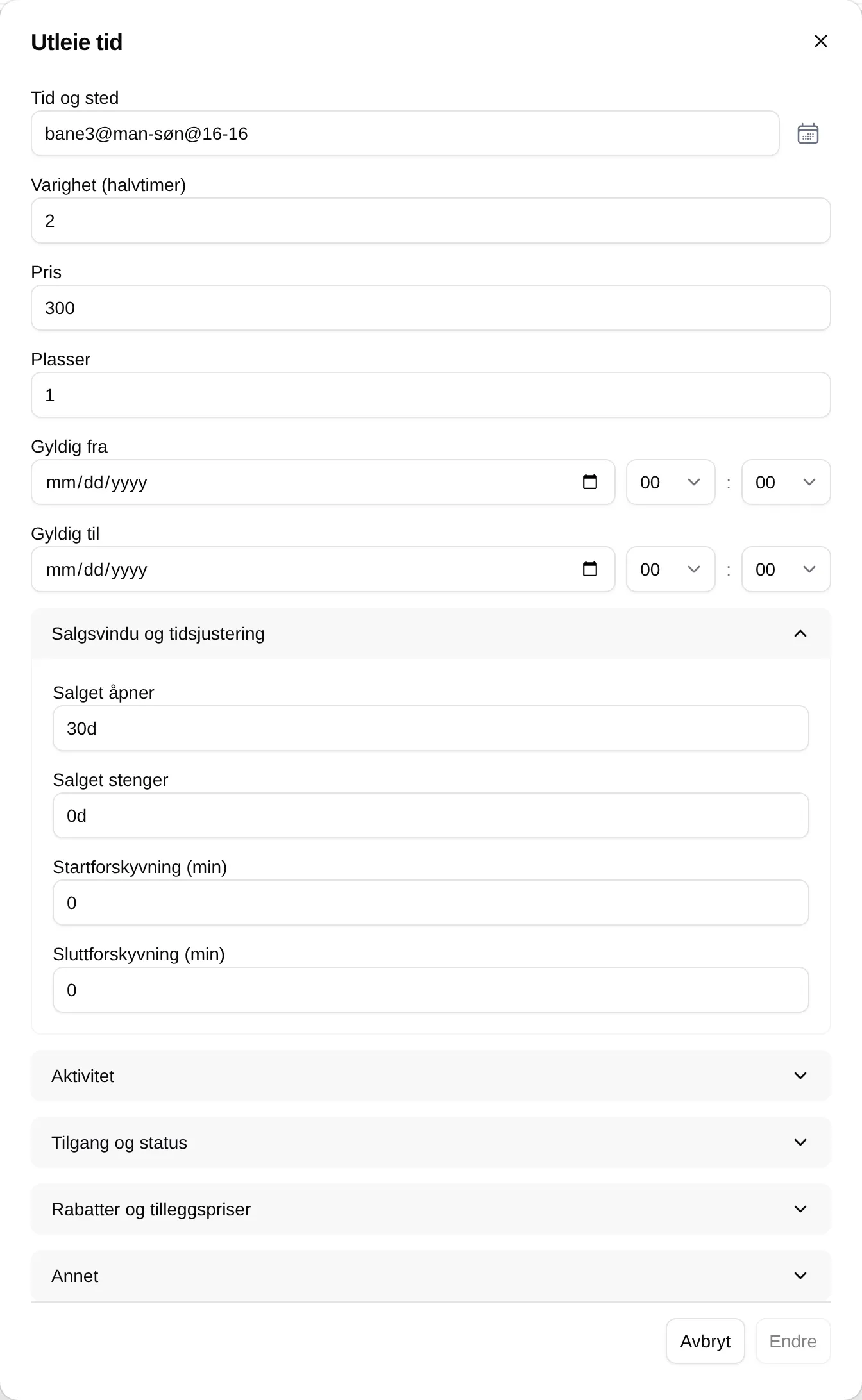
Sales open says how long before the slot it can be booked. Sales close says when sales stop — empty means they never close before the slot has passed. Both are measured backwards from the slot. The formats are described on Sales open.
If Sales open is empty, Default number of days before sales open from Settings is used (30 days by default).
Before sales open, customers see ⏰ Closed and Kan bookes fra 2026-10-20 kl. 08 (bookable from).
Start offset (min) and End offset (min) move the start later or the end earlier, by up to 29 minutes. With Duration (half hours) 2 and End offset 10, 18:00–19:00 becomes 18:00–18:50.
Slots that have started
Section titled “Slots that have started”A slot can be booked until one hour after it started. After that it is shown as ⏰ Closed with This slot has passed and cannot be booked.
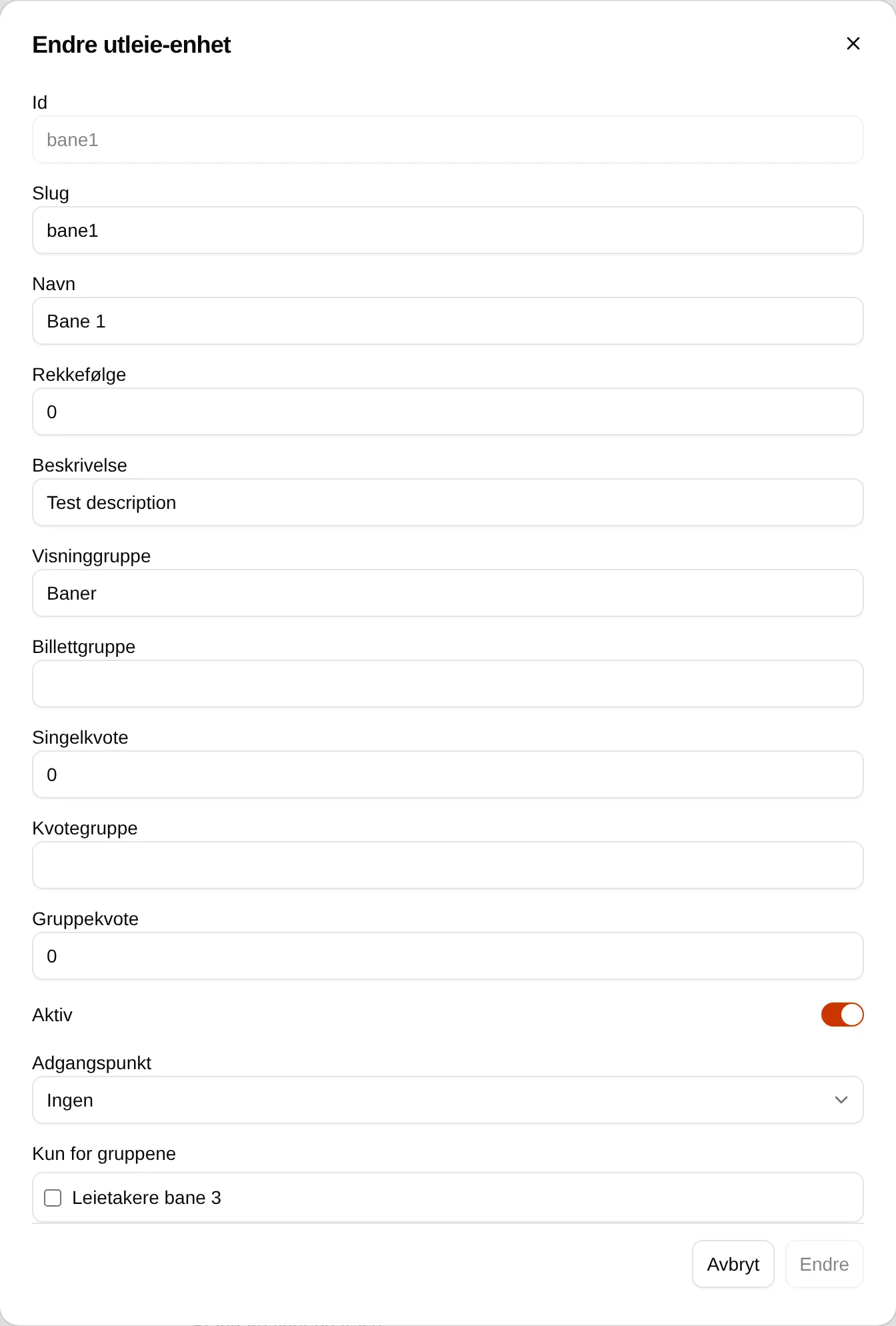
The quota is set per rental unit:
| Field | Means |
|---|---|
| Single quota | How many slots one customer can have booked on this unit at the same time. 0 means no limit. |
| Quota group | A name that ties several units together, for example inne. |
| Group quota | How many slots one customer can have booked across all the units in the quota group at the same time. |
The quota counts slots that have not started, both booked ones and those in the cart. With Single quota 2 a customer can have two upcoming slots on the court; once the first has passed, they can book a new one.
Administrators and owners are not bound by the quota.
| Field | How it works |
|---|---|
| Price | Price per ticket. |
| Seats | How many tickets the slot has. With Seats 4 and Price 100, four customers can each book a ticket for 100 kr. |
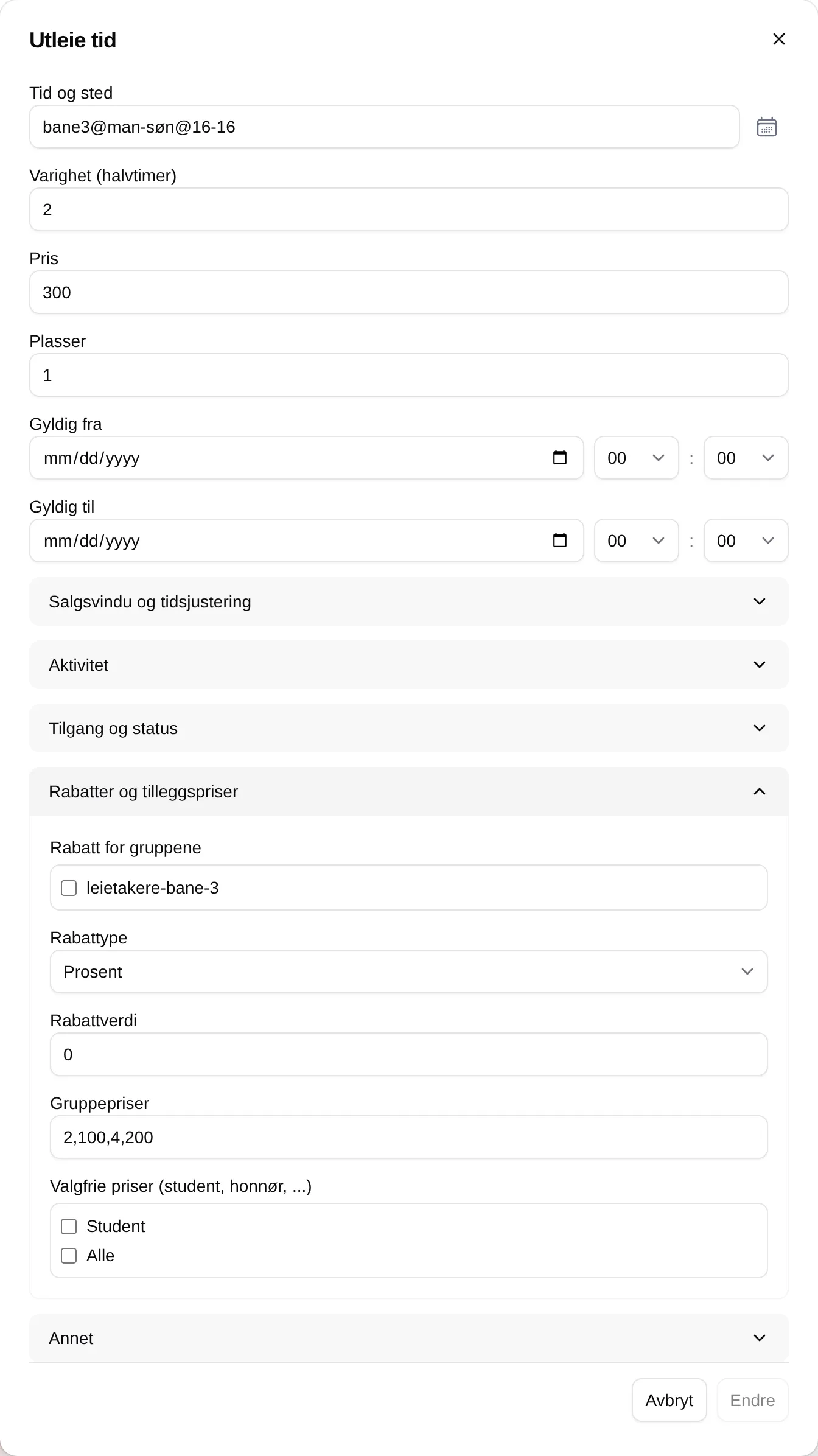
| Group prices | Pairs of group size and surcharge. See below. |
| Discount for groups | Discount for members of a group. See Groups. |
| Optional prices (student, senior, …) | Prices the customer can choose themselves. See Optional prices. |
Group prices
Section titled “Group prices”Write pairs of group size and surcharge, separated by commas. 2,100,4,200
means:
| The customer chooses | Price for a slot costing 300 |
|---|---|
| Fewer than 2 — kr 0,- | 300 |
| Gruppe fra 2 til 3 — + kr 100,- | 400 |
| Gruppe på 4 — + kr 200,- | 500 |
The last two labels mean “group of 2 to 3” and “group of 4”. The sizes and surcharges must increase, and every number must be greater than 1. Otherwise you get an error such as All thresholds must be increasing.
Access
Section titled “Access”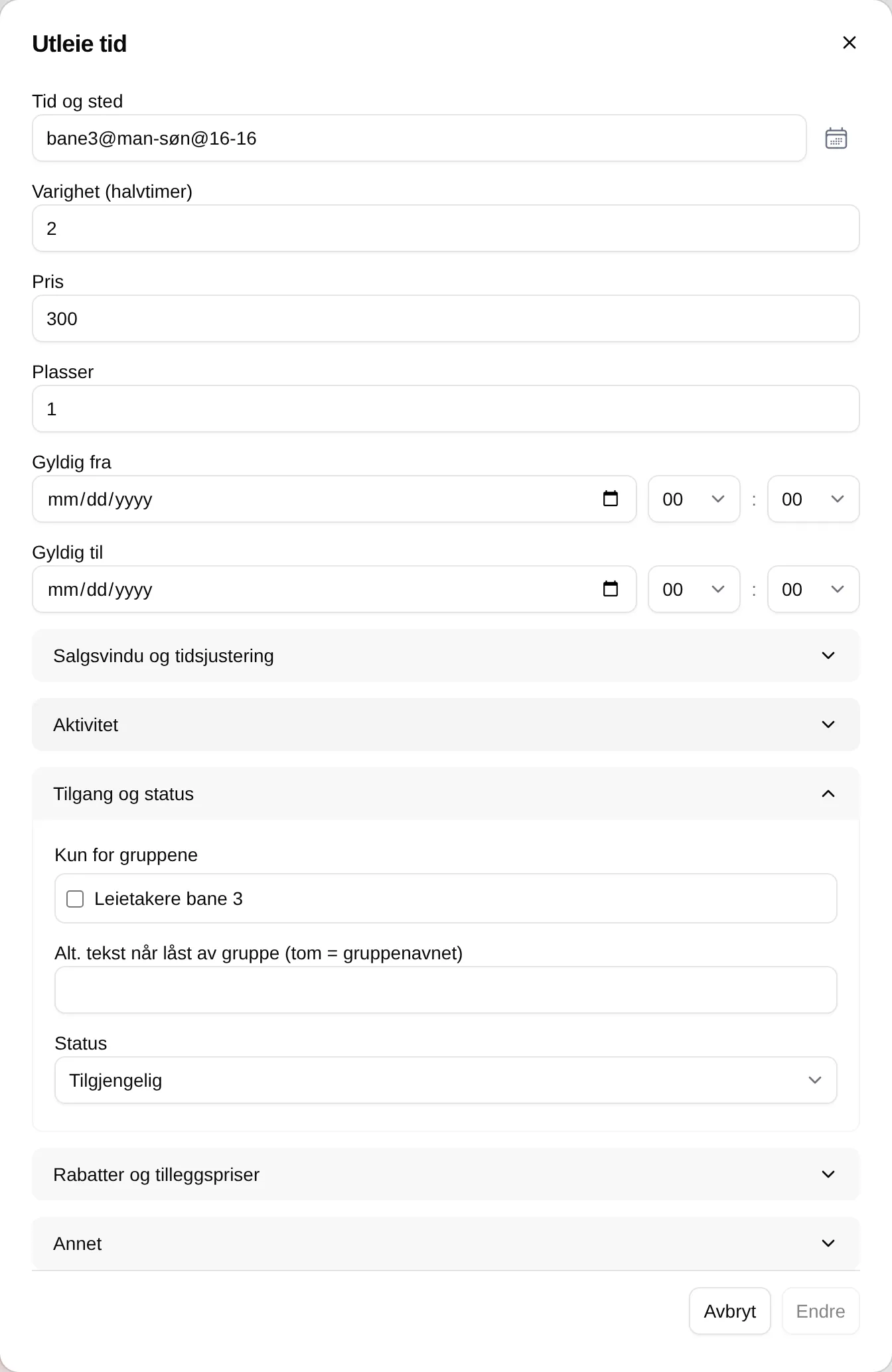
| Field | How it works |
|---|---|
| Status — Available | Everyone who is signed in can book. |
| Status — Available with a club code | The customer must add a club code to the cart first. The slot is shown as 🔑 Members only. |
| Restricted to groups | Only members of the groups can book. Others see 👥 Group only. |
| Alt. text when locked by group | The text others see on the slot. Empty means the group name. |
Restricted to groups also exists on the rental unit, and then locks every slot on the unit.
Ticket group
Section titled “Ticket group”Ticket group on a rental unit links units that share space — for example a whole hall and its two halves. If one is booked, the overlapping slots on the others become Unavailable.
Releasing
Section titled “Releasing”- Customers can release their own slots until the slot starts. There is no setting for an earlier deadline.
- Nothing is refunded automatically. The customer gets a receipt for 0 kroner. If you want to give money back, you have to do it yourself — for example with a gift card.
- The slot becomes available to others straight away.
- Supporters, administrators and owners can release other people’s slots from the info box.
Who can do what
Section titled “Who can do what”| Role | Can, in addition to ordinary customers |
|---|---|
| Supporter | Release other people’s slots, see other people’s access codes, use Hurtig, book on behalf of. |
| Administrator, Owner | Everything above, and book slots that are ⏰ Closed, 🔑 Members only or ⚠️ Quota used up. Book when Booking is open is off. |
Nobody can add slots marked 👥 Group only to the cart from the slot picker, not even administrators.
Hurtig
Section titled “Hurtig”
Supporters and above get the Hurtig (quick) button in the day view. When it is on, one tap on an available slot puts it straight in the cart, without the info box. Slots that require a choice — activity, group size or price — cannot be quick-selected and turn grey.
Manage slot
Section titled “Manage slot”Supporters, administrators and owners see Manage slot in the info box, below the booking button. It opens a dialog with:
| Button | Does |
|---|---|
| Make unavailable | Closes the slot. Existing bookings are kept. |
| Make available | Opens a closed slot again. |
| Release this time | A fixed slot does not apply on this date. The ordinary rental slot is shown instead, or the slot is closed if no rental slot covers it. |
| Restore fixed slot | Puts the fixed slot back for the date. |
| Remove changes to this slot | Back to what the rental slots and fixed slots say. |
| DETAILS | Change the text, activity and more for just this slot. |
The changes apply only to that one slot. More about each button: Managing single slots.
Settings
Section titled “Settings”| Field | How it works |
|---|---|
| Booking is open | Off: customers see Booking is down for maintenance. Please try again later. Administrators and owners can still book. |
| Message on the booking page | Shown at the top of the booking page. |
| Maximum days before sales open | Has no effect at present. |
| Default number of days before sales open | Used when Sales open is empty. 30 by default. |
| Show the ticket holder’s public name in booking info | Shows TICKET HOLDER in the info box. |
| Default slot picker view | Day or Month when the booking page opens. |
Step-by-step setup: the admin guide for booking. The customer’s side: the booking reference.