
Optional prices
Optional prices let the buyer choose a cheaper price for themselves — typically student or senior — without providing any proof. The facility offers the price on trust.
The alternative is to hand out club codes to every student, and for most facilities that is more admin work than the revenue it loses. If you accept that some people will choose the wrong price, this is the simple solution.
Setup in three steps
Section titled “Setup in three steps”Optional prices are defined in one place and turned on where they should apply. That is deliberate: the name and the rate should be the same across all slots, all events and all reports, and the rate should be changeable in one place.
- Define the prices under Facility → Optional prices.
- Turn them on per rental time under Rental → Rental times.
- Turn them on per ticket group on each individual event.
If you only do step 1, nothing happens for your customers. The prices have to be turned on somewhere to be offered.
Step 1 — define the price
Section titled “Step 1 — define the price”Go to Facility and open the Optional prices section.
Click Add price. You get a new row named “New price” with a 50 % discount. Click the pencil button to edit it:
| Field | Example value |
|---|---|
| Id | pris-4f2a91c3 (auto-generated) |
| Name | Student |
| Type | Percent off |
| Value | 50 |
| Terms | Requires a valid student card |
| Require buyer confirmation | off / on |
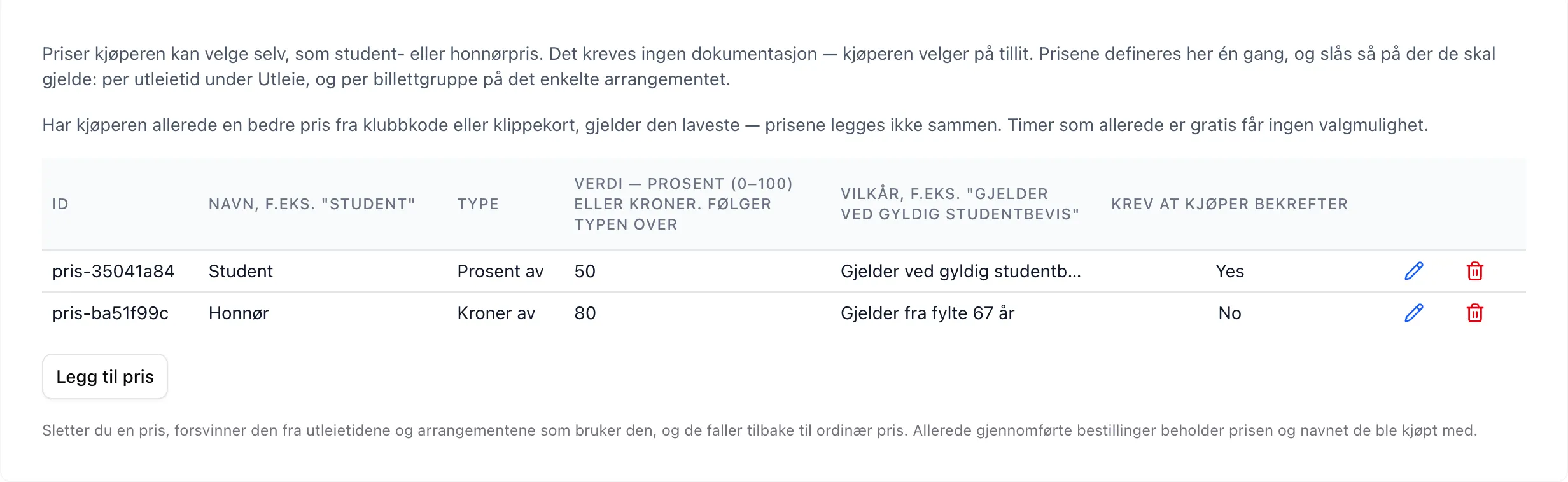
See the field reference for what each field does.
Remember to click save at the bottom of the Facility page.
Step 2 — turn the price on for rental slots
Section titled “Step 2 — turn the price on for rental slots”Go to Rental → Rental times and click the pencil button on the row you want to offer the price on. The field Optional prices (student, senior, …) is a list of checkboxes — one for each price you defined in step 1, plus All.
Tick the prices the row should offer, and save at the bottom of the page.
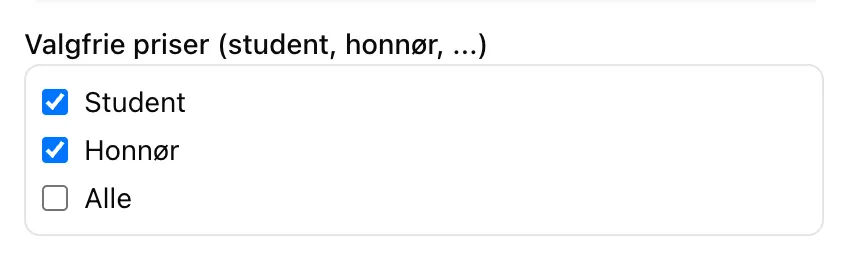
The field is hidden until you have defined at least one price under Facility.
Check the Preview at the bottom of the Rental page: slots that offer
optional prices get a small yellow + by the price.
Step 3 — turn the price on for an event
Section titled “Step 3 — turn the price on for an event”Open the event, go to the tab with ticket groups (sub-events), and find the field Optional prices (student, senior, …) below the price field. It is the same checkbox list as for rental times, and is set per ticket group.
Save the event.
What customers see
Section titled “What customers see”The price in the overview is always the regular price, with a small + showing
that alternatives exist. The customer only sees the actual price list when the
slot or the sign-up is opened — and the regular price is always
preselected.
See Choose your own price for the customer’s side of things.
Worth knowing before you set it up
Section titled “Worth knowing before you set it up”- Prices don’t stack. If the customer already has a better price from a club code or punch card, the lowest one applies. You can’t accidentally give 50 % + 50 %.
- Free slots get no choice. If the slot is already 0 kr — punch card, season pass or free by configuration — no price list is shown.
- The group surcharge is not discounted. The student price applies to the slot price; the surcharge for group size is paid in full. Two people on a 200-kroner slot with a 100 kr group surcharge and a half-price student rate pay 100 + 100 = 200.
- The server recalculates the price. The customer only sends which price they chose, never an amount. If someone chooses a price the slot doesn’t offer, the order is rejected.
- If you delete a price, it disappears from every rental time and event that uses it, and they fall back to the regular price. Completed orders keep the price and the name they were bought with.
- Ids can’t be changed. You can edit the name freely — the name is what customers see and what ends up on the receipt.
How do I know whether it paid off?
Section titled “How do I know whether it paid off?”The choice is stored on every ticket with both id and name, so when the season is over you can count how many chose the student price and decide whether the scheme was worth it.