
Rules
Rules are texts customers must accept before they can complete an order — hall rules, house rules, “indoor shoes only”, or practical information about a particular court. You decide which purchases the rules apply to, and whether the customer must accept them every time, once, or when the rules change.
Turn on Rules
Section titled “Turn on Rules”- Go to Administration → Site and open Modules.
- Under Information for users, turn on Rules, and click Save.
Regler (Rules) is now in the menu. If the module is off, nobody is asked to accept any rules.
Create a rule set
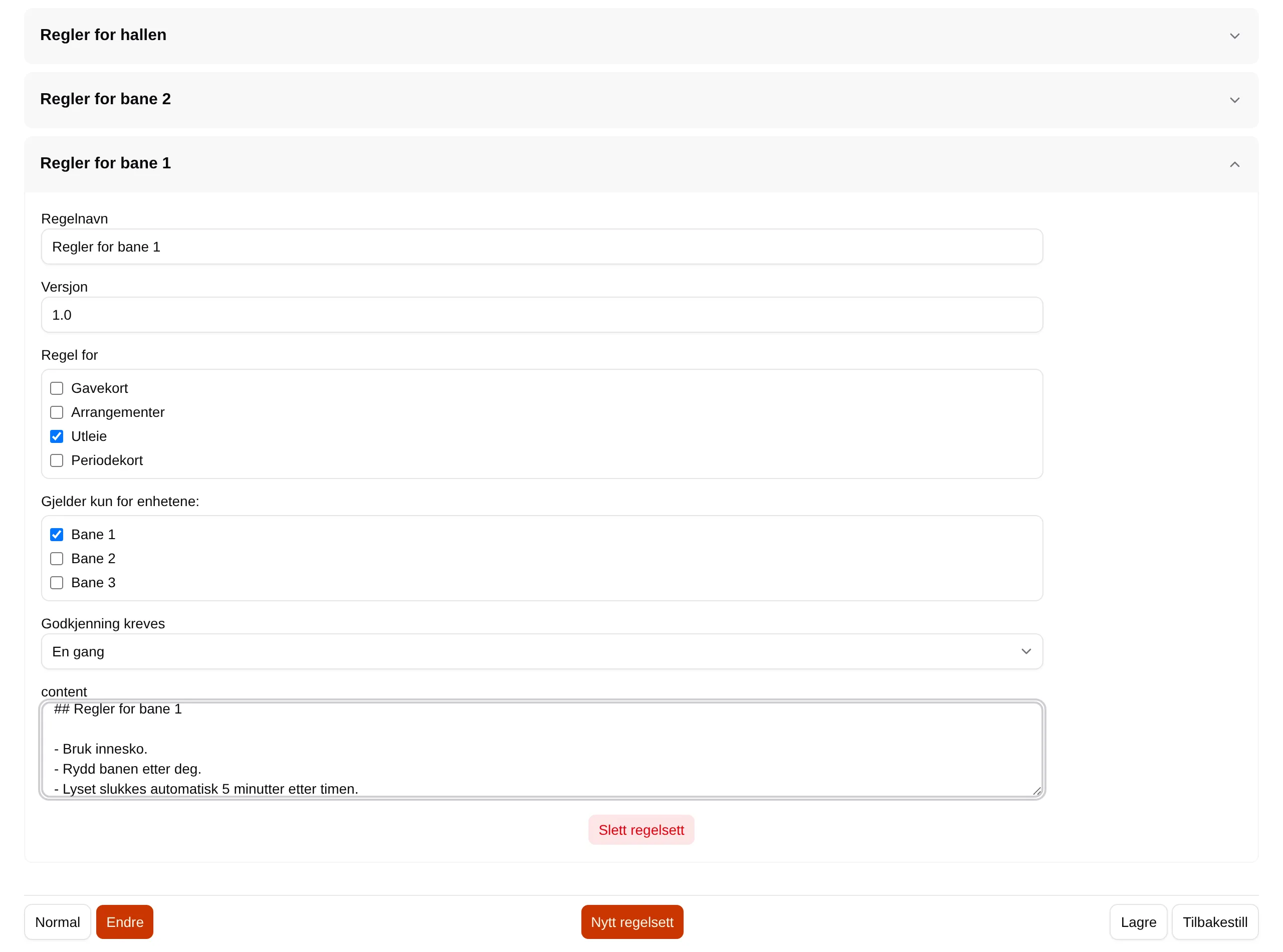
Section titled “Create a rule set”- Go to Regler in the menu and click Change at the bottom of the page.
- Click New rule set, and open Ny regel (new rule) that appears in the list.
- Fill in:
- Rule set name, for example “Rules for court 1”.
- Applies to: tick Rentals for slots, and optionally Events, Gift cards or Season passes.
- Applies only to these units: tick the courts the rules apply to. If they apply to all of them, tick them all.
- Acceptance required: for example Once.
- The rules themselves in the text field, in Markdown.
- Click Save.
What the customer sees
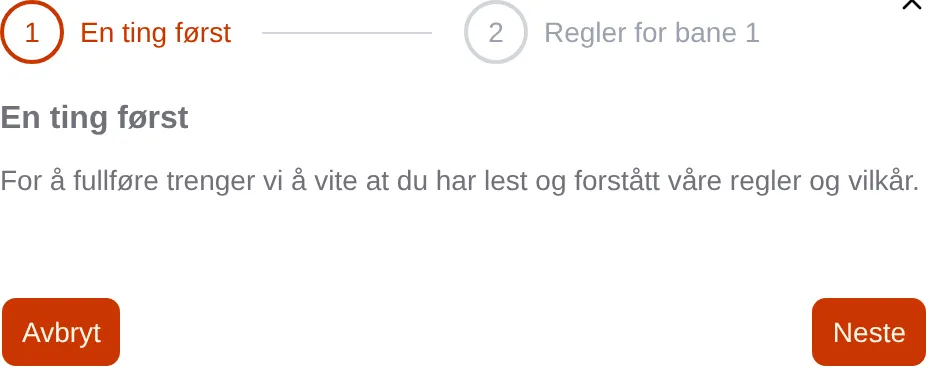
Section titled “What the customer sees”When the customer clicks Complete booking with a slot on Bane 1 in the cart, One thing first comes before payment:
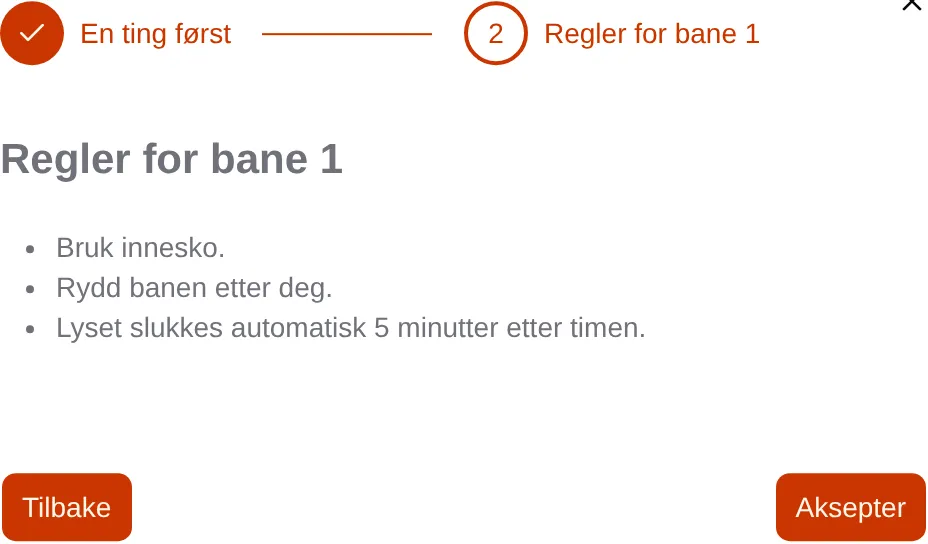
Then one step for each rule set, with Accept:
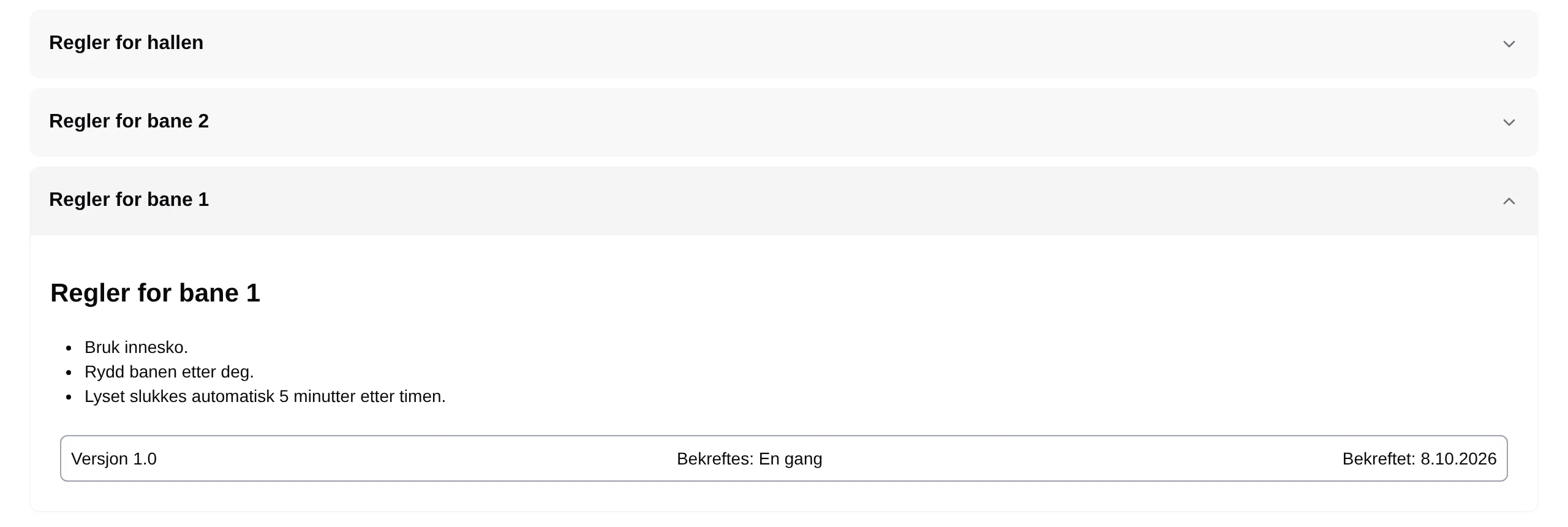
Once the customer has accepted, the date is shown below the rules on the Regler page, together with the version and how often they must be accepted.
Change the rules
Section titled “Change the rules”Click Change, open the rule set, correct the text and click Save. If you want customers to accept the new rules, increase Version — for example from 1.0 to 2.0 — and choose On major changes or Every version under Acceptance required. With Once, someone who has accepted once is not asked again.
Use cases
Section titled “Use cases”- Hall rules for everyone: tick Rentals and all the courts, and Events.
- Rules for one court, for example about equipment or surface: tick only that court.
- Payment information when the facility does not take payment in Velpr: write the account number or Vipps number in the rules, and choose Every time.
The terms of sale are on a separate page, but work the same way. See Terms.
The fields: Rules.