
Min side
Min Side (my page) gathers everything the facility knows about you: your contact information, receipts, slots you have booked, registrations and cards. You find it in the menu (☰) at the top right, under Min Side, when you are signed in.
Which parts you see depends on what the facility offers. If the facility does not use invoices or punch cards, those parts are not shown.
Update name, phone and email
Section titled “Update name, phone and email”- Open My account.
- Correct Name, Email, Phone or Public name.
- Press Save.
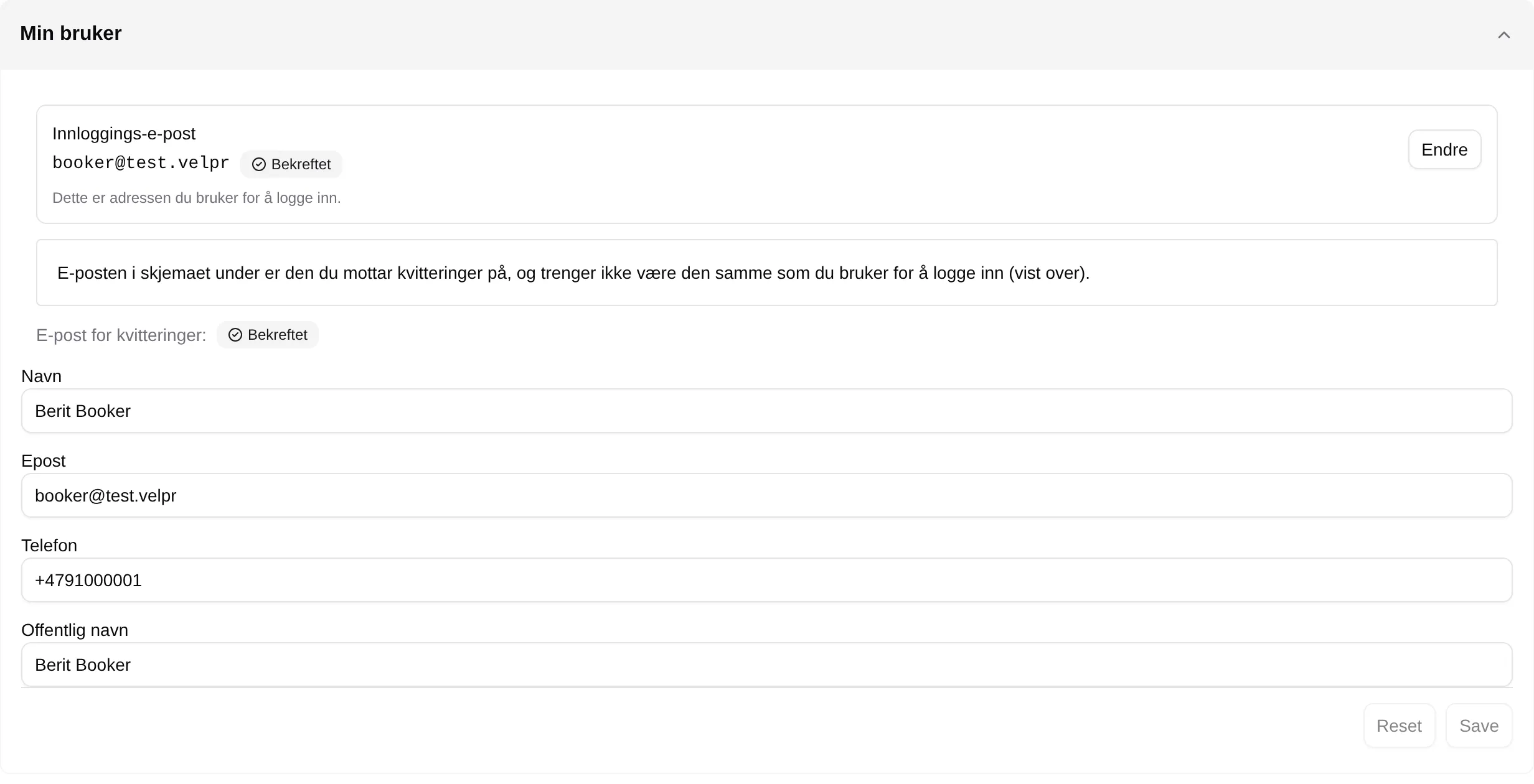
Email here is the address receipts are sent to. It can be different from the one you sign in with. Public name is the name others can see on the slots you have booked, if the facility shows it.
Verify the email for receipts
Section titled “Verify the email for receipts”If it says Not verified next to Receipts email, press Send verification and open the link you get by email. Then the facility knows the receipts get through.
If the address is the same as the one you sign in with, and it is verified, it says Verified right away.
Change the email address you sign in with
Section titled “Change the email address you sign in with”- Open My account.
- Press Change next to Login email.
- Write the new address in New email address and press Send verification.
- Open the link in the email you get at the new address.
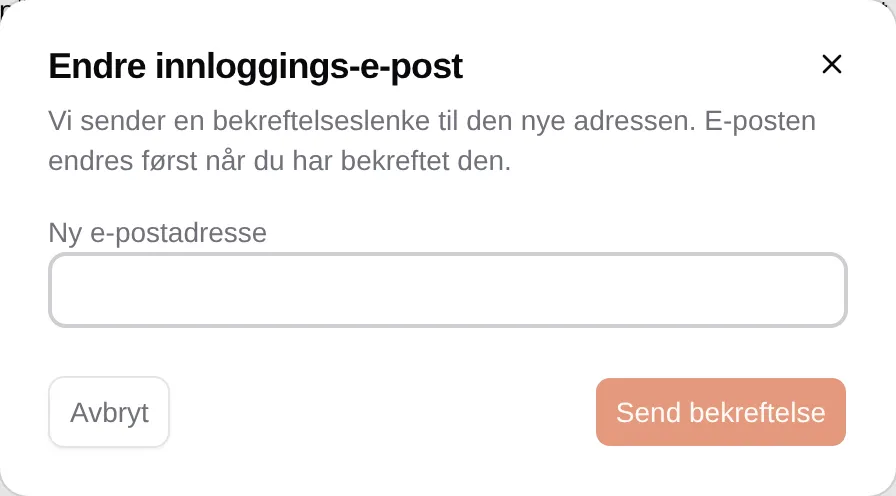
You sign in with the old address until you have clicked the link.
Find your slots
Section titled “Find your slots”Open Bookings. You see one week at a time, with the slots you have booked. Use the arrows to browse, and I dag (today) to come back to this week.
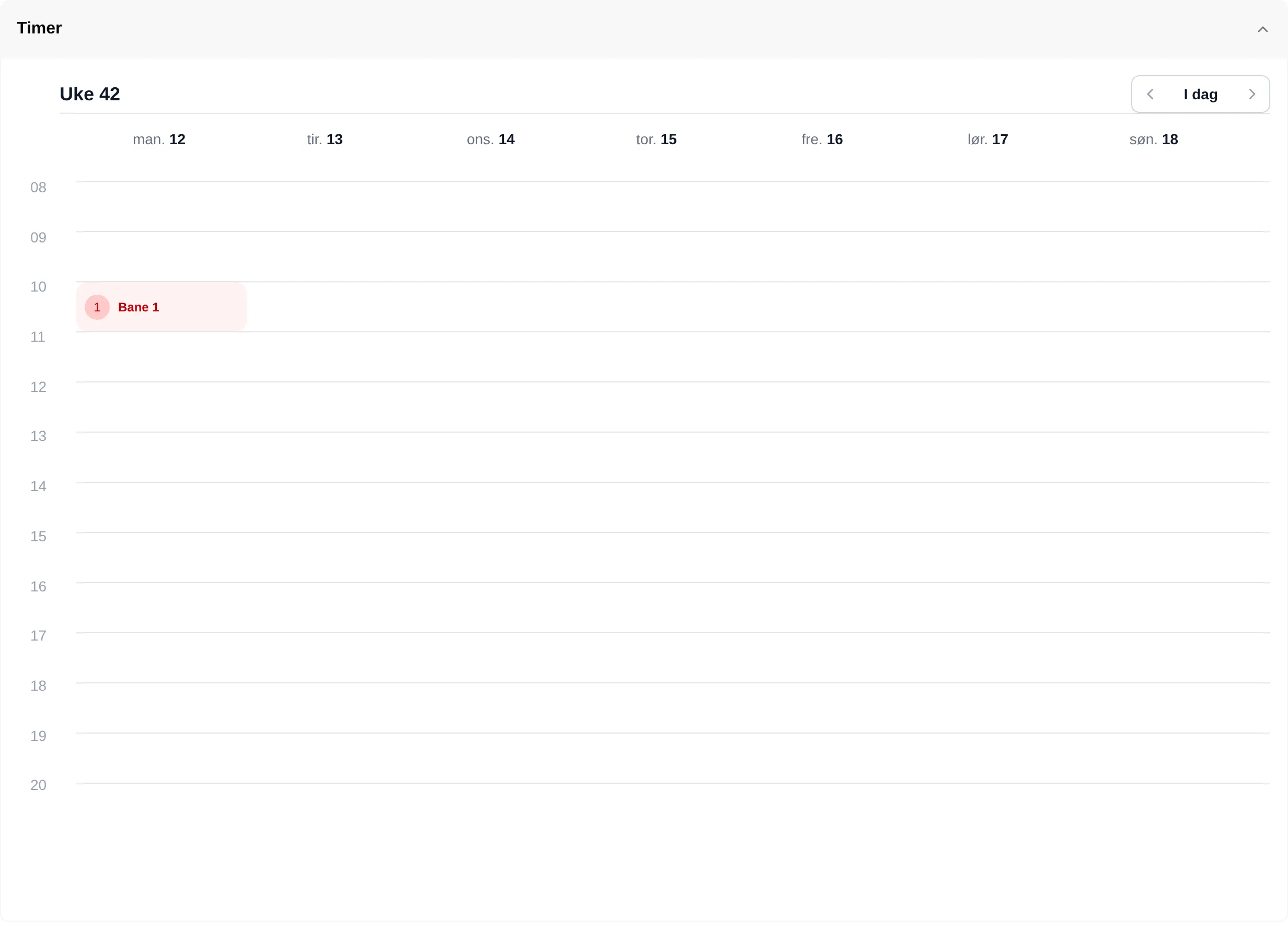
Tap a slot to see the court, activity and group. If you want to give up a slot, you do it from the slot picker — see Release a slot.
Find a receipt
Section titled “Find a receipt”Open Receipts and tap the order number. What the receipt shows is described in the payment reference.
Find the access code
Section titled “Find the access code”If the facility uses access codes, the code is shown at the top of Min Side when you have a slot starting soon: Adgangskode for en forestående time (access code for an upcoming slot). See Getting into the venue.
What each part of Min Side shows: the Min Side reference.