
Payment
Customers pay at checkout, below the cart. You decide which payment buttons they see. You can offer several at once — Vipps for most people, invoice for clubs and companies, and booking without payment for your own coaches.
| Payment method | Suits you when | You need |
|---|---|---|
| Vipps MobilePay | Most customers are private individuals in the Nordics. | A Vipps online agreement. |
| Stripe | You want to accept ordinary payment cards. | Your own Stripe account. |
| Invoice | The customers are clubs or companies that want a bill. | Org. no. and address in the owner info. |
| No payment | Some people should be able to book without paying in Velpr — staff, coaches. | Nothing. |
PayPal is also available, but few facilities use it.
Setup in four steps
Section titled “Setup in four steps”- Turn on the modules under Site → Modules.
- Fill in the keys under Payment.
- Save.
- Check the checkout as an ordinary customer.
Step 1 — turn on the modules
Section titled “Step 1 — turn on the modules”Go to Site and open Modules. Under Payment, turn on what you want to offer, and press Save at the bottom.
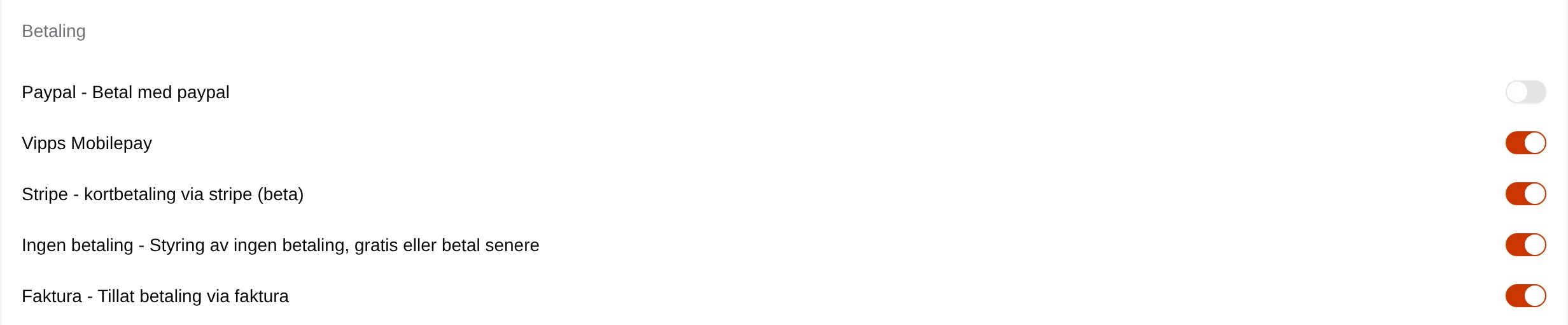
Once at least one payment module is on, Payment appears in the admin menu.
Step 2 — fill in the keys
Section titled “Step 2 — fill in the keys”Go to Payment. The page has one section per module you turned on.
Vipps MobilePay
Section titled “Vipps MobilePay”Follow the Vipps guide to order Vipps online and get the keys. Then choose which Vipps solution you have an agreement for under Vipps MobilePay - integrasjon (integration), and paste the keys into the section with the same name. The details are on the Payment page.
Stripe
Section titled “Stripe”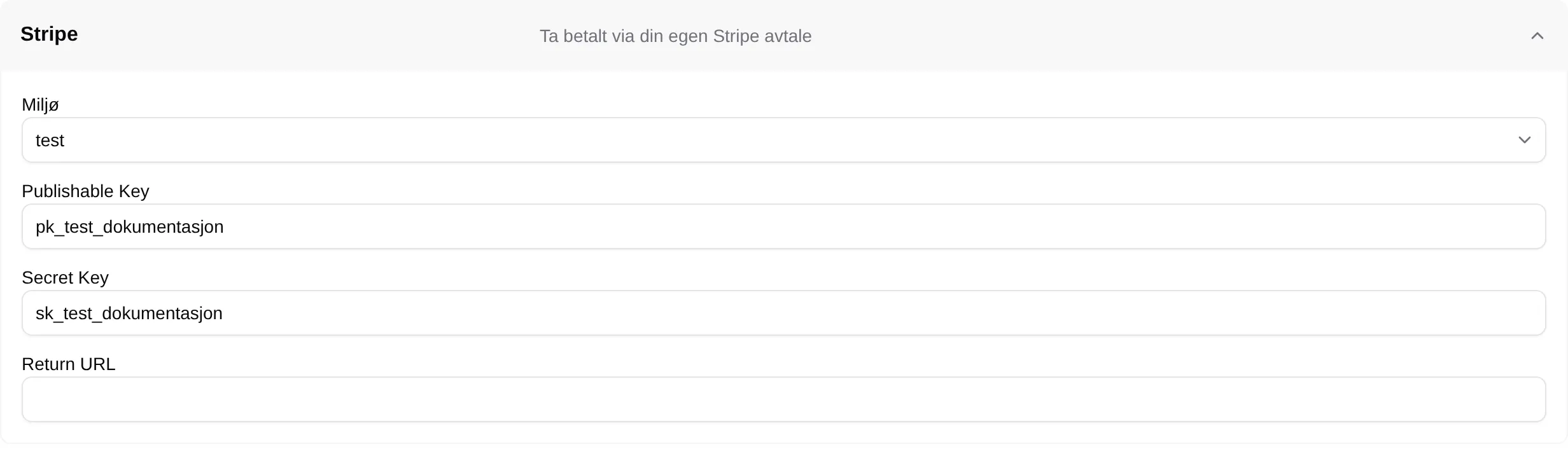
- Sign in to Stripe and get the Publishable key and Secret key under API keys.
- Choose Environment: test while you try things out, production when you take real payments.
- Paste in the Publishable Key and Secret Key.
The keys must match the environment. A secret key starting with sk_test_ only
works with test, and one starting with sk_live_ only with
production. If they are wrong, every card payment fails.
Invoice
Section titled “Invoice”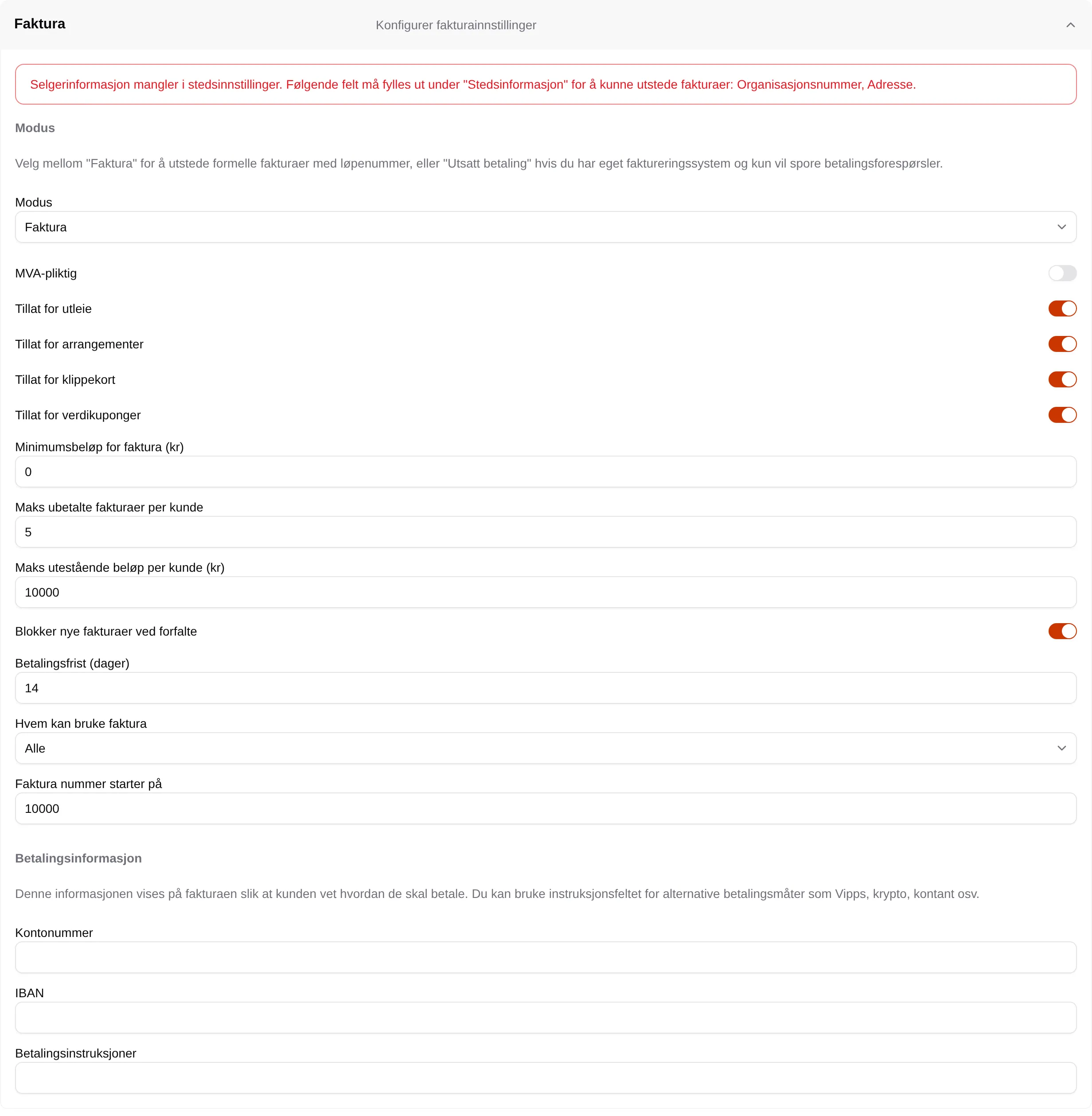
Invoicing requires the facility to have a legal name, organisation number, address and email. If anything is missing, it says so in red at the top of the section, and customers cannot use the button.
Then choose Mode — Invoice if Velpr should create the invoices, Deferred payment if you invoice in your own system — and fill in Account number under Payment information. The other fields have sensible defaults. What each field does is on the Payment page.
No payment
Section titled “No payment”
Choose who may book without paying in Allow payment outside the system. They get the Paid outside the system button at checkout — or Complete booking if they are ordinary customers.
| Choice | Who may book without paying |
|---|---|
| None | No one. |
| Owner | Owners only. |
| Administrator | Administrators and owners. |
| Supporter | Supporters, administrators and owners. |
| Everyone | Everyone who is signed in — the facility is in effect free. |
Step 3 — save
Section titled “Step 3 — save”Press Save at the bottom of Payment. Reset discards the changes.
Step 4 — check the checkout
Section titled “Step 4 — check the checkout”Open the booking page in a private window, sign in as an ordinary user and put a slot in the cart. Under RESERVE AND PAY you should see one button per payment method you turned on.
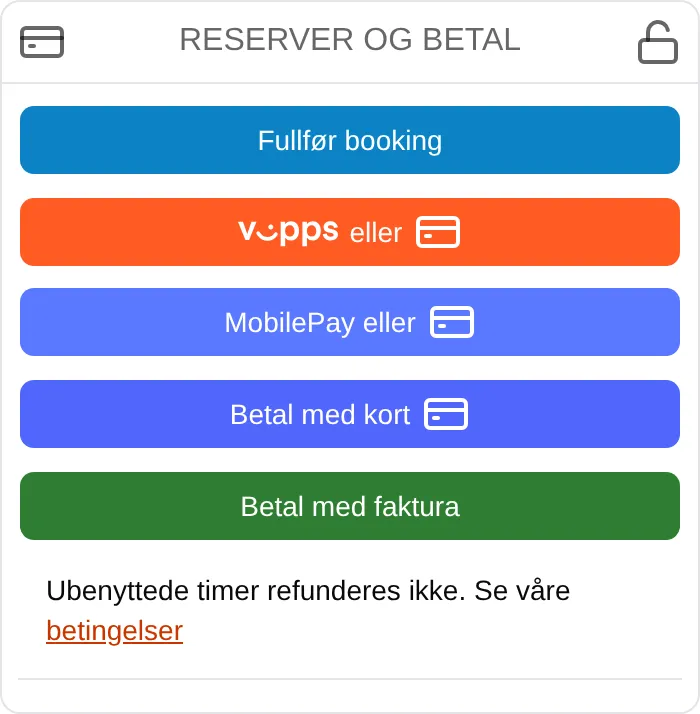
If a button is missing, check that the module is on under Site → Modules, and that the keys are saved.
Things worth knowing
Section titled “Things worth knowing”- An order that costs 0 kroner can always be completed with Complete booking, whichever modules are on.
- The text Unused bookings are not refunded. See our terms is always shown below the buttons, and the link goes to your terms page.
- You can extend the confirmation the customer sees after payment, and the receipt by email, with your own text under Site → Confirmation text.
Every field and every rule: the admin reference for payment. What it looks like for customers: Paying.