
Booking
The booking page looks a little different from facility to facility — each facility decides its own courts, prices and rules. The slot picker itself works the same everywhere.
You must be signed in to book.
How to book a slot
Section titled “How to book a slot”- Go to Booking. You see today’s slots, one column per court or room.
- To see another day, use the arrows at the top, or tap Month and pick the day in the calendar.
- Tap a green slot marked Available.
- Check the time and price in the info box that opens, and tap Add to cart.
- If you want more slots, repeat steps 3 and 4.
- Pay under the cart. See Paying.
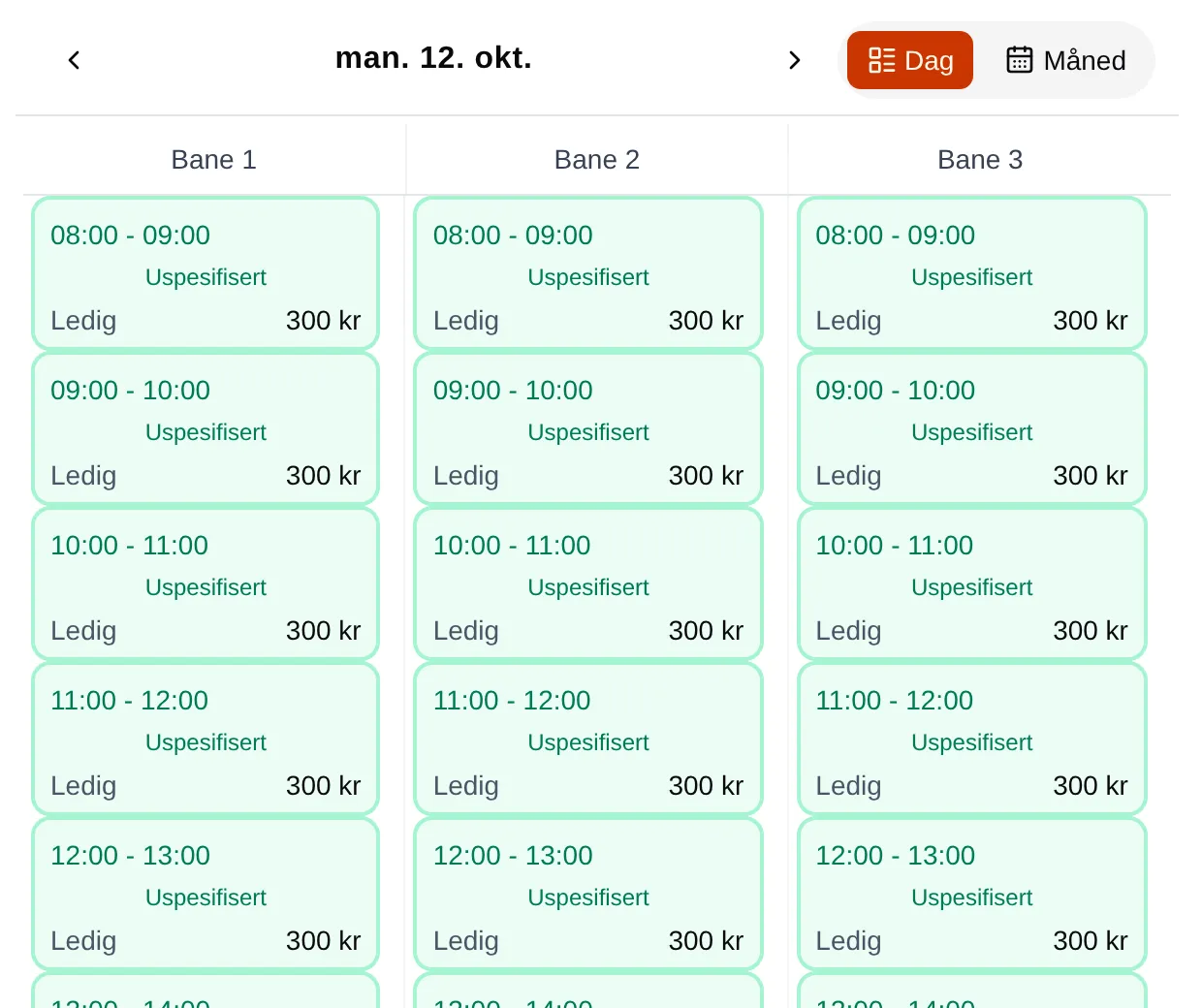
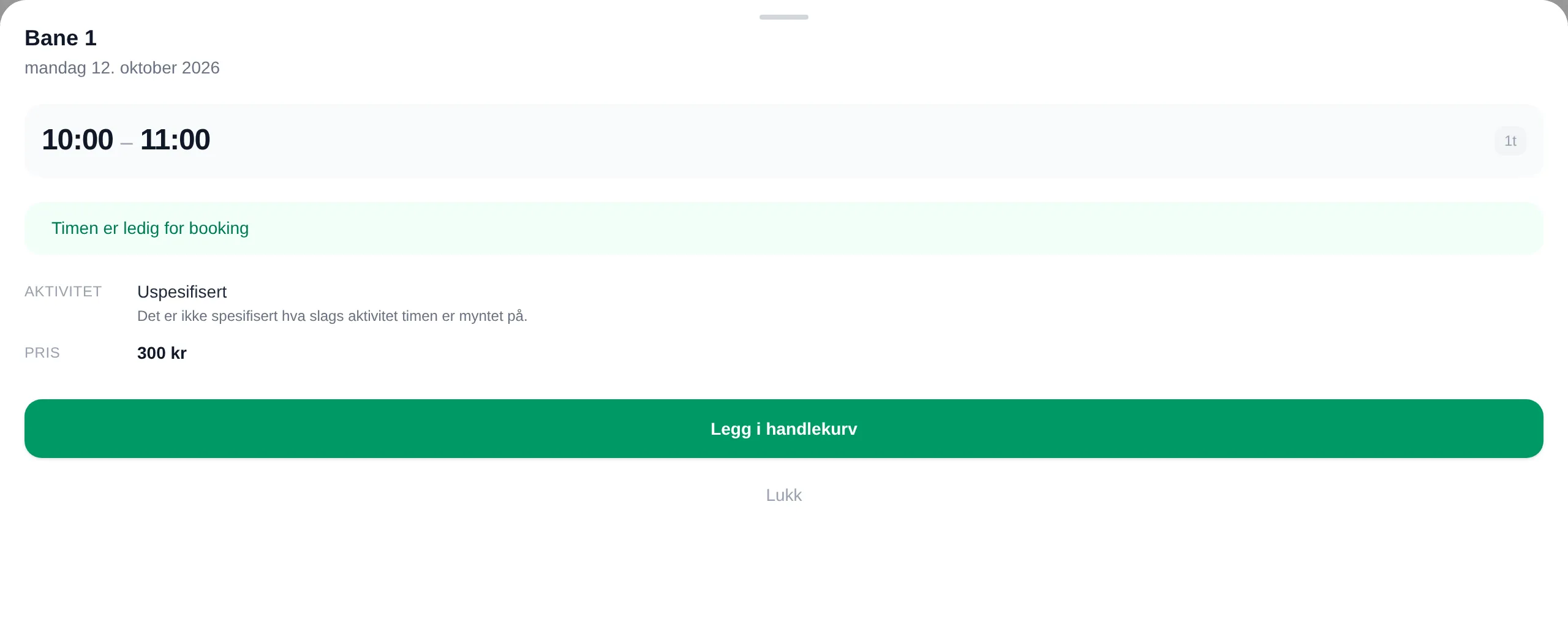
The slot is not yours until you have paid. As long as it is only in your cart, others can still book it.
When the info box asks you to choose something
Section titled “When the info box asks you to choose something”Some slots need a choice before Add to cart turns green. The text under the button says what is missing:
- Select activity to continue — the facility wants to know what the slot will be used for.
- Select group size to continue — the price depends on how many of you there are. See group price.
- Select price — the facility has a student or senior price. See Choose your own price.
Find an available day in the month view
Section titled “Find an available day in the month view”Tap Month to see the whole month. Each day has a small square per court and part of the day — morning, afternoon and evening — and the colour shows how much is available.
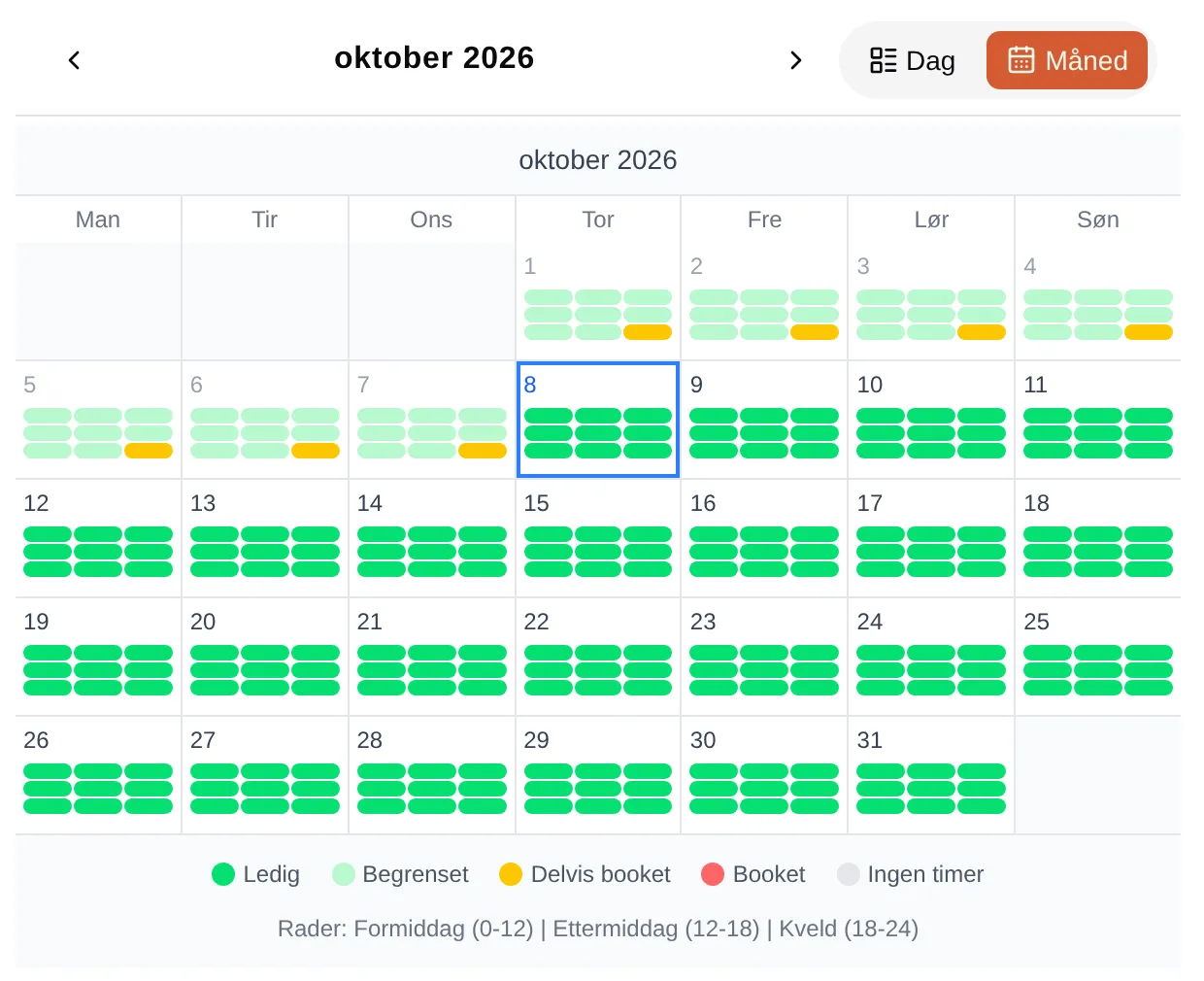
Tap a day to see the slots on that day. What the colours mean is explained in the reference.
See your slots
Section titled “See your slots”Slots you have booked are marked with ⭐ in the slot picker. You also find them under Min Side → Bookings.
Release a slot
Section titled “Release a slot”If you have booked a slot you don’t need, you can give it up so others can book it. In Velpr this is called releasing the slot.
- Tap the slot in the slot picker. The info box shows You have a ticket for this slot.
- Tap Release ticket.
- Tap Release in the window that opens.
- Tick the ticket you want to give up, and tap Release.
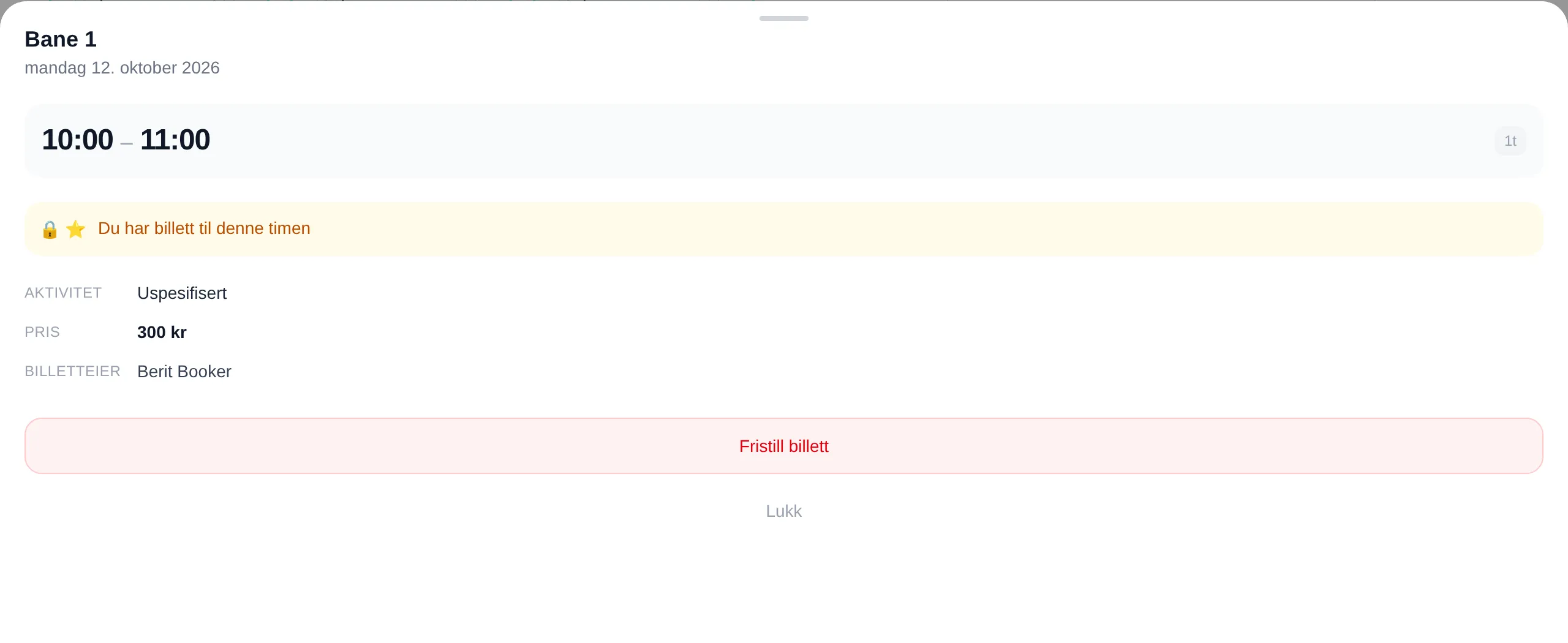
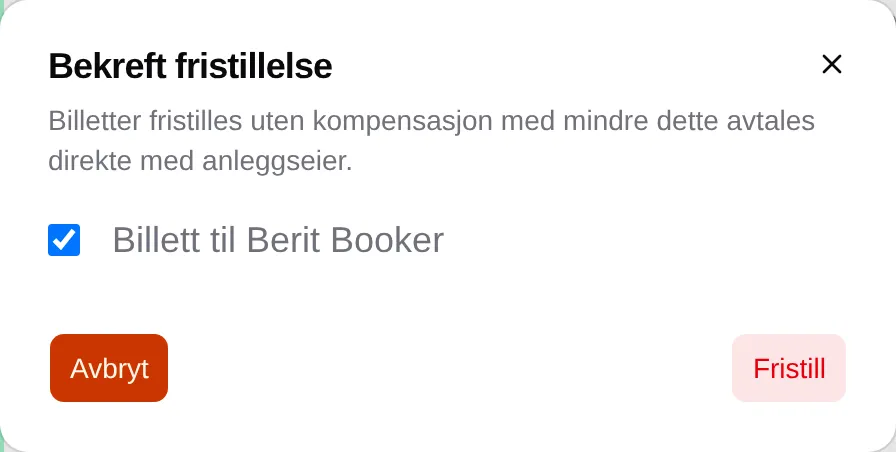
The slot becomes available right away, and you get a receipt by email.
You can release a slot right up until it starts. After that the button disappears. You cannot swap one slot for another — release the old one and book a new one.
Browse and navigate
Section titled “Browse and navigate”- The arrows at the top move you one day forward or back, or one month in the month view.
- Swipe sideways on a phone to do the same.
- If the facility has split its courts into groups, for example indoor and outdoor, you get buttons under the date that show only one group at a time.
- The address in the browser follows along, so you can share a link to a specific day.
What each colour, symbol and message means: the booking reference. If you are an administrator: the admin guide for booking.