
Managing single slots
The rental slots and the fixed slots decide what the slots look like week after week. If something should be different on one particular day — the court is closed for maintenance, the regular training is cancelled this week, a slot should cost something else — you change it straight from the slot picker, without touching the rental slots.
Supporters, administrators and owners see the Manage slot button in the info box for a slot, below the booking button. Everything you change on one slot, you do in the dialog it opens.
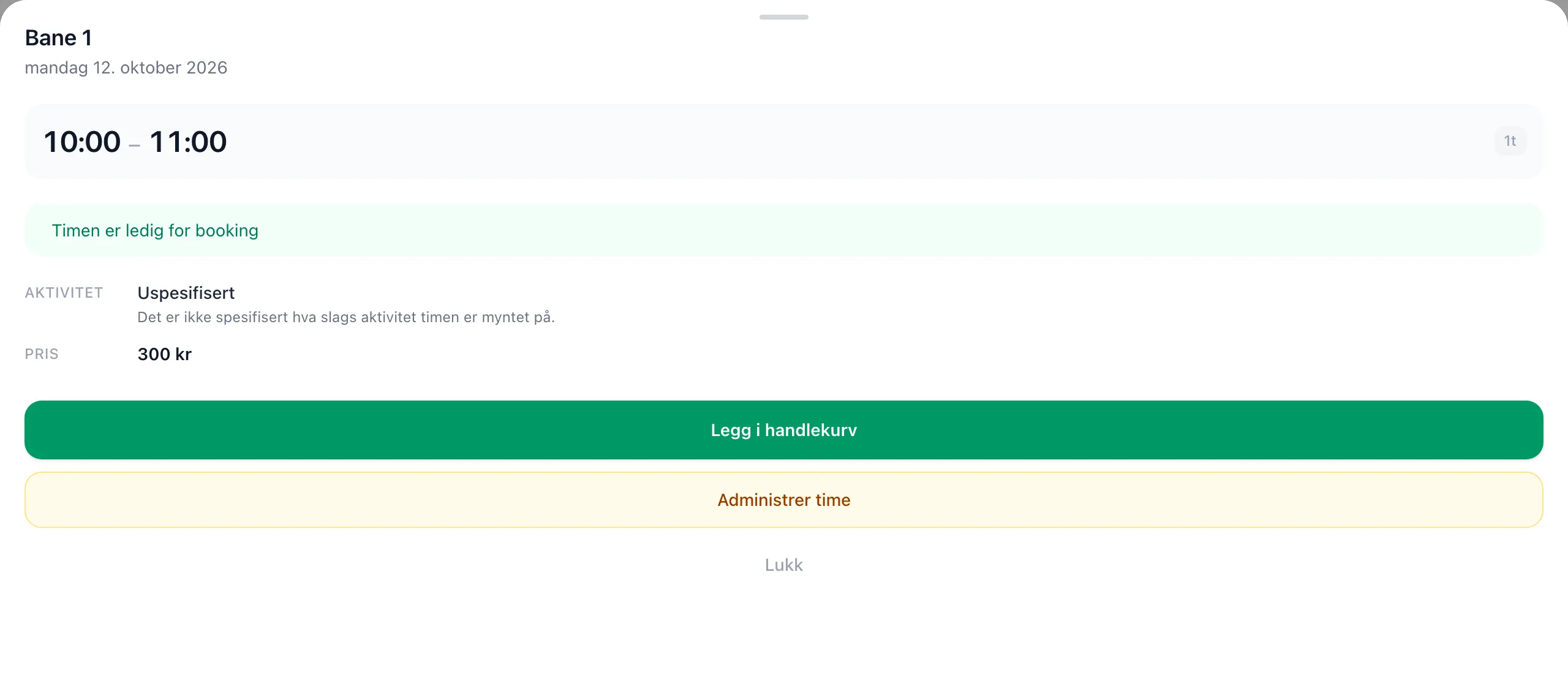
Close one slot
Section titled “Close one slot”- Go to Booking and tap the slot.
- Tap Manage slot.
- Tap Make unavailable.
The slot now shows as Unavailable to everyone. Bookings already made are kept — if it says Existing bookings are kept., you have to contact the people who booked yourself.
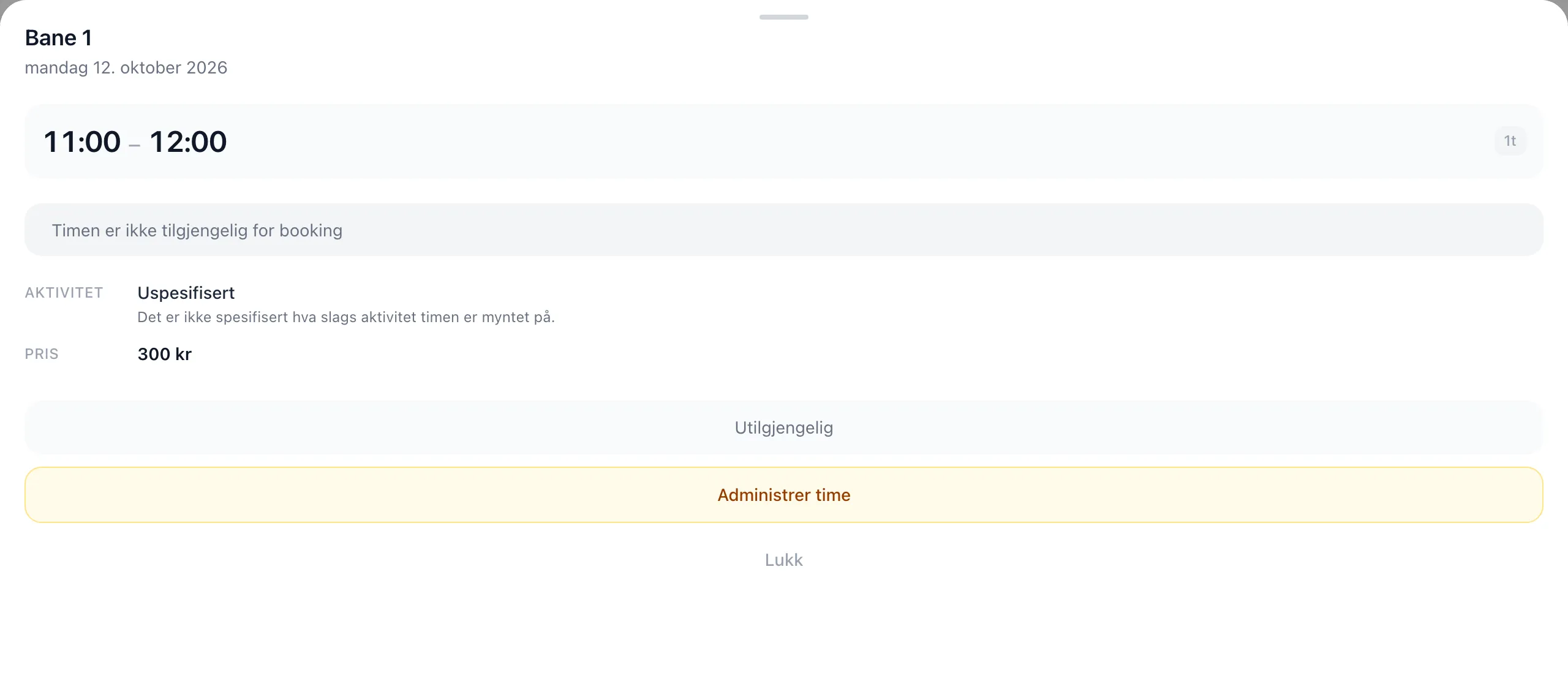
Tap Manage slot and Make available to open the slot again.
Release a fixed slot for one day
Section titled “Release a fixed slot for one day”If the regular club training is cancelled this week, and the court should be available for rent:
- Tap the fixed slot, then Manage slot.
- Tap Release this time.
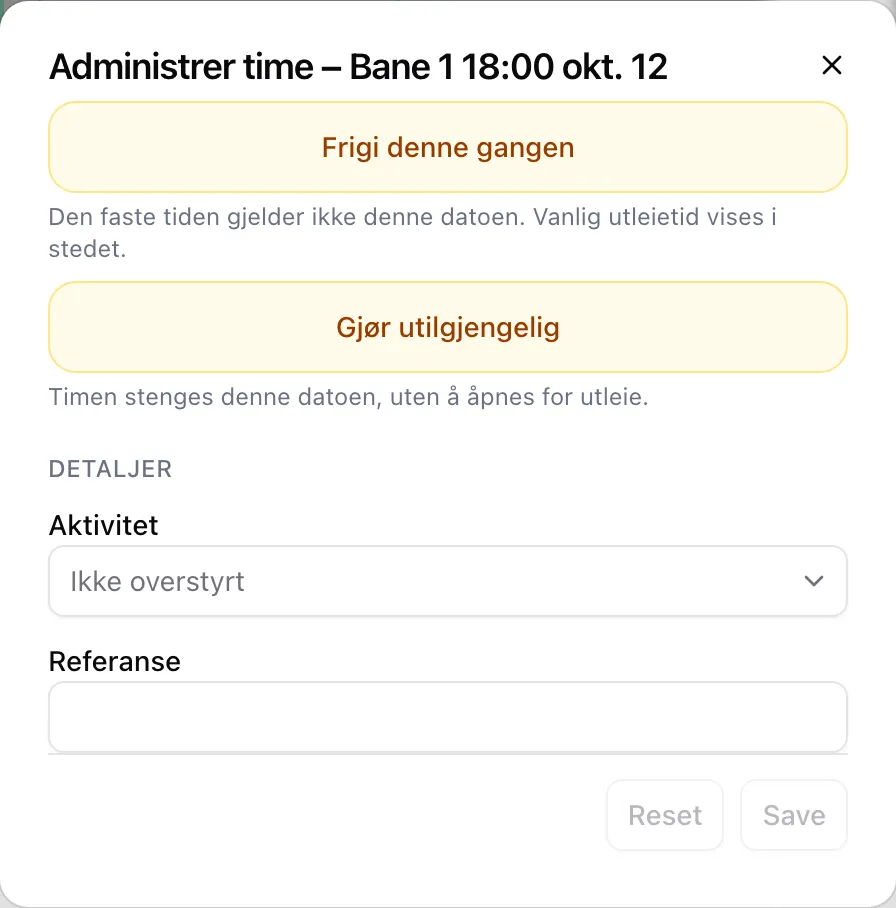
The fixed slot does not apply on this date, and the normal rental slot is shown instead — customers can book it. Tap Manage slot and Restore fixed slot to undo.
If no rental slot covers the fixed slot, it says so under the button before you tap it: the slot is then closed on this date, not available. To rent it out, there has to be a rental slot that fits.
If the slot should just be closed on this date, with no rental, tap Make unavailable instead of Release this time. Restore fixed slot undoes that too.
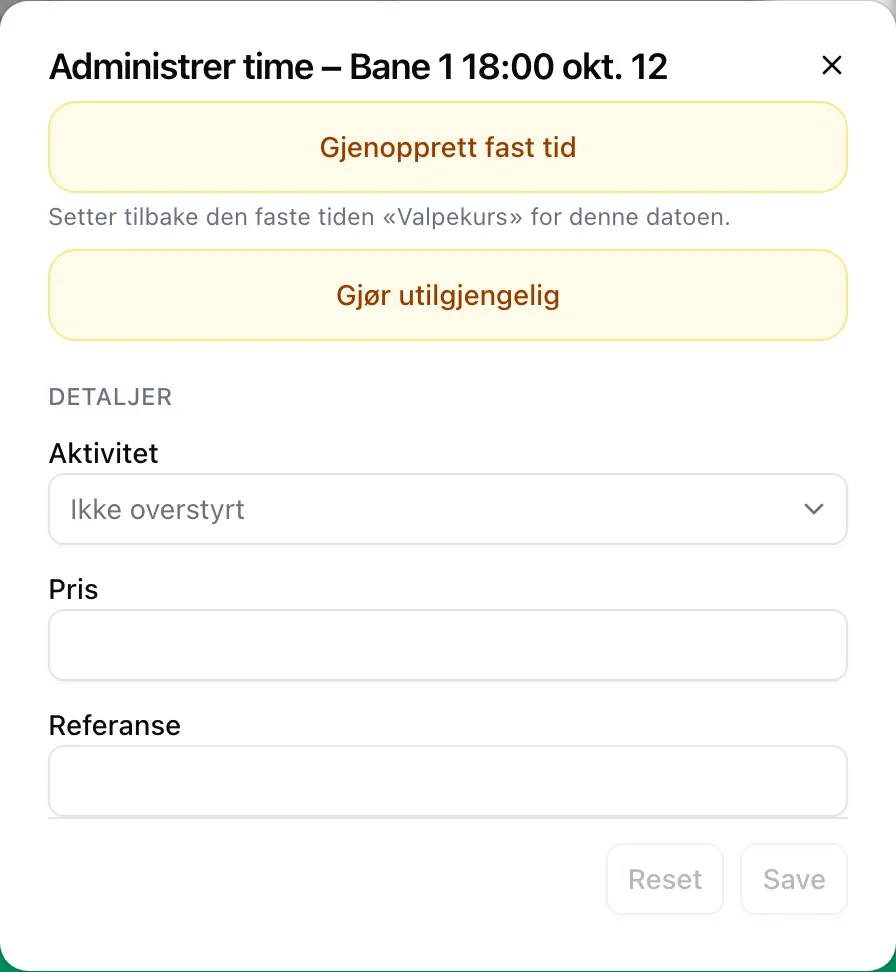
Change the price, activity or text of one slot
Section titled “Change the price, activity or text of one slot”- Tap the slot, then Manage slot.
- Under DETAILS, choose an Activity, or type a Price or Reference.
- Tap Save.
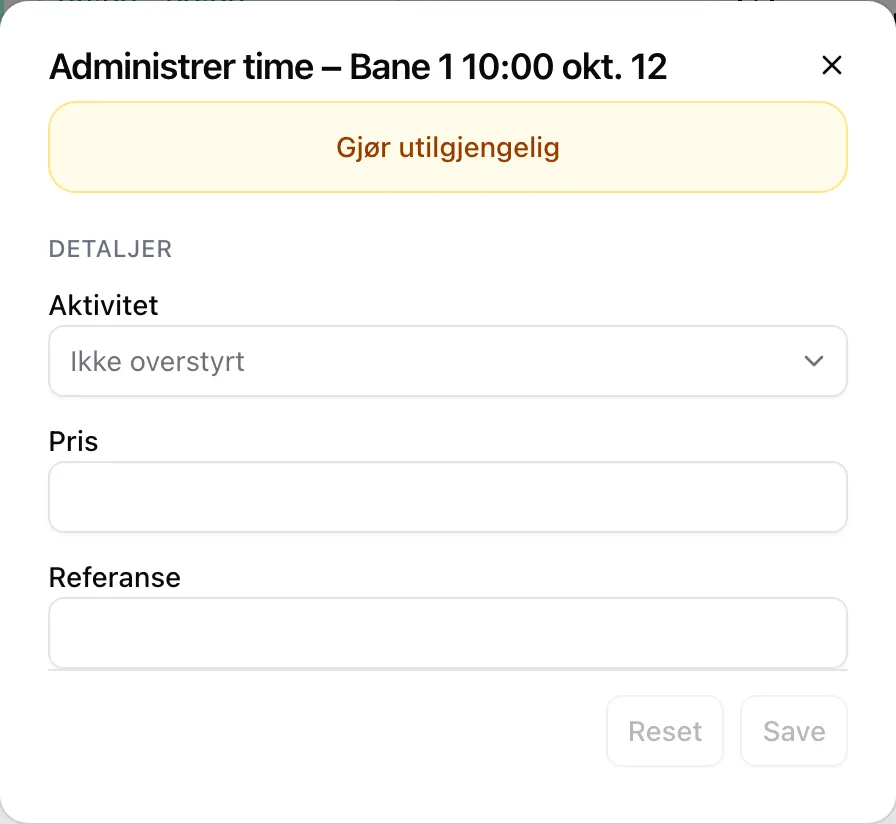
The change applies only to this slot. Remove changes to this slot in the same dialog sets everything back to what the rental slot says.
Release a customer’s ticket
Section titled “Release a customer’s ticket”If a customer has to be taken out of a slot — for example because the court is closed — you can give up the ticket on their behalf:
- Tap the slot. Under Ticket details you see who has booked, with phone, email and order number.
- Tap Release ticket, then Release.
- Tick the ticket and tap Release.
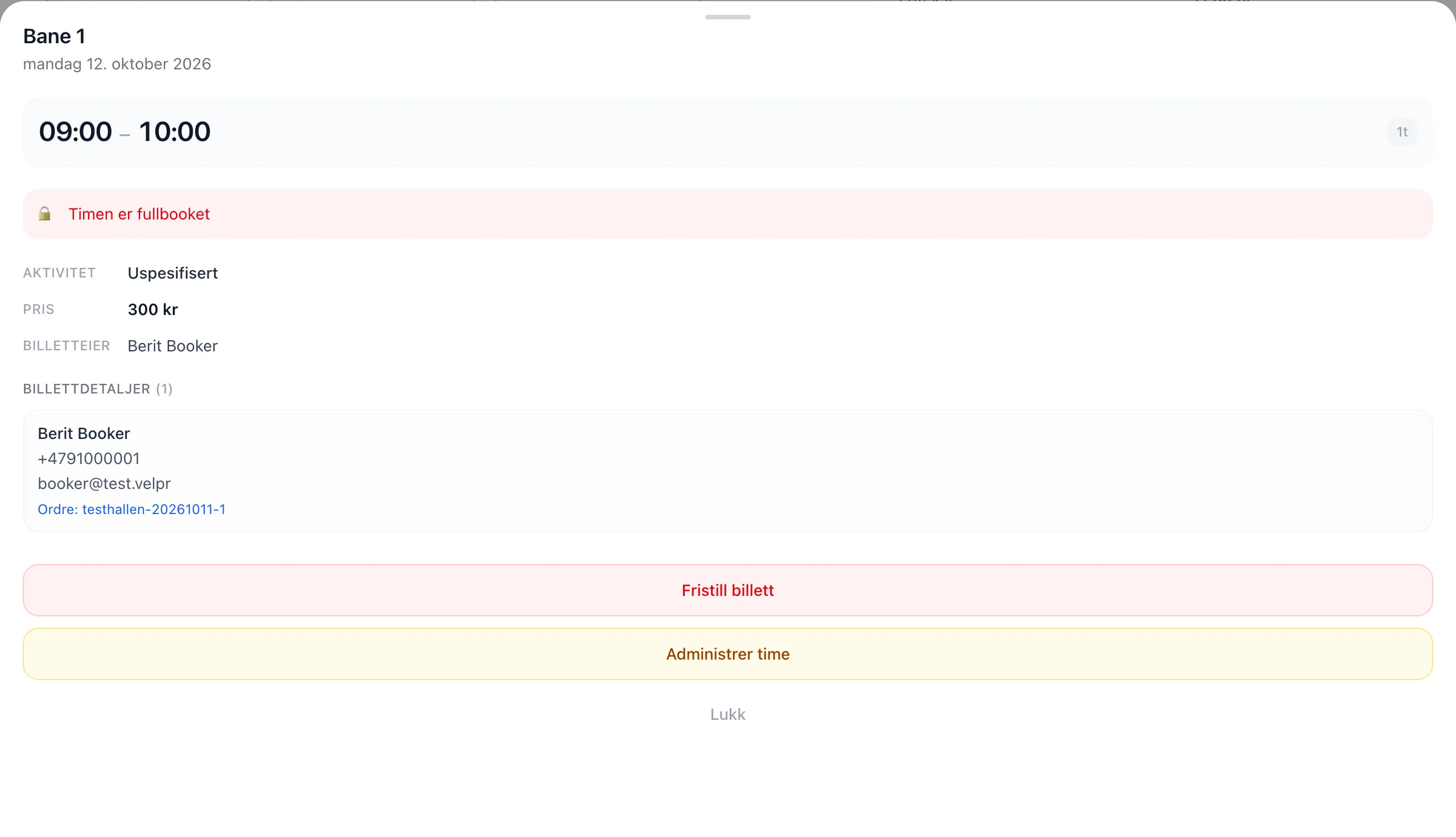
The customer gets a receipt by email. Nothing is refunded — if you want to give the money back, you do it yourself, for example with a gift card.
Book for others
Section titled “Book for others”- On behalf of in the cart makes the order the customer’s. See Payment.
- Paid outside the system completes without payment in Velpr. See Payment.
- Hurtig (quick) in the day view puts slots in the cart with one tap. See Booking.
The rules for each action: the admin reference for single slots.