
Events
An event is anything that is not ordinary slot rental — courses, competitions, working bees. It has its own page with information, one or more classes with tickets, and a sign-up form. Participants pay in the ordinary cart.
Administrators and owners can create and change events. Supporters can view and export the people signed up.
Step 0 — turn on events
Section titled “Step 0 — turn on events”Go to Site → Modules and turn on Events — offer events such as courses, shows and so on. Click Save. Events then appears in the menu.
Step 1 — create the event
Section titled “Step 1 — create the event”Go to Events and click New event. The window has five steps.
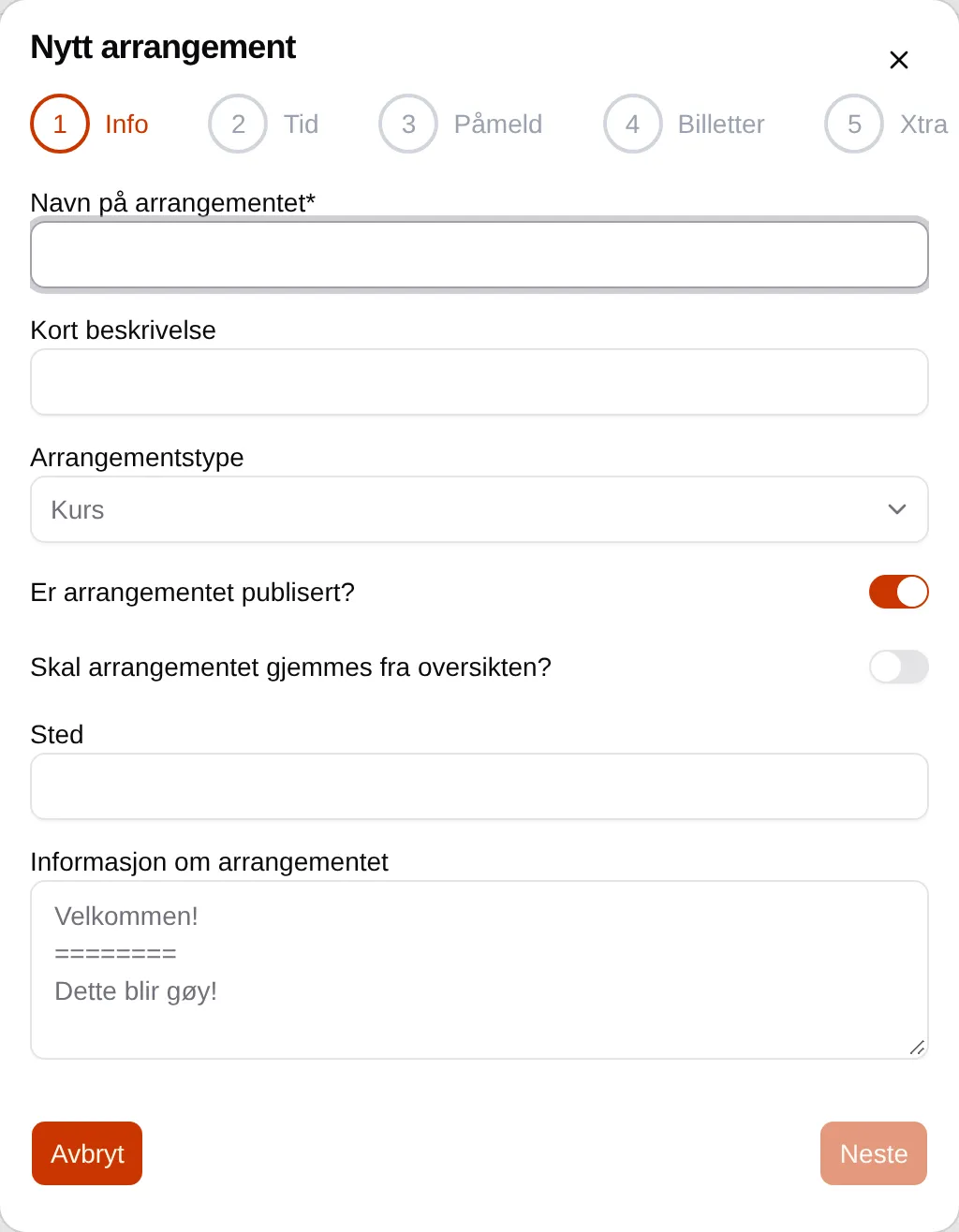
- Info — enter the Event name, a Short description, choose the Event type and enter the Location. Information about the event is the text on the Info tab, and can be formatted with Markdown.
- Time — choose the Overall start time and Overall end time.
- Sign-up — when registration opens and closes, and how long participants can change their registration.
- Tickets — the classes or ticket types. See step 2.
- Extra — questions the participants must answer. See step 3.
Click Finish.
Step 2 — set up the tickets
Section titled “Step 2 — set up the tickets”Each class or ticket type is a ticket group. A course usually has one, a competition has one per class.
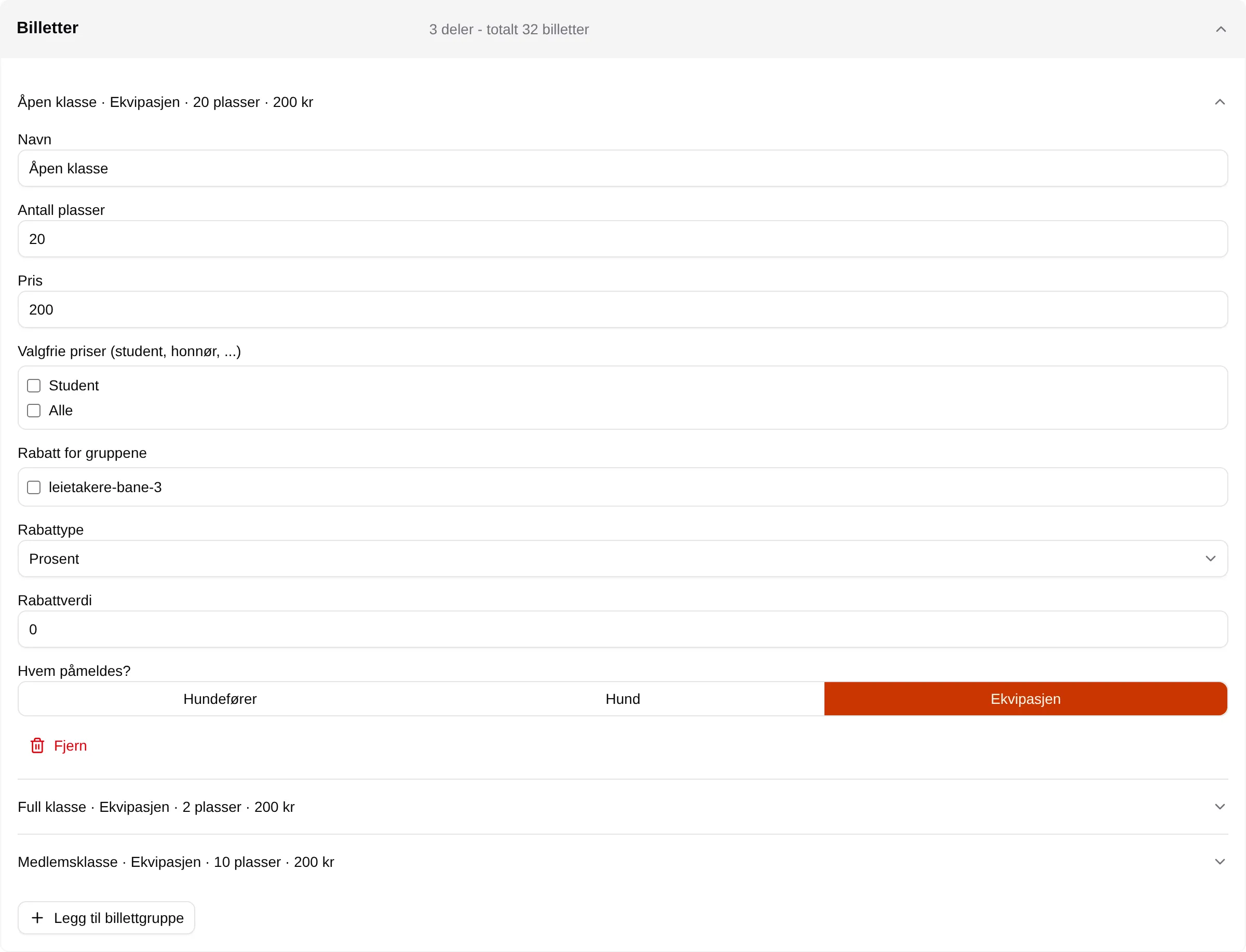
- Name — what participants see, for example “Open class”.
- Number of seats — how many can sign up.
- Price — the price per ticket.
- Who is signed up? — Handler, Dog or The equipage (both). This decides whether the registration asks about the handler, the dog or both.
Click Add ticket group for more.
Step 3 — ask for what you need
Section titled “Step 3 — ask for what you need”Under Extra (and later Sign-up form) you create the questions. Click New field and fill in:

- Field name — the question, for example “Club”.
- Field type — Text, Long text, Number, Yes/no, Date, Choice or Multiple choice.
- Required — the participant must answer before they can continue.
- Applies to — whether the question applies Per ticket, Per order, Per handler, Per dog or Per equipage. Each of them becomes a separate step in the registration.
- Who can see the answers — Organizer only, Participants or Everyone. Answers that others can see become a column under Participants.
Step 4 — give the event an image
Section titled “Step 4 — give the event an image”Open the event. At the top is the grey Admin view bar.

The image button opens Choose an image for the event. Choose one of your own images or one of the ready-made ones, and click Save. Without its own image, the event gets a default image for its type.
The other two buttons publish the event and the participant list, or take them down again. They are saved immediately.
Change the event later
Section titled “Change the event later”Open the event, go to Info and click Change at the bottom. The sections Overview, Times, Sign-up times, Tickets, Sign-up form and Feedback form open and close individually. Click Save when you are done, or Reset to discard.
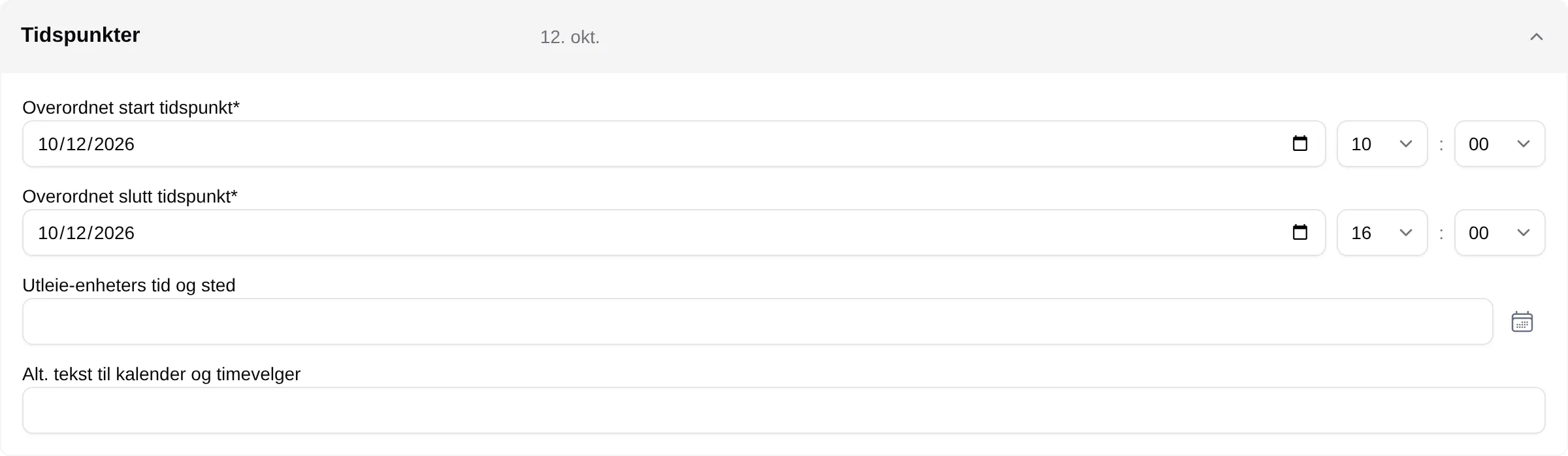
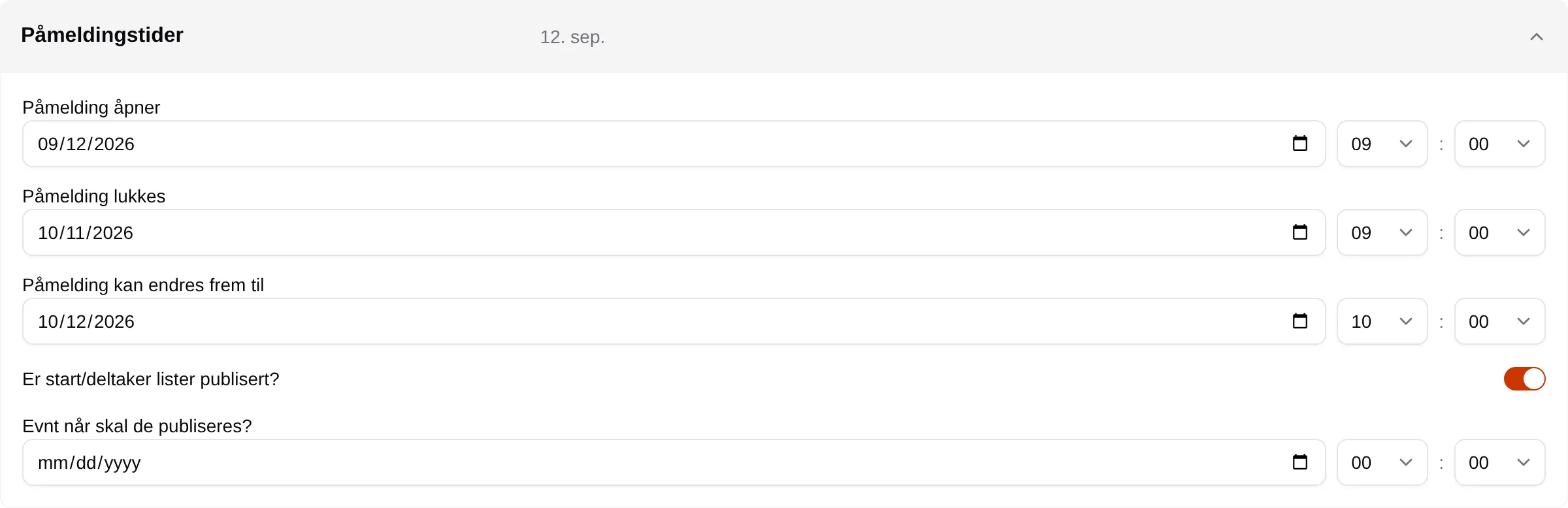
The fields are listed on Events.
While it runs
Section titled “While it runs”- Participants shows the people signed up per class. Eksporter (Export) downloads the list as a CSV file you can open in a spreadsheet.
- Messages → New message sends a notice to the participants. Tick Send as email to send it by email to everyone with a paid ticket.
- If a participant has to drop out, find them under Participants, click Manage and Release ticket. The participant gets an email. Velpr does not refund anything.
Afterwards — feedback
Section titled “Afterwards — feedback”Under Feedback form you create questions the same way as in the sign-up form. With Send automatically the morning after the event, each participant gets an email with a link the day after. Send feedback now sends it straight away. The answers appear under the Feedback tab.
Save the form before you send — it is the saved version that is sent.
Every field and every rule: the admin reference for events. What it looks like for participants: Registration.