
Pages, blog and images
Besides the booking, the facility can have a few fixed pages with text and images: About us, Find us (called Her er vi in the menu), Rules and Terms — and a blog for news. You write everything directly in Velpr.
There is no way to create completely new pages; you use the ones that exist, and give them the name you want in the menu.
Turn on About us and Find us
Section titled “Turn on About us and Find us”- Go to Administration → Site and open Modules.
- Under Information for users, turn on About us and/or Find us.
- Click Save.
The page is now in the menu. If it is empty, nothing is shown until you have written something.
Write on a page
Section titled “Write on a page”- Go to the page, for example Om Oss (About us) in the menu.
- Click Change at the bottom of the page.
- Write the text. The buttons above the text give bold and italic text, heading and subheading, bullet list and numbered list, quote, link and image.
- Click Save. The page is published straight away.
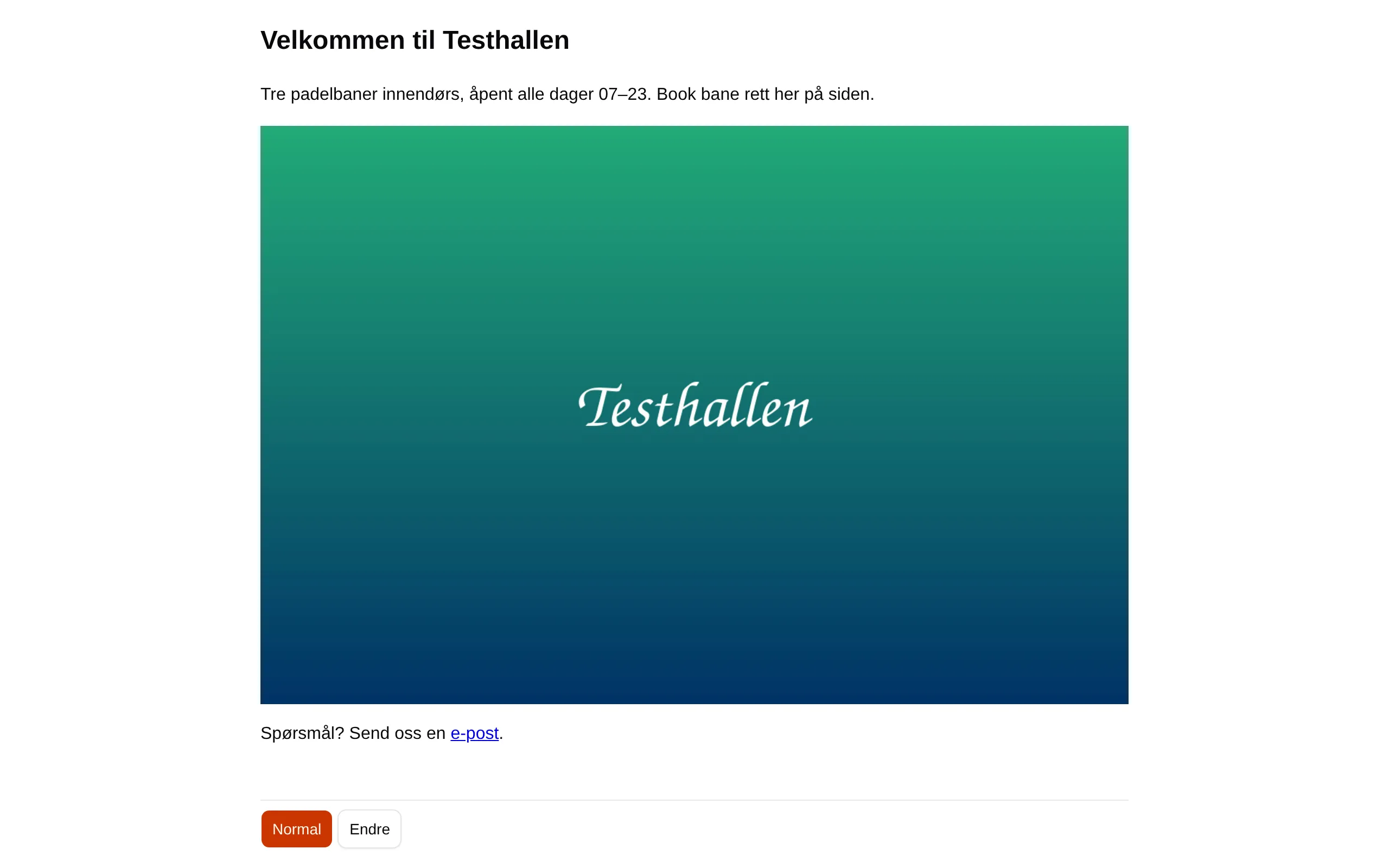
- Click Normal to see the page the way customers see it.
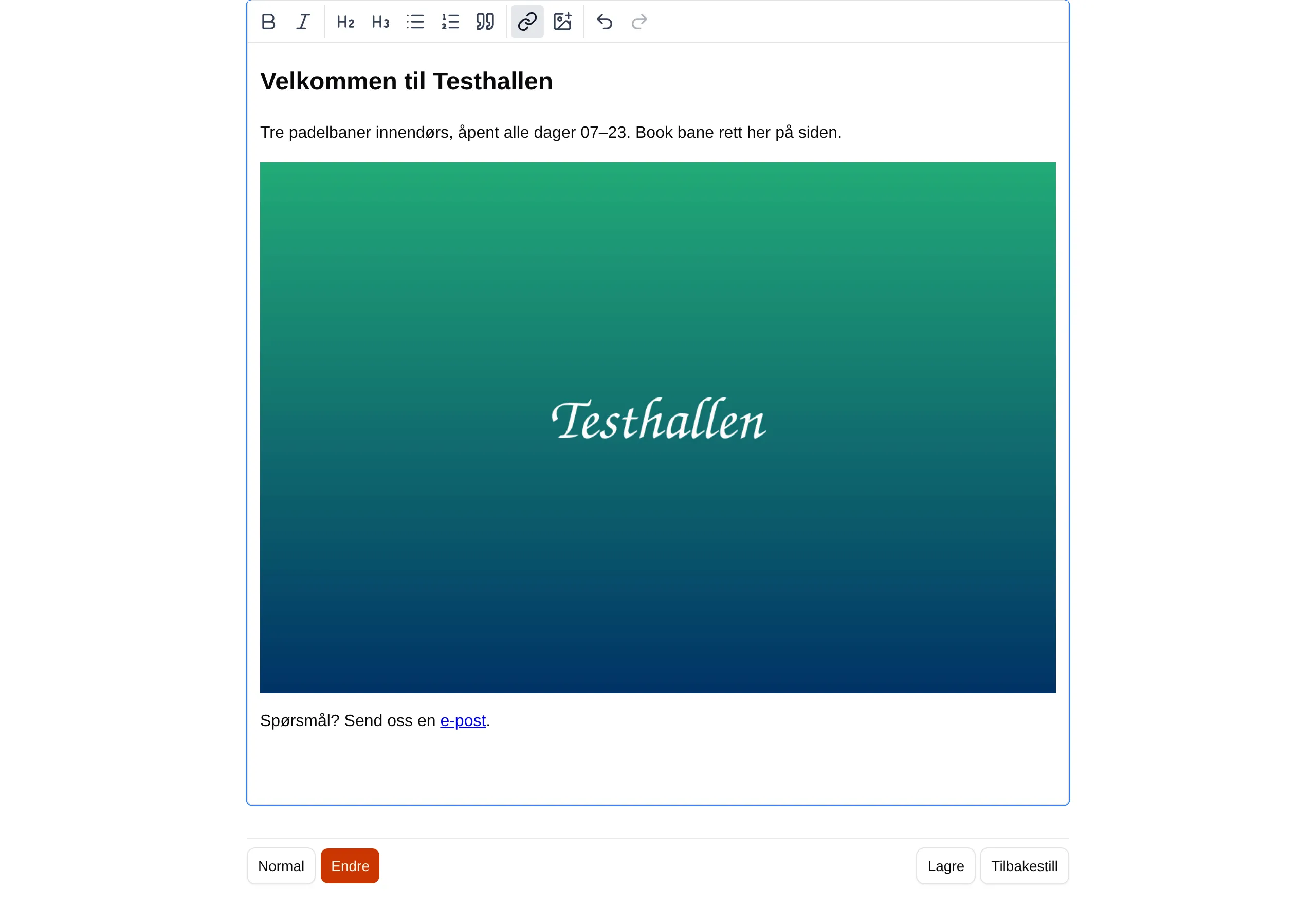
Reset discards what you have written since you last saved.
Select the text that should become a link, click the link button, and enter Address.
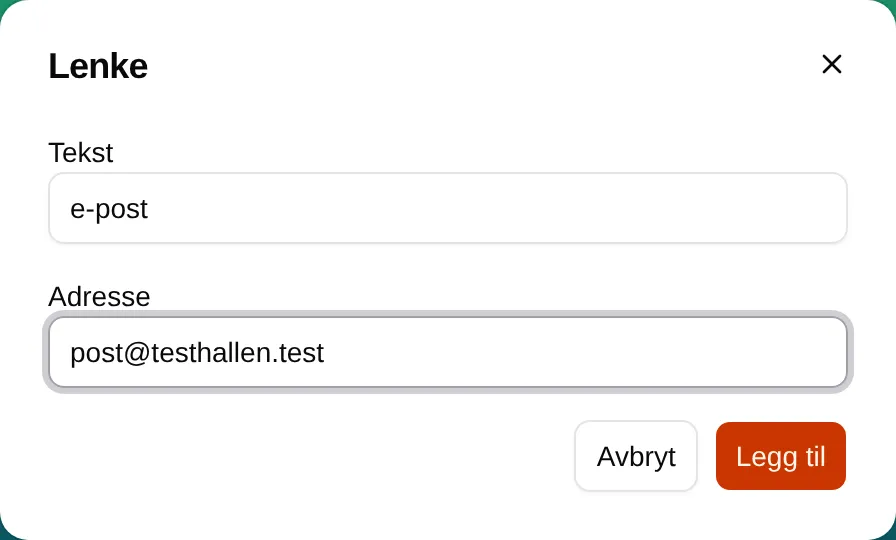
Address can be a web address, an email address or a phone number starting
with tel:. A link to another page on the facility’s site must be the full
address, as it appears in the browser — not just /herervi.
Images
Section titled “Images”Click the image button. Choose an image from Media library, or upload a new one — it is inserted straight away.
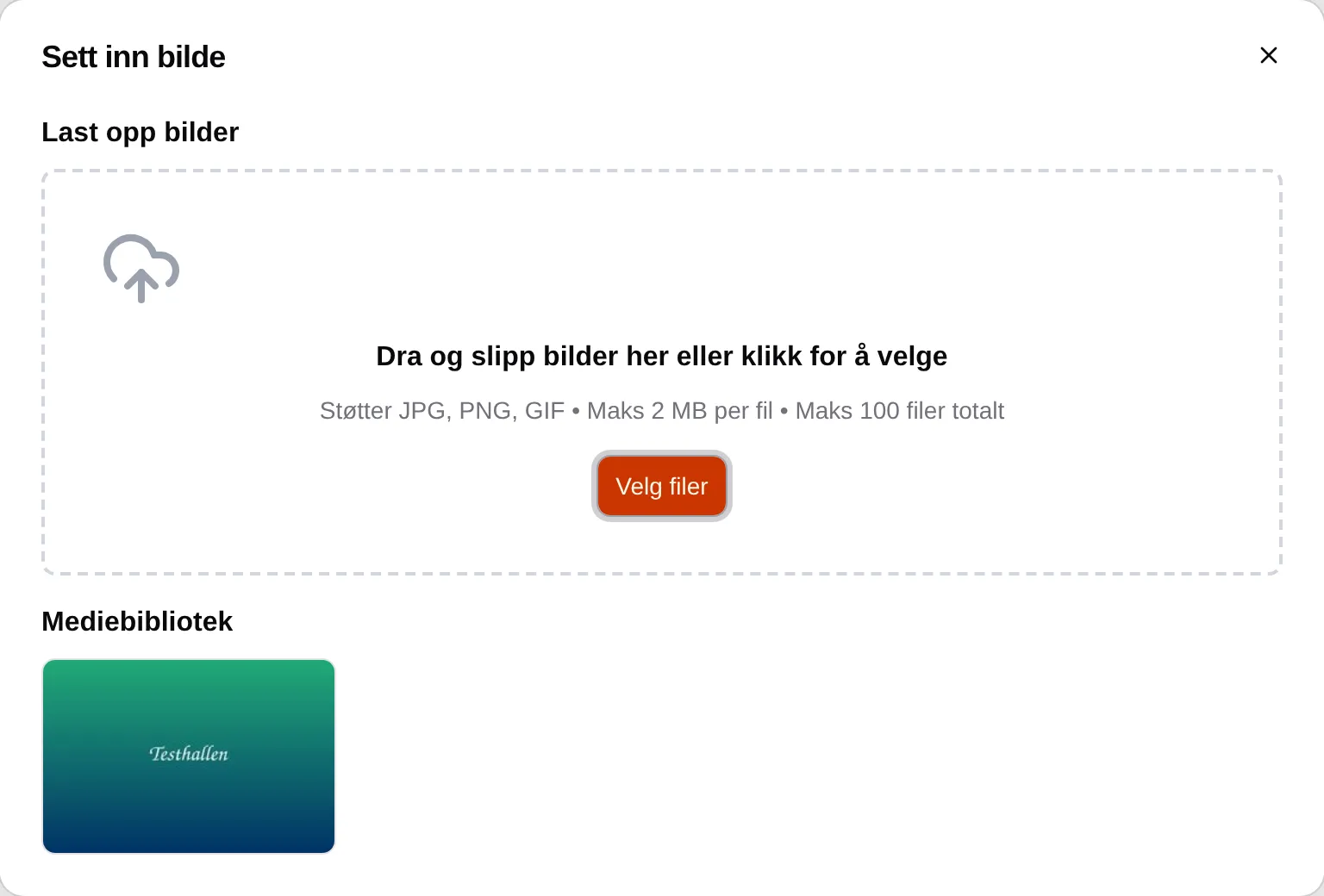
The image fills the width of the page. It cannot be made smaller or given a caption.
Make a text page the front page
Section titled “Make a text page the front page”By default the booking is the front page. If you want visitors to see About us first:
- Go to Site and open Navigation.
- Click the pencil on booking and change Path to, for example,
/booking. Click Change. - Click the pencil on aboutus and change Path to
/. Click Change. - Click Save.
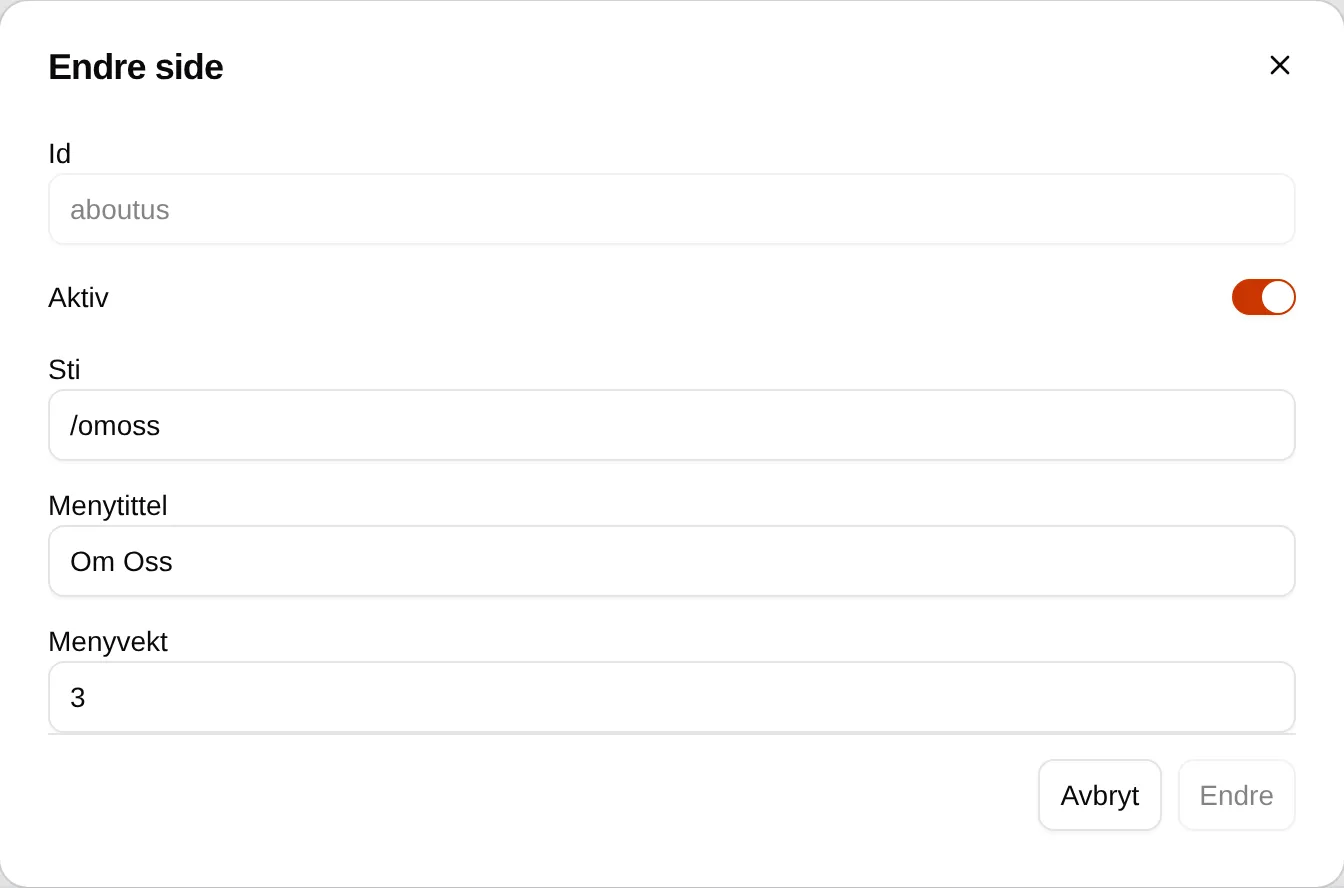
One page must have the Path /, and two pages cannot have the same path,
menu title or menu weight.
Change the menu
Section titled “Change the menu”Under Navigation you decide for each page:
| Field | Does |
|---|---|
| Path | The address of the page, for example /omoss. |
| Menu title | The name in the menu, for example “Courses” instead of “Events”. |
| Menu weight | The order. Lowest comes first. |
| Active | Whether the page exists. |
If Menu title is empty, the page exists but is not in the menu. On a computer the first three pages are shown at the top; the rest are in the side menu. Betingelser (Terms) and Min Side (My page) are always in the menu and cannot be moved.
Write blog posts
Section titled “Write blog posts”The blog is called Innlegg (Posts) in the menu. Turn it on with Active on blog under Navigation; then Blog appears under Administration.
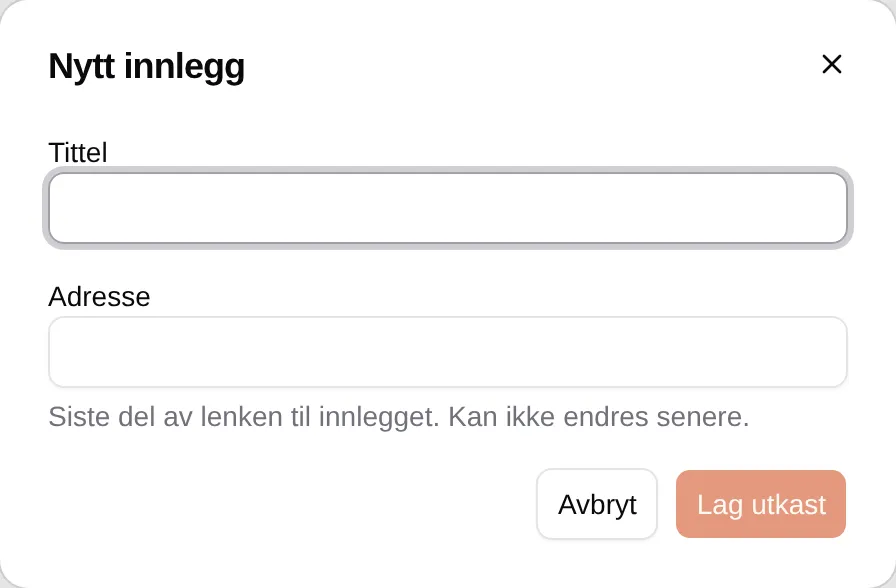
- Go to Administration → Blog and click New post.
- Enter Title. Address is filled in automatically; it cannot be changed later.
- Click Create draft.
- Write the text, and preferably choose a Cover image and an Excerpt.
- Click Save, then Publish.
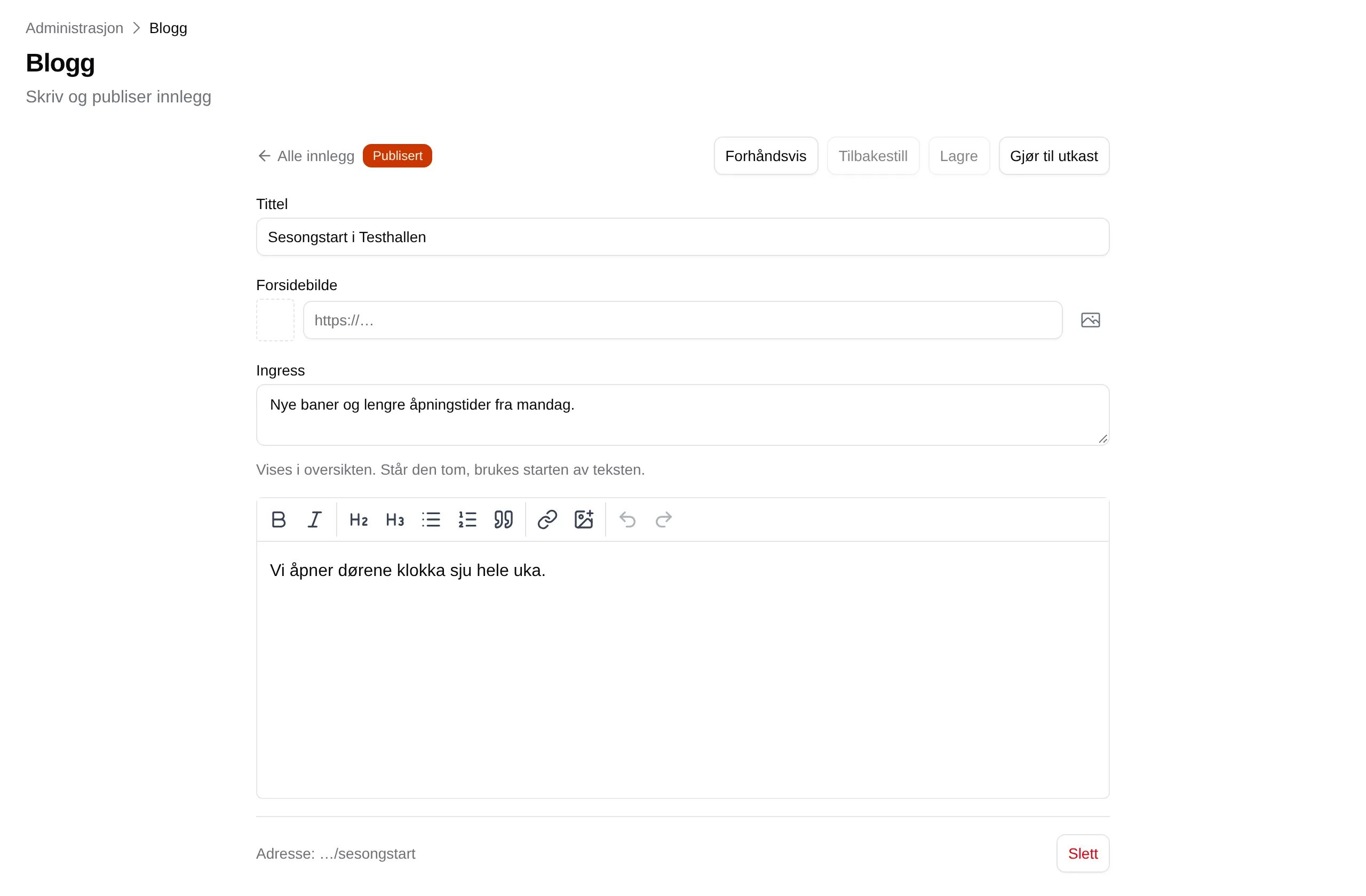
The post is now at the top under Innlegg, with the date it was published. Preview shows it the way customers see it. Back to draft takes it off the site again.

Upload images
Section titled “Upload images”Under Administration → Images you upload images to be used on the pages, in blog posts, as a logo or in texts written in Markdown. Images can also be uploaded straight from the image button while you write.
- JPG, PNG or GIF, up to 2 MB, and up to 100 images.
- Copy URL gives the address of the image, for use in Markdown.
Betingelser (Terms) is always in the menu. The text is created when the facility is set up, based on Owner information under Site. If you change Owner information later, the text does not change — go to Betingelser, click Change and correct it.
The fields: Images, Blog and Terms. Formatting in text fields: Markdown.