
Groups
A group is a list of people — members, the board, a training group, the four people who rent unit B on Tuesdays. You use the group to decide who can book a rental slot or a rental unit, and who gets a discount. Whoever is on the list gets it automatically, without typing anything.
Group or club code?
Section titled “Group or club code?”Club codes work as before, and the two solve different problems:
| Club code | Group | |
|---|---|---|
| Who gets access | Everyone who knows the code | The people on the list |
| If the code leaks | Everyone the email is forwarded to is in | Nothing — there is no code to share |
| Removing one person | Change the code and send the new one to everyone else | Remove one row |
| Expiry | One date for the whole code | A separate date per person |
| Who has access right now? | Impossible to know | It’s in the list |
| For the customer | Must type the code into the cart every time | Automatic |
Use groups for people you know: members, the board, regular renters, a discount tier. Use club codes for what a code is actually good at: guest access, a code on a poster, a campaign.
If you have no need for groups, you don’t need to do anything — nothing changes until you turn the module on.
Setup in five steps
Section titled “Setup in five steps”- Turn the module on under Site → Modules.
- Create the group under Groups.
- Add members — directly, with an email list, or with an invitation code.
- Use the group on rental slots, rental units or ticket groups.
- Check that the group is used where you think it is.
Step 1 — turn the module on
Section titled “Step 1 — turn the module on”Go to Site, open Modules, and turn on Groups under Core functionality. Click Save at the bottom of the page.

The Groups section then appears in the admin menu and on the admin front page.
Step 2 — create the group
Section titled “Step 2 — create the group”Go to Groups and click Add group. Fill in:
| Field | Example |
|---|---|
| Name | Member 2026 |
| Slug | Leave empty — filled in for you |
| Description | Paid membership for 2026 |
| Active | on |
Click Add, then Save at the bottom of the page. The group is not saved until you click Save.
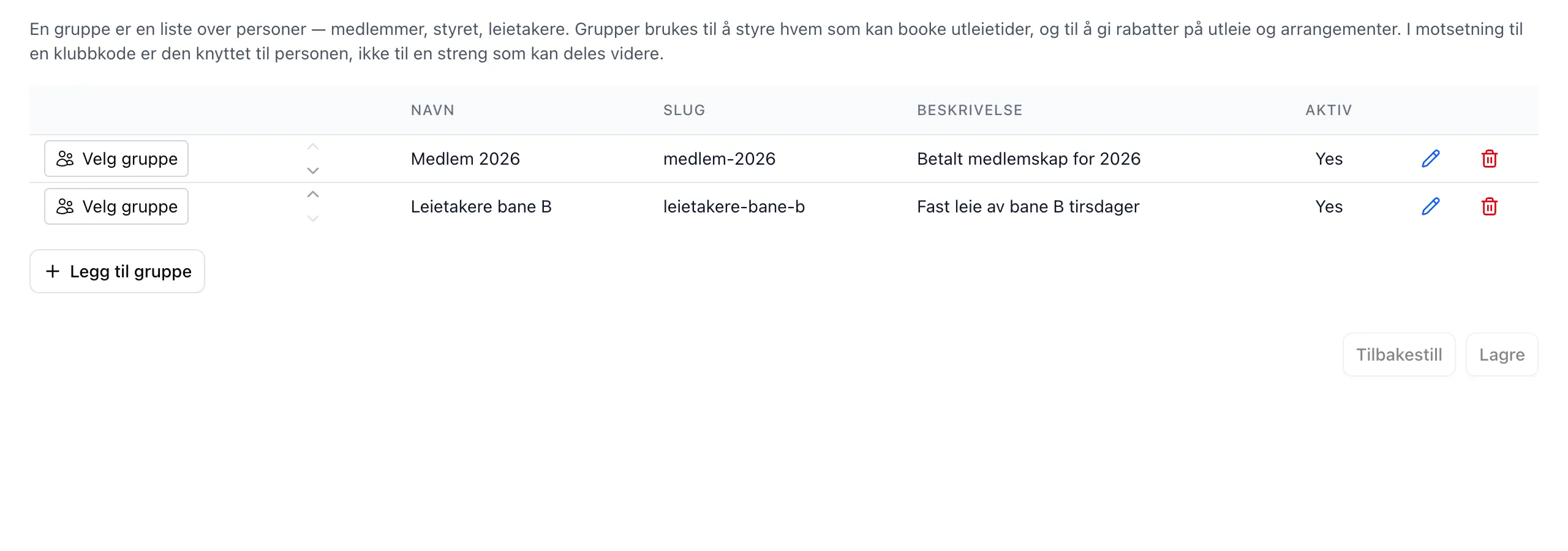
The name is what customers see — on locked slots, on the discount line in the cart and under My groups on Min Side. Choose something you are comfortable showing publicly.
Step 3 — add members
Section titled “Step 3 — add members”Click Select group on the row. A panel, Members of …, opens below the list, with three ways to add people.
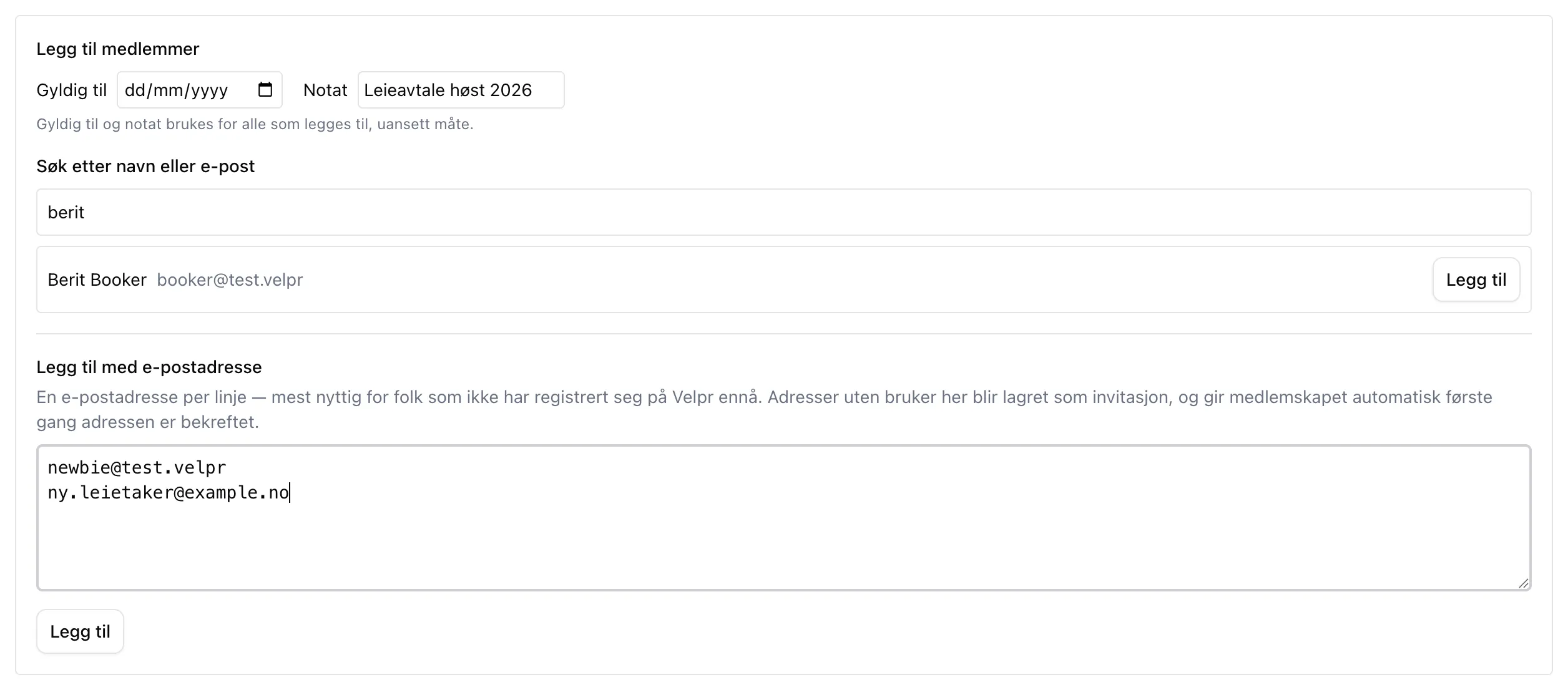
Search by name or email finds users who have visited your facility before. Type at least two characters, and click Add on the match. If it says Already a member, the person is already in.
Add by email address takes a list, one address per line (commas and semicolons work too). Paste in your member list and click Add:
- Addresses that belong to a user at the facility become members immediately.
- Addresses with no user here become invitations. The membership is waiting and becomes active the first time the person signs in to the facility with that address verified. The invitations are listed under Pending invitations further down.
Invitation code — when you don’t have the email addresses
Section titled “Invitation code — when you don’t have the email addresses”Below the member list are the Invitation codes. An invitation code is a piece of text you hand out, for example in the membership email. Whoever enters it on Min Side becomes a member — once, and then the code is used up for that person.
Click Add invitation code, fill it in, click Add, and then Save below the code list.
| Field | Example |
|---|---|
| Code | MEMBER2026 |
| Max uses (0 = unlimited) | 0 |
| Code valid from / until | empty |
| Membership valid until | 01.04.2027 |
Customers call this a group code — that is what it says on Min Side. Use that word when you write to your members.
Step 4 — use the group
Section titled “Step 4 — use the group”A group does nothing until it is used somewhere. You can use it in three ways, and combine them freely.
Reserve a rental slot for the group
Section titled “Reserve a rental slot for the group”Go to Rental → Rental slots. Add a row for the times that should be
reserved for the group, for example bane2@tir@18-22, and open the Access
and status section. Tick the group under Restricted to groups.
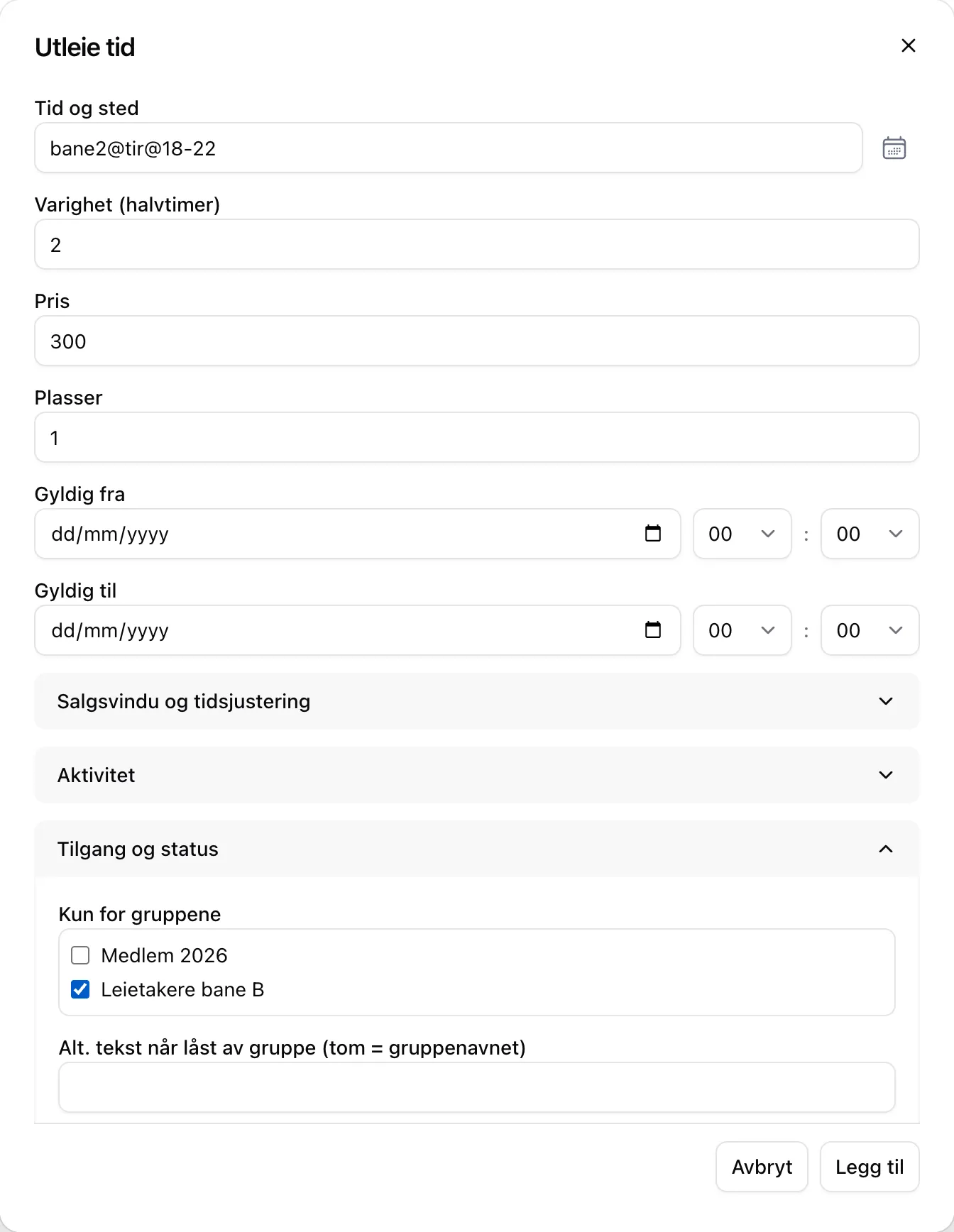
Click Add and Save at the bottom of the page.
Others see the slots greyed out, with the group name where the activity
normally is. If you don’t want to show the group name publicly, write a
different text in Alt. text when locked by group, for example Rented.
Make a whole rental unit private
Section titled “Make a whole rental unit private”Go to Rental → Rental units, click the pencil on the unit and tick the group under Restricted to groups. The unit then disappears completely from the slot picker for everyone who is not in the group. Only use this when the unit really is private — otherwise it is better to reserve the rental slots, so others can see that the unit is in use.
Give the group a discount
Section titled “Give the group a discount”On rental slots: open the row under Rental → Rental slots, go to Discounts and extra prices, tick the group under Discount for groups, and set Discount type and Discount value.
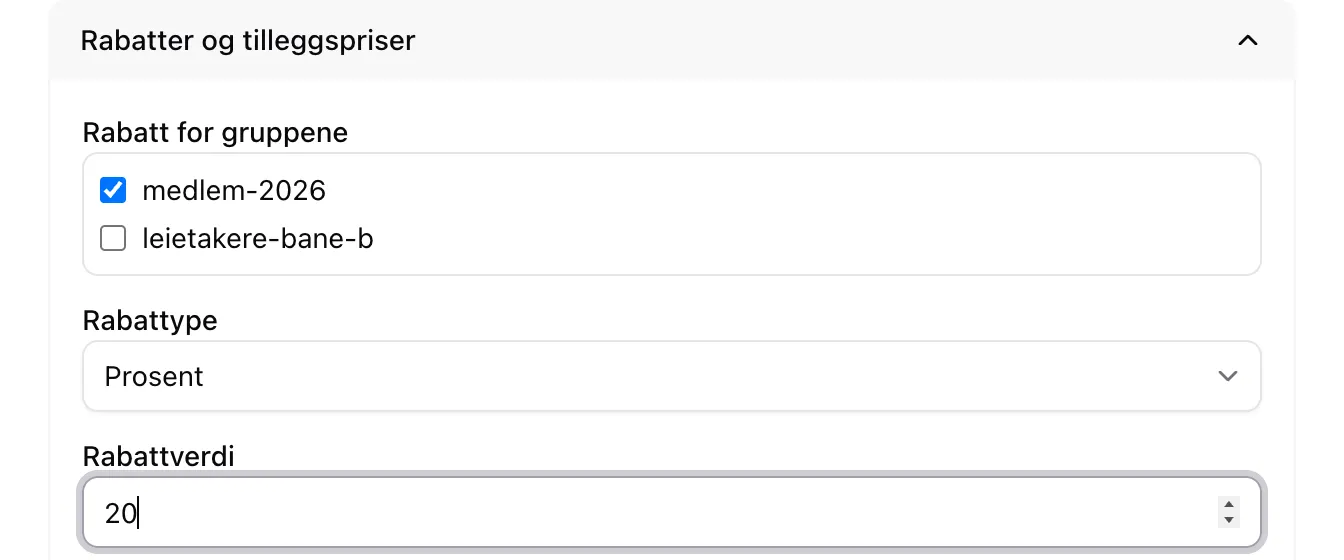
On events: open the event, go to Tickets and fill in the same three fields on the ticket group.
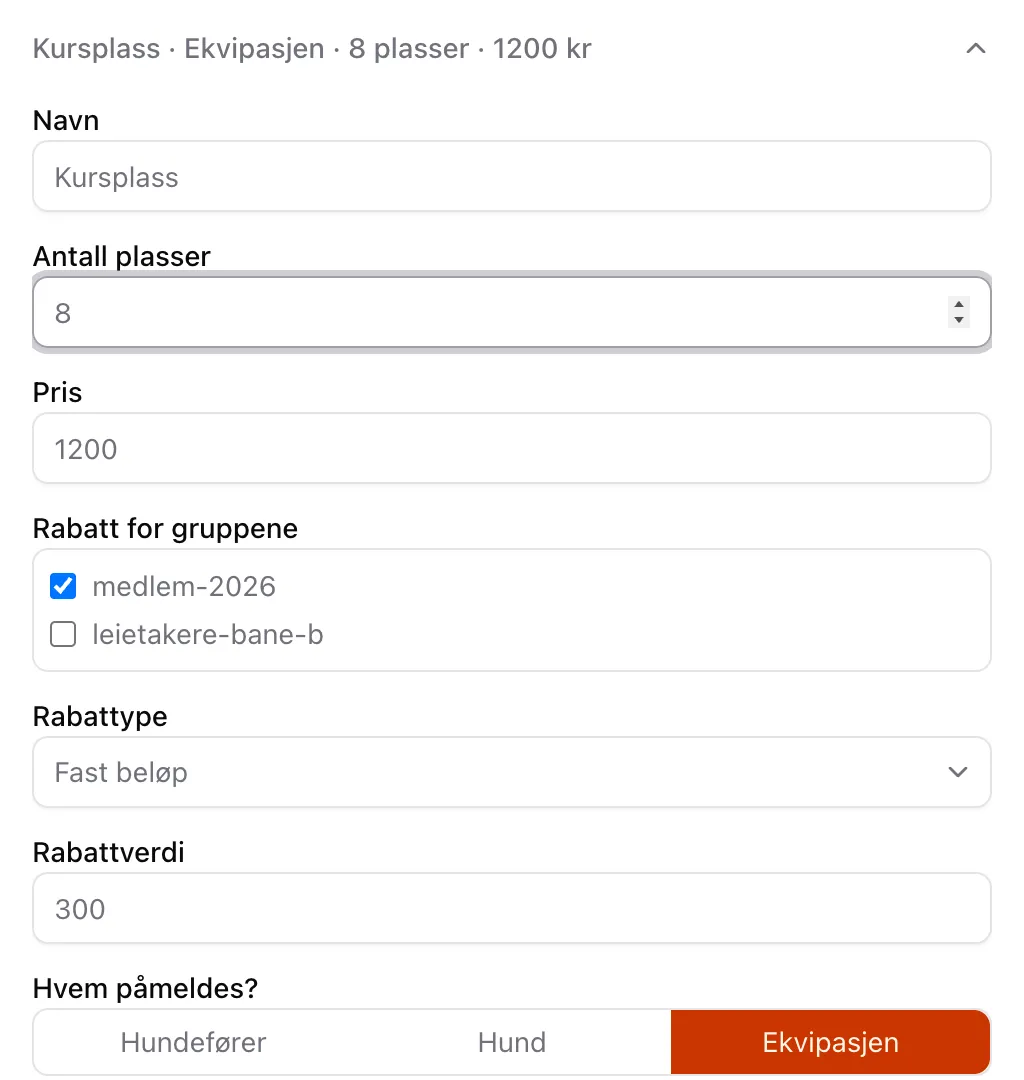
With 20 and Percentage, a member pays 240 kroner for a 300-kroner slot.
With 300 and Fixed amount, a member pays 900 for a 1200-kroner course
place.
The discount fields show the group’s slug, not its name — medlem-2026,
not Medlem 2026.
Step 5 — check
Section titled “Step 5 — check”Go back to Groups, click Select group, and look at Where this group is used at the bottom. It lists every rental slot and rental unit reserved for the group.
Example — members and regular renters
Section titled “Example — members and regular renters”A facility where only members can book, and where four of them rent unit B regularly on Tuesday evenings:
- Turn on Groups.
- Create
Member 2026andRenters unit B. - Paste the member list into
Member 2026, with Valid until set to the day after the annual general meeting. Add the four renters toRenters unit B. - Set Restricted to groups =
Member 2026on the general rental slots. - Add a row
bane2@tir@18-22at the top with Restricted to groups =Renters unit B. - Let the old club code live through a transition period, and delete it once nobody has used it for a while.
Next year you create Member 2027 and paste in the new list — no code to
change, no email with a new code to everyone.
Worth knowing
Section titled “Worth knowing”- Valid until is the start of the day. A membership with Valid until 31.12.2026 ends at midnight going into 31 December. If you want to include all of New Year’s Eve, set 01.01.2027.
- Extend a membership by pasting the address again under Add by email address with a new Valid until. The old row is replaced, not duplicated.
- Removing someone does not affect bookings they have already made. Membership is checked when the slot is booked, not later.
- Active off hides the group from the checklists in Rental and on events. It does not stop anything already set up: slots stay reserved, discounts apply, and invitation codes work. To stop people joining, delete the code.
- Don’t change the slug once the group is used for a discount. The discount is tied to the slug. If you change it, the discount stops working until you tick the group again in the discount fields.
- If you delete a group, all its memberships are removed. Slots that were reserved for the group become reserved for nobody — they do not open up to everyone. Remove Restricted to groups from the rows first if you want to open them.
- Groups apply to one facility. If the club has two facilities in Velpr, it has two sets of groups.
See the field reference for what each field does, and Groups for what customers see.