
Booking
Everything to do with renting out slots is set up under Rental in admin. The page has six sections. You don’t need all of them — a typical facility manages with three.
| Section | What it is for | Needed |
|---|---|---|
| Rental units | What you rent out — courts, halls, rooms. | Yes |
| Rental slots | When the units can be rented, what it costs and when sales open. | Yes |
| Settings | Booking on and off, message on the booking page, default values. | Yes |
| Default times | The opening hours, and named expressions you can reuse. | Check |
| Fixed slots | Fixed bookings and closed periods. | When needed |
| Activities | What the slots can be used for, for example training or courses. | When needed |
Nothing is saved until you press Save at the bottom of the page. As long as you have unsaved changes, there is a red line at the top of the window.
Step 1 — check the opening hours
Section titled “Step 1 — check the opening hours”Open Default times at the bottom of the page. The first row, standard, is the facility’s opening hours. Velpr uses them when an expression says nothing about the time of day, and to decide at what hour of the day sales open.
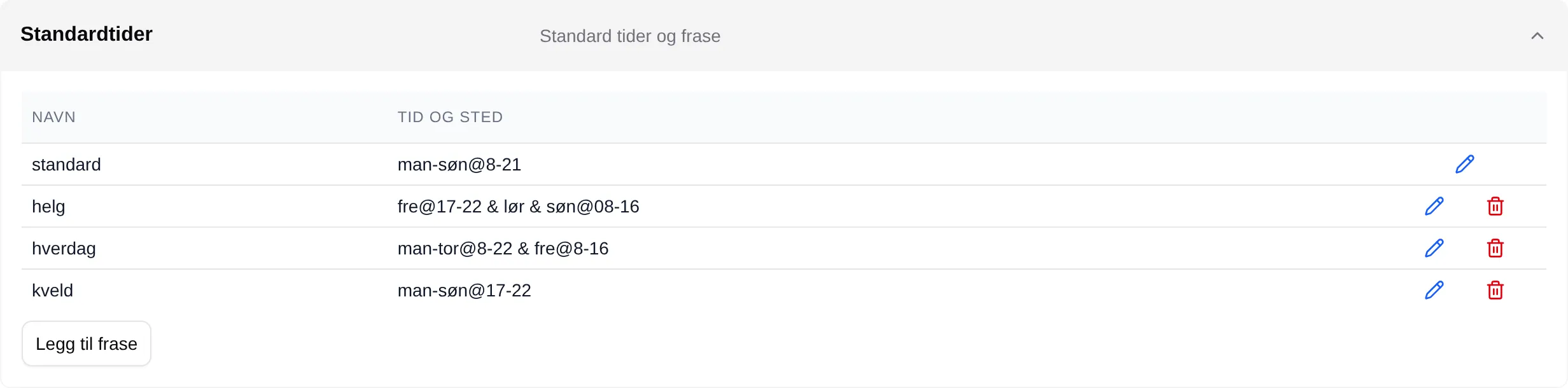
Change Time and place on the standard row if the opening hours are
wrong. You can also add your own expressions with Add phrase — for example
helg (weekend) or kveld (evening) — and use the name instead of the
expression later.
Step 2 — add what you rent out
Section titled “Step 2 — add what you rent out”Open Rental units and press Add unit. Press the pencil on the new row and fill in:
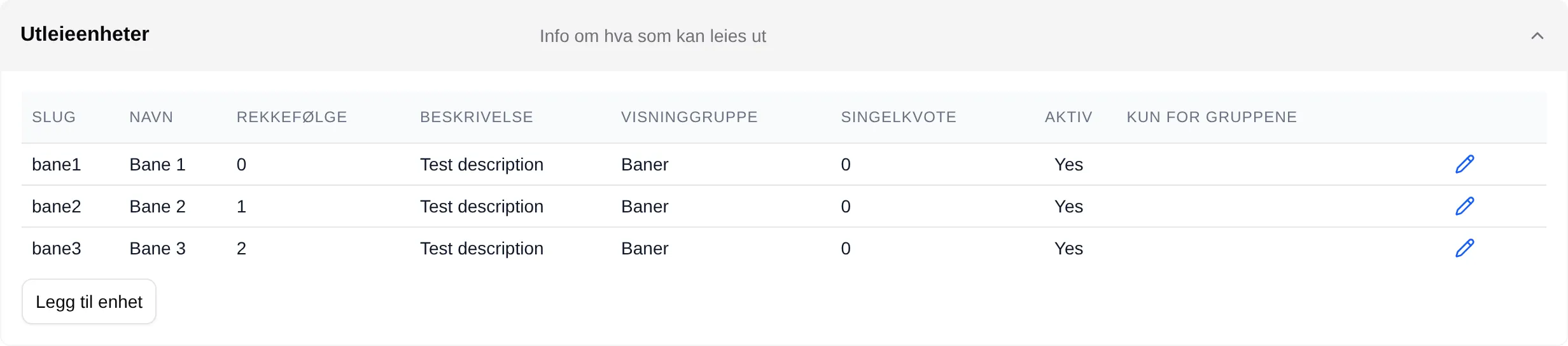
- Name — what customers see, for example “Court 1”.
- Slug — a short name without spaces, for example
bane1. You use it when you write time and place. - Active — turn on.
- Order — which column the unit gets in the slot picker.
Press Change to close the window. Repeat for each court.
Step 3 — set up the rental slots
Section titled “Step 3 — set up the rental slots”Open Rental slots and press Add row. Press the pencil on the new row.
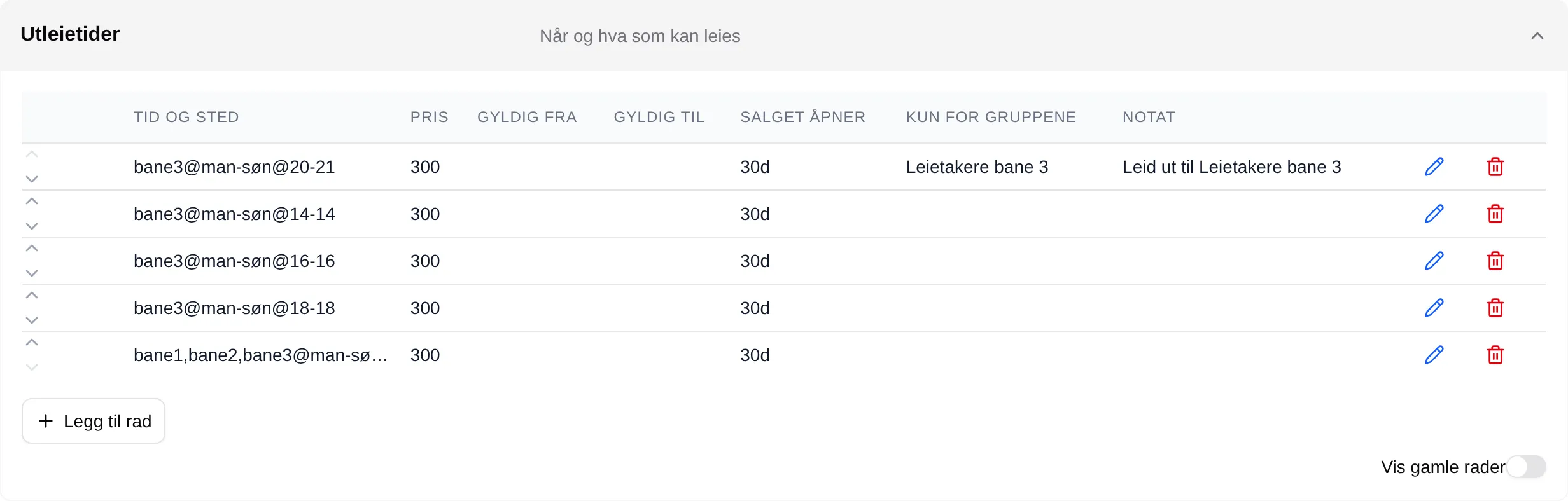
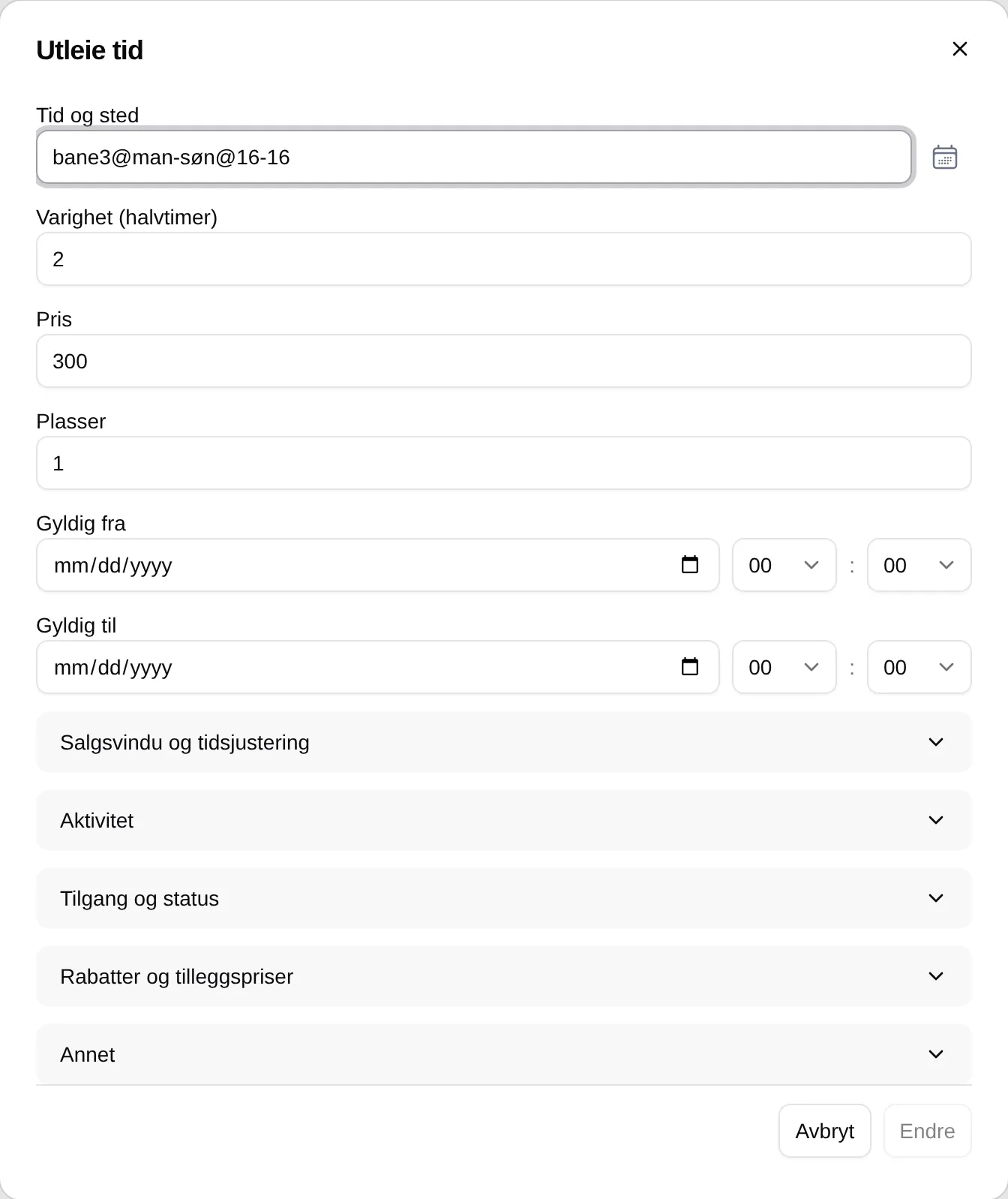
- Time and place — which units, days and hours the row applies to. For
example
bane1,bane2@man-søn@08-21: both courts, every day, with the first slot at 08 and the last at 21. Press the calendar icon to choose in a weekly plan instead. The format is described in Time and place. - Duration (half hours) — how long each slot is. 2 means one hour.
- Price — price per ticket.
- Seats — how many can book the same slot. 1 means that one booking takes the whole slot.
- Sales open under Sales window and time adjustments — how long before
the slot it can be booked, for example
14d. Empty means the default from Settings (30 days). See Sales open.
Press Change to close the window.
Step 4 — turn on booking
Section titled “Step 4 — turn on booking”Open Settings at the top of the page.
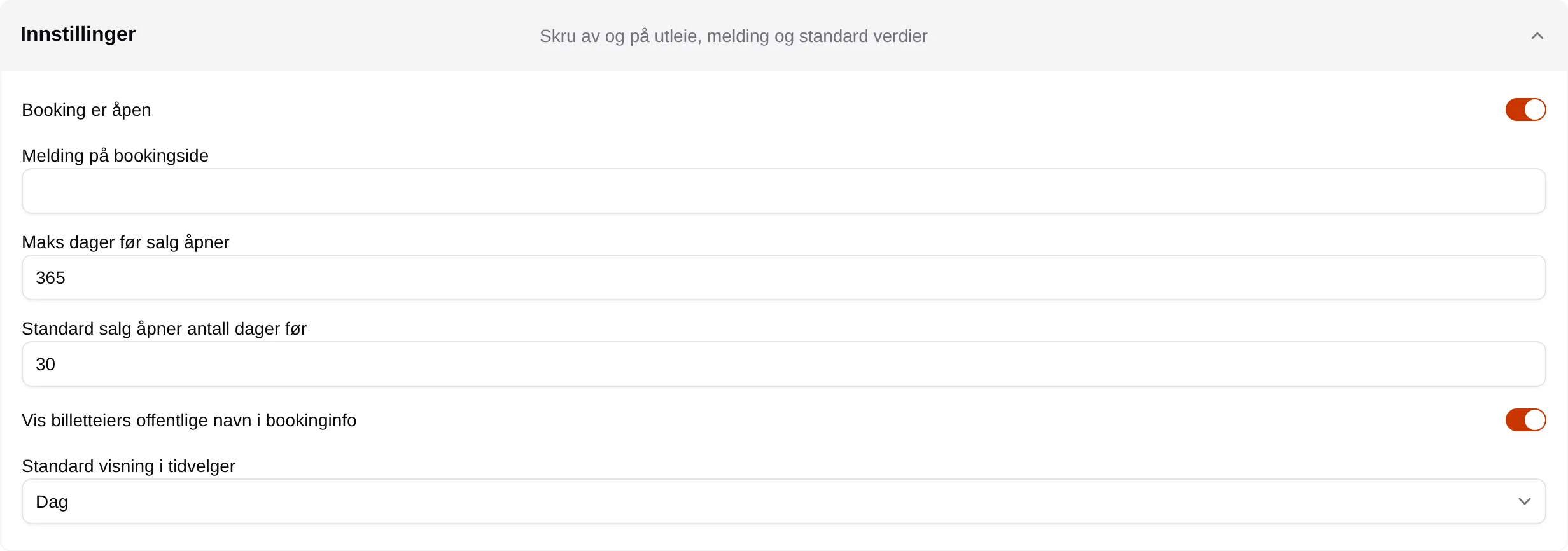
- Turn on Booking is open. On a new facility it is on from the start.
- Optionally write a Message on the booking page — it is shown at the top of the booking page.
- Choose Default slot picker view: Day or Month.
Press Save at the bottom of the page.
Step 5 — check the result
Section titled “Step 5 — check the result”Preview at the bottom of the page shows the slot picker as it will look, even before you have saved. Once you have saved, open the booking page and check that the slots and prices are right.
When needed — fixed slots
Section titled “When needed — fixed slots”If a club has regular training every Tuesday, or a court should be closed during the holidays, enter it under Fixed slots instead of changing the rental slots.
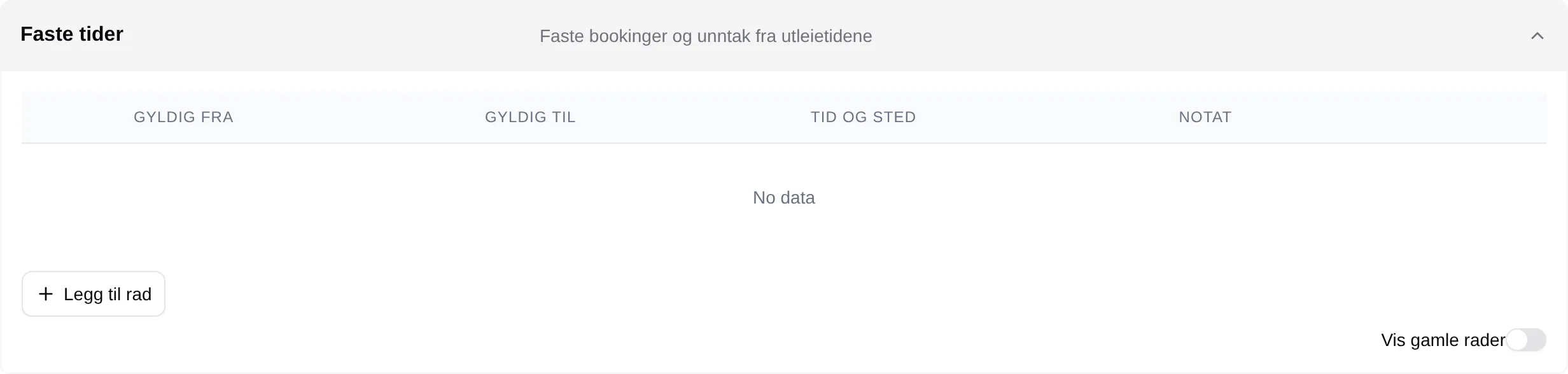
Press Add row, write Time and place, choose Valid from and Valid to, and choose Status: booked or unavailable. A fixed slot takes precedence over the rental slots for the same hours.
For a single occasion you can also release a fixed slot or close a slot directly from the slot picker — see the admin reference.
When needed — activities
Section titled “When needed — activities”Activities is the list of what a slot can be set aside for. Without your own activities, all slots show as Unspecified.

Add an activity, and choose it under Activity on a rental slot. With Can the first buyer choose the activity? on, the first person to book chooses what the slot will be used for.
Good to know
Section titled “Good to know”- Booking is open is under Rental → Settings, not under Site. Close the facility under Site closes the whole website, not just booking.
- Customers can release their own slots until the slot starts, without a refund. There is no setting for a deadline.
- A Sales open expression that cannot be read — for example
Onswith a capital letter — means the slots are not shown as available. Write weekdays in lower case.
Every field and every rule: the admin reference for booking. How it looks to customers: Booking.