
Paying
Everything you book or buy ends up in the cart first. You can add several slots, an event and a gift card, and pay for it all at once. Nothing is reserved until you press a payment button.
How to pay
Section titled “How to pay”- Pick an available slot and press Add to cart. Repeat for more slots.
- If you have a gift card or a club code, type the code in the Add gift card code or Add club code field and press Add.
- If you want your own note on the receipt — a team name, a cost centre — type it in Free text and press Add.
- Check the Total at the bottom of the cart.
- Press the payment method you want to use under RESERVE AND PAY.
- If the facility has rules you must accept, the One thing first window appears. Read the rules and press Accept.
- Complete the payment. Once it has gone through, you get a confirmation on the screen and a receipt by email.
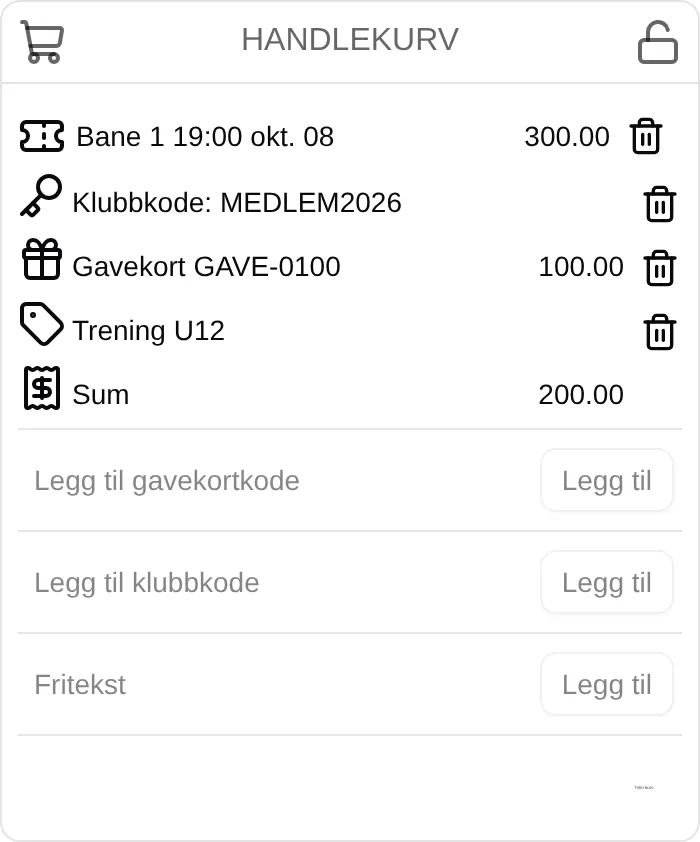
The gift card is deducted from the total. Here the customer pays 300 − 100 = 200 kroner.
Choose a payment method
Section titled “Choose a payment method”The facility decides which buttons you see. You may see some of these:
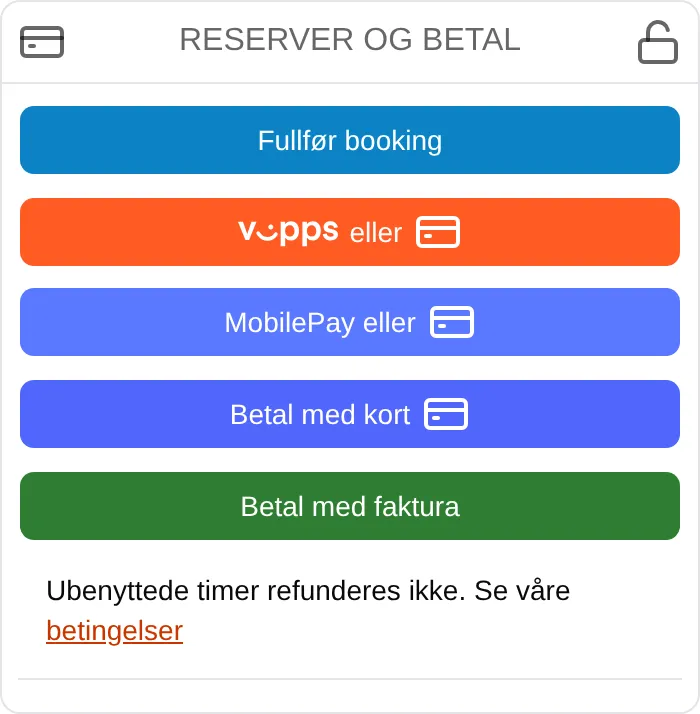
- Vipps eller (Vipps or) / MobilePay or — you are sent on to Vipps or MobilePay to approve the payment.
- Pay by card — a window opens where you enter the card number, expiry date and CVC, and press Pay.
- Pay by invoice — the order is confirmed straight away, and you get an invoice to pay later. If the button is grey, the reason is shown below it.
- Complete booking — when there is nothing to pay, for example because a gift card covers the whole total.
When the payment has gone through
Section titled “When the payment has gone through”You get a confirmation on the screen. If the facility uses door codes, your code is shown here or sent by email before the slot.
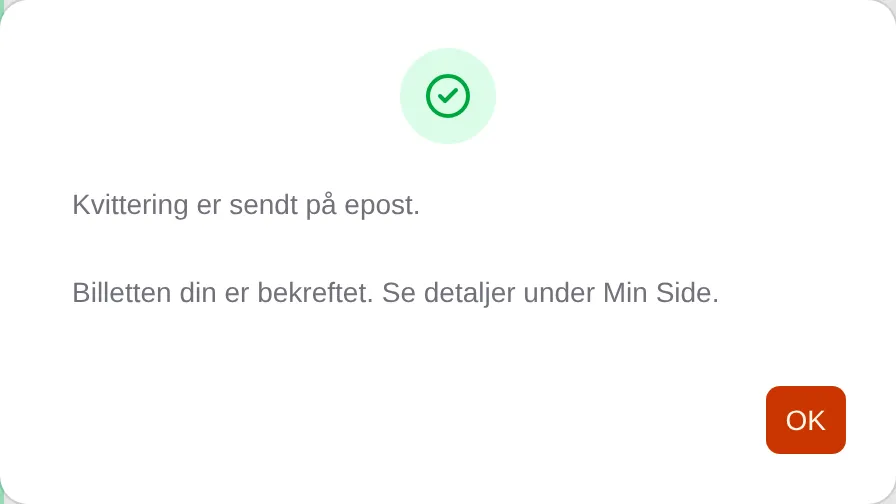
The receipt is also under Min side (My page) → Receipts. Press the order number to open it.
Changed your mind before paying?
Section titled “Changed your mind before paying?”Press the bin next to a line to remove it, or Empty cart to remove everything. It costs nothing as long as you have not pressed a payment button.
Wondering what a line or a message means? See the payment reference. If you are an administrator, see the admin guide for payment.