
Events
The fields in the editor are listed section by section on Events. This page explains what they do.
Who can do what
Section titled “Who can do what”| Role | Can |
|---|---|
| Everyone | See published events and public messages. |
| Signed-in users | Sign up, and see the participant list once it is published. |
| Supporter | See unpublished events, everyone signed up (including unpaid), Eksporter (Export), and release tickets with Manage. |
| Administrator, Owner | All of the above, plus create and change events, write messages and see Feedback. |
Administrators can sign up participants outside the registration window, right up until the event is over.
Publishing
Section titled “Publishing”| Setting | Works like this |
|---|---|
| Is the event published? | Off: the event does not exist for ordinary users — even the link gives “not found”. |
| Hide the event from the overview? | On: the event is not in the list, but the link works. Useful for closed courses. |
| Are the start/participant lists published? | On: everyone signed in can see Participants. |
| If applicable, when should they be published? | The participant list is published automatically from this date. |
A new event is published from the start. The buttons in Admin view publish and unpublish the event and the participant list, and are saved immediately.

Status and registration window
Section titled “Status and registration window”| Field | Works like this | Without a value |
|---|---|---|
| Sign-up opens | Before this, the event shows Sign-up in …, and only administrators can sign people up. | Today’s date |
| Sign-up closes | After this, it says Starts in …, and nobody can sign up. | The event’s start |
| Sign-up can be changed until | Participants can change handler, dog and answers until this date. | The event’s start |
The status participants see is worked out in this order: Ended, Ongoing, Starts in …, Sign-up in …, Sold out, Sign-up open.
Overall start time and Overall end time decide the date in the list and whether the event is Ongoing or Ended.
Reserving courts
Section titled “Reserving courts”Fill in Rental units’ time and place under Times to close the slots the
event uses, for example bane1,bane2@lør@10-16. The slots are shown as 📅
Event in the slot picker. Alternative text for calendar and slot picker
replaces the text on them. The format is described in Time and
place.
Ticket groups
Section titled “Ticket groups”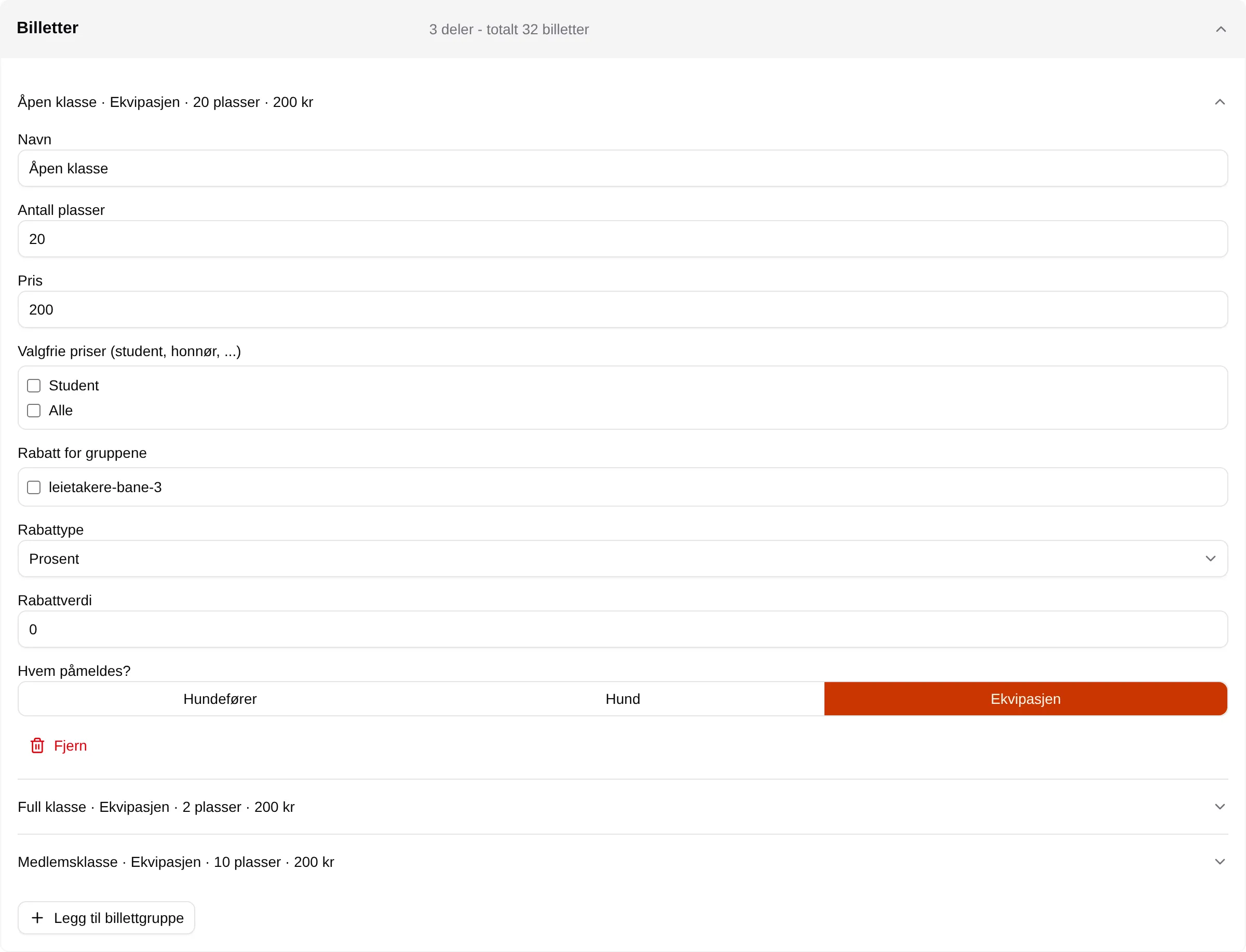
| Field | Works like this |
|---|---|
| Name | The class or ticket type participants see. |
| Number of seats | How many tickets can be sold. 0 means full — not unlimited. |
| Price | The regular price per ticket. |
| Optional prices (student, senior, …) | Prices the participant can choose for themselves under Confirm. See Optional prices. |
| Discount for groups, Discount type, Discount value | A discount for members of the groups. See Groups. |
| Who is signed up? | Handler, Dog or The equipage. Controls the Who step and the columns in the participant list. |
An optional price and a group discount are not combined. The participant gets the lower of the two.
Discounts in the editor has no effect today. Use Discount for groups on the ticket group instead.
Sign-up form
Section titled “Sign-up form”
Applies to decides which step the question ends up in:
| Applies to | Step in the registration | Saved for next time |
|---|---|---|
| Per ticket | Additional info | No |
| Per handler | Handler details | Yes |
| Per dog | Dog details | Yes |
| Per equipage | Equipage details | No |
| Per order | Bestillingsinfo (Order info) | No |
If there are no questions for an Applies to value, that step does not appear. Who and Confirm are always included.
| Who can see the answers | Who sees the answer |
|---|---|
| Organizer only | Administrators and supporters. |
| Participants | Also those who have paid for a ticket — as a column under Participants. |
| Everyone | Everyone who can see the participant list. |
Required questions block Next until they are answered. Yes/no questions count as answered with no.
Participants
Section titled “Participants”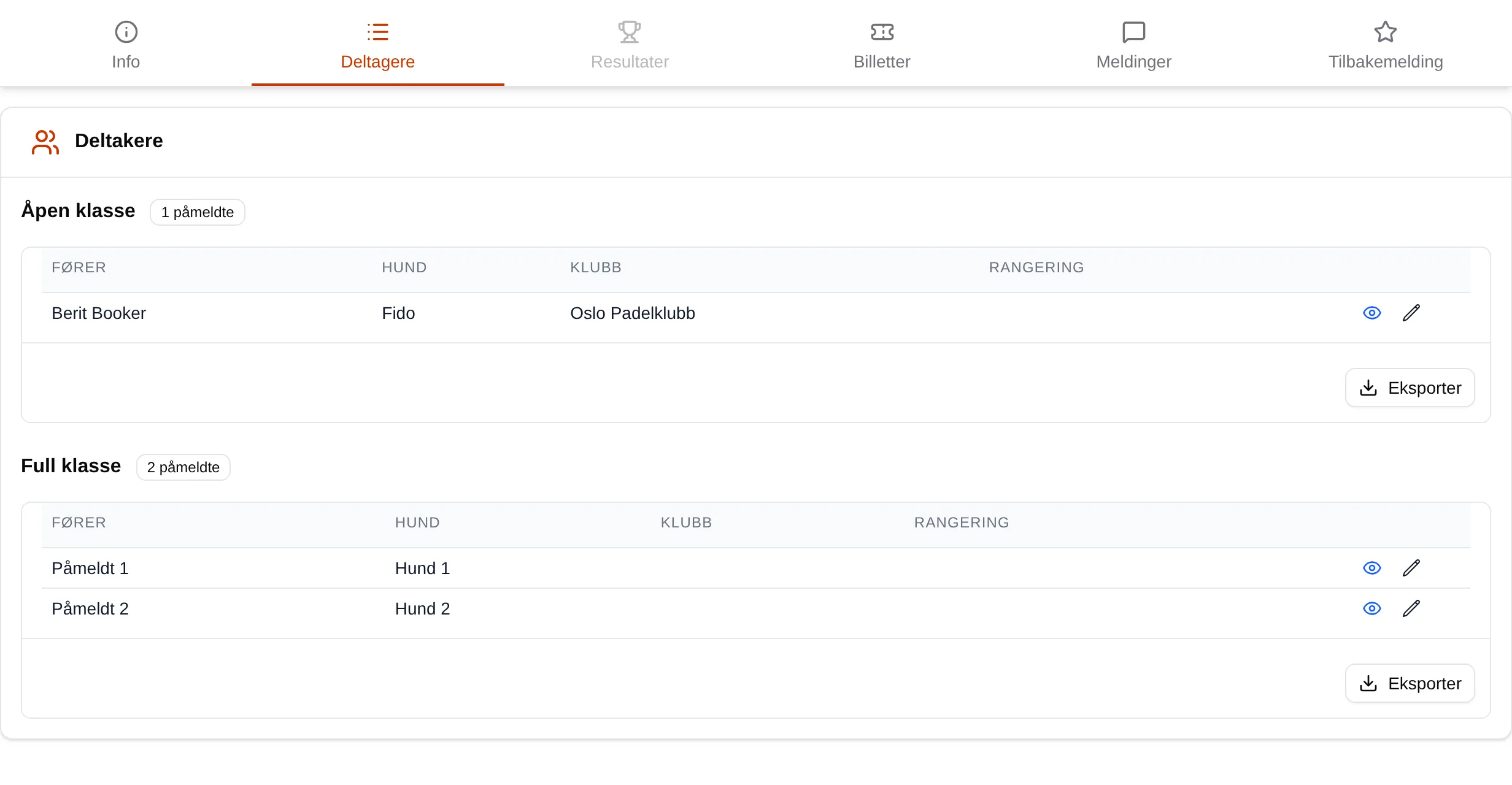
Administrators and supporters also see tickets that have not been paid yet. Eksporter (Export) downloads the class as CSV.
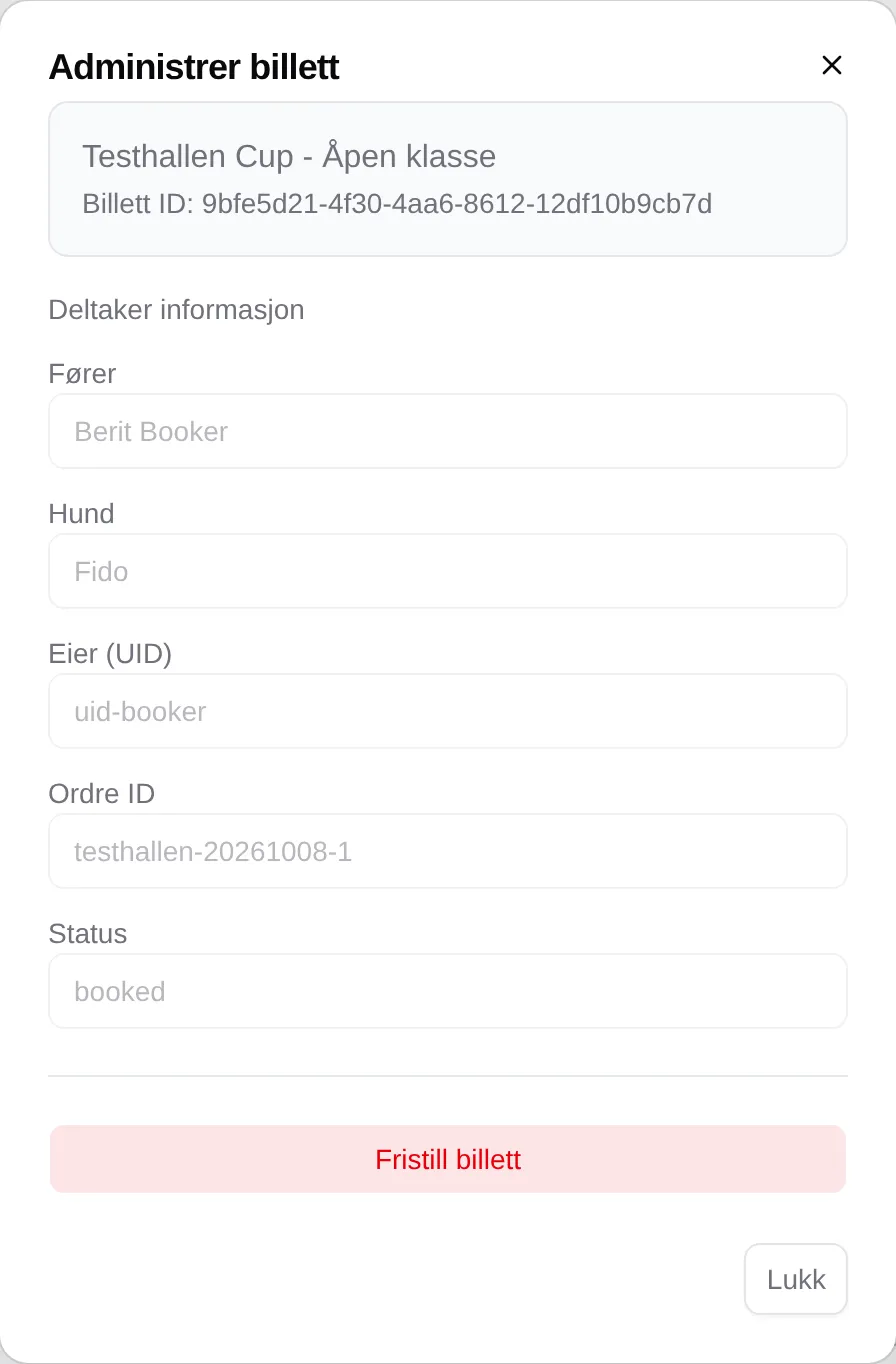
Manage shows the ticket ID, holder and order, and has Release ticket. You must tick I confirm that the ticket should be released. The participant gets an email, and nothing is refunded. There is no function for moving a participant to another class, or for cancelling the whole event.
Participants can release their own ticket at any time — there is no deadline for that.
Messages
Section titled “Messages”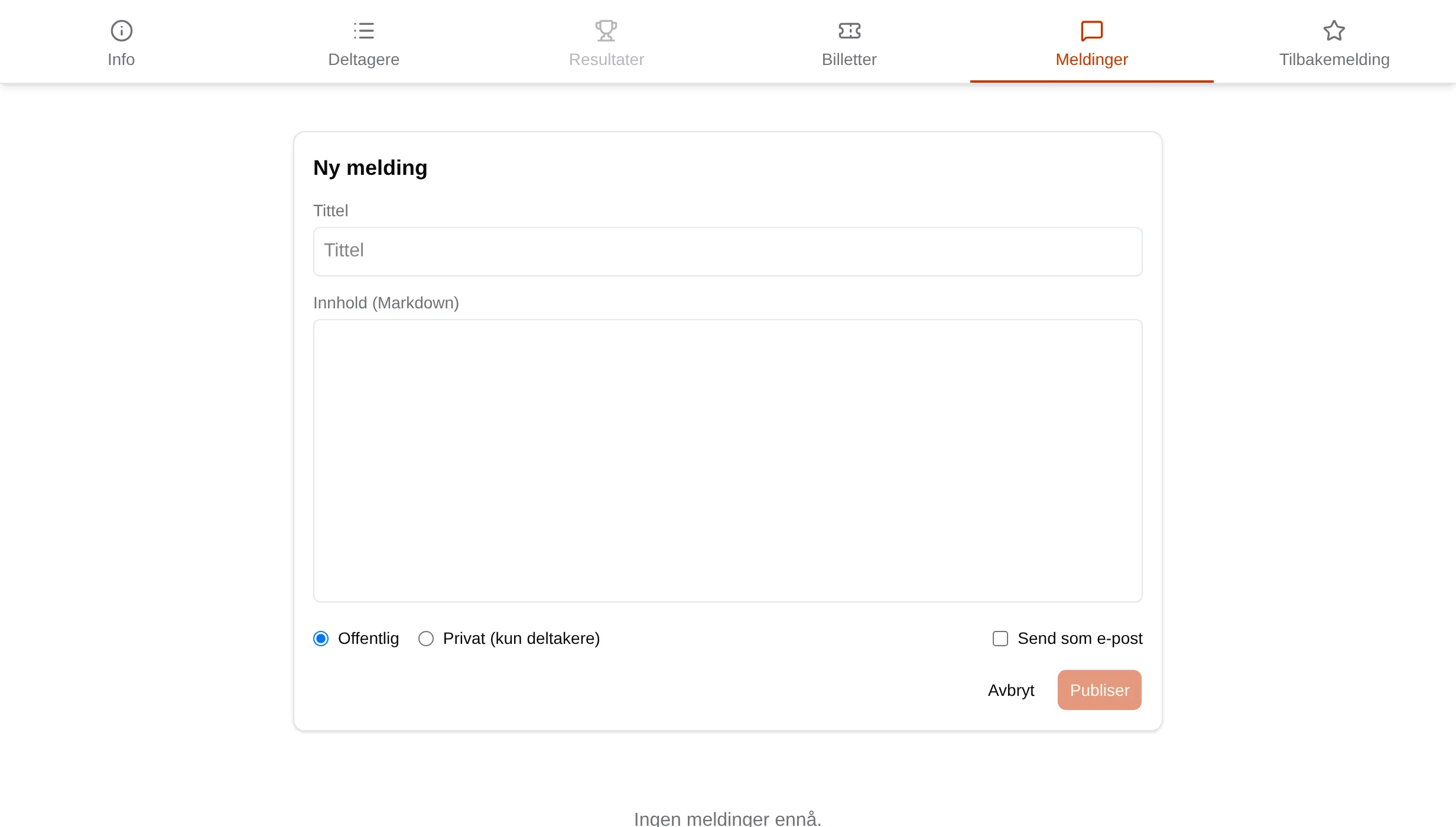
| Option | Works like this |
|---|---|
| Public | Everyone can read the message, even without signing in. |
| Private (participants only) | Only those with a paid ticket and administrators can read it. |
| Send as email | Sends the message by email to everyone with a paid ticket — also when it is public. |
Each message can be changed with Edit, sent again with Resend, or removed with Delete.
Feedback
Section titled “Feedback”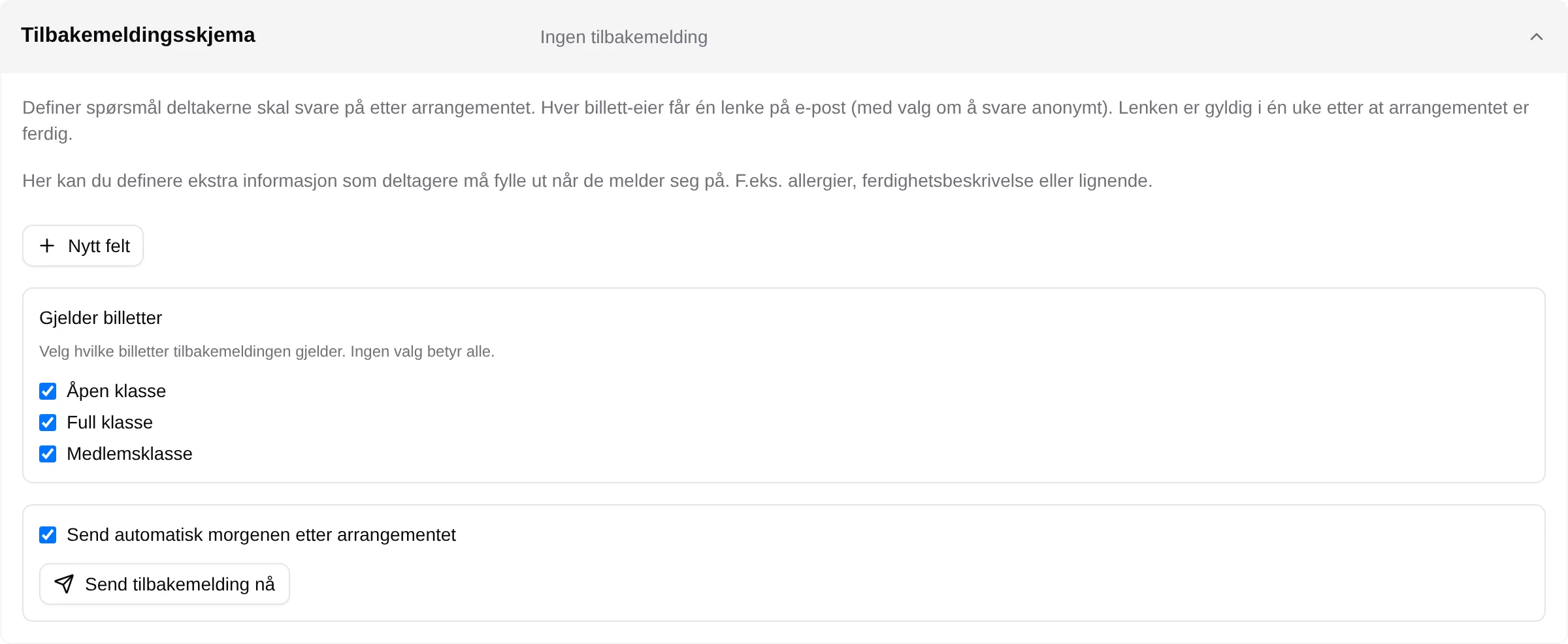
- Each ticket holder with a paid ticket gets one email with a link. The link is valid for one week after the event.
- Applies to tickets selects classes. No selection means all.
- Send automatically the morning after the event is on from the start.
- Send feedback now sends the saved version of the form straight away.
- Participants can answer anonymously. Required questions are not enforced in the feedback.
- The answers are under the Feedback tab: X of Y have answered.
Results
Section titled “Results”The Results tab is always grey. Velpr does not have results registration.
The setup step by step: the admin guide for events. The participants’ page: the registration reference.