
Clear cache
Sometimes data that the browser has stored locally can cause problems when new versions of a site come out. See known issues for information about such cases.
If you find yourself needing to clear the browser cache, you can follow the steps below for your browser. Note that the steps differ slightly between mobile phones and computers, and between browser types. So see if you can find the right procedure.
Browsers on a computer
Section titled “Browsers on a computer”Google Chrome
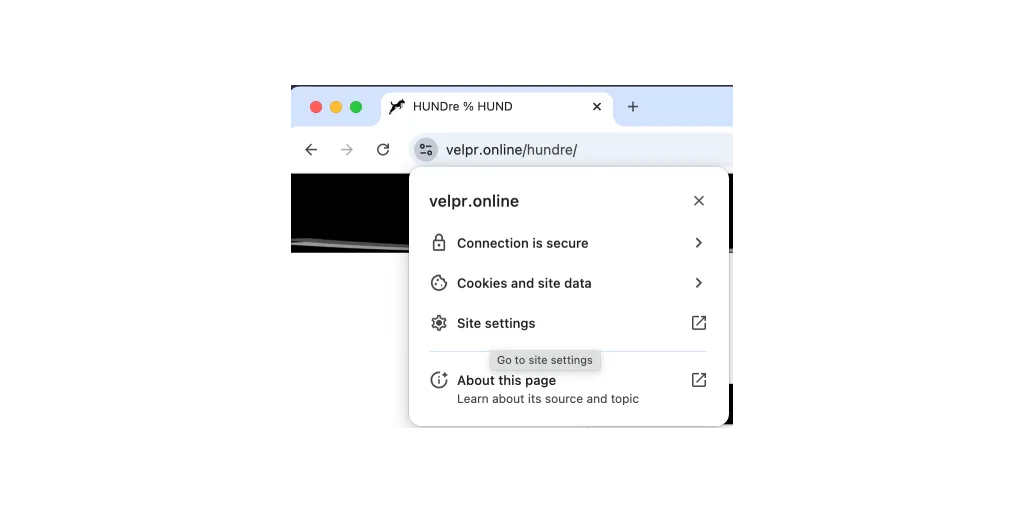
Section titled “Google Chrome”- Click the small icon to the left of the address in the address bar.
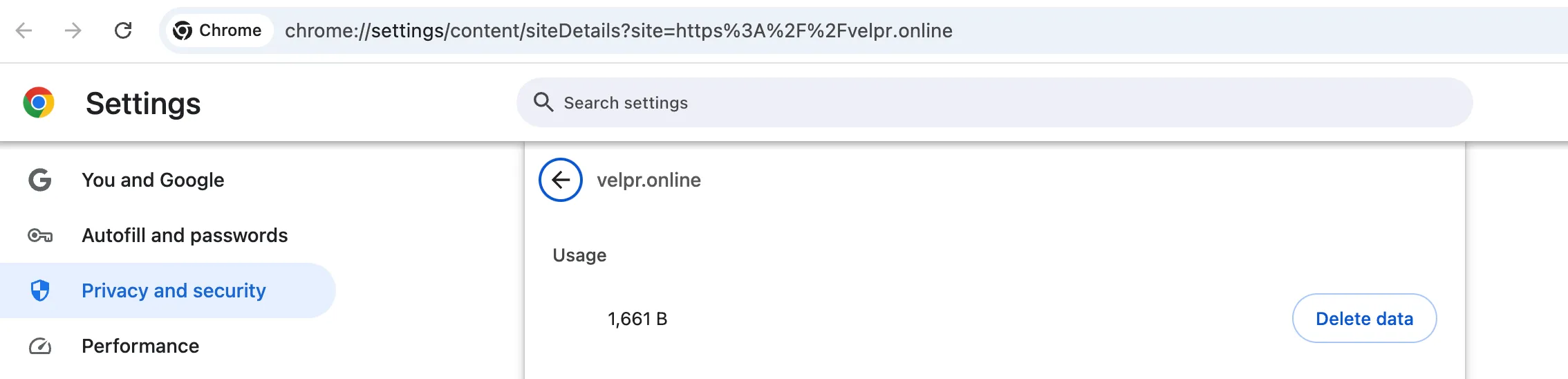
- Choose “Site settings”
- Choose “Clear data”
Alternative method for Google Chrome
Section titled “Alternative method for Google Chrome”- Open Chrome and navigate to the site.
- Right-click the page and choose Inspect (or press Ctrl+Shift+I / Cmd+Option+I on Mac).
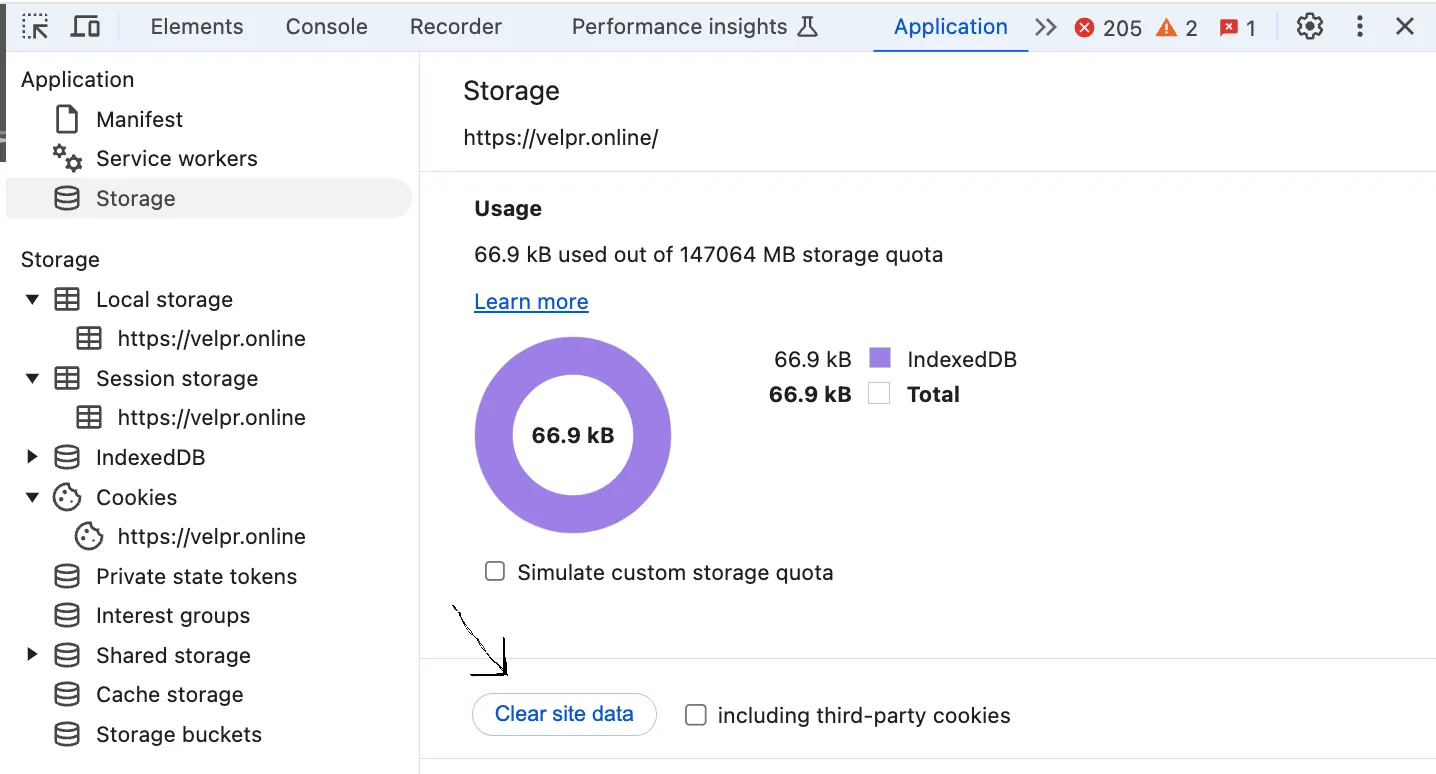
- Go to the “Application” tab in the developer tools.
- In the menu on the left, expand “Storage” and choose “Clear site data”.
Mozilla Firefox
Section titled “Mozilla Firefox”- Open Firefox and navigate to the site.
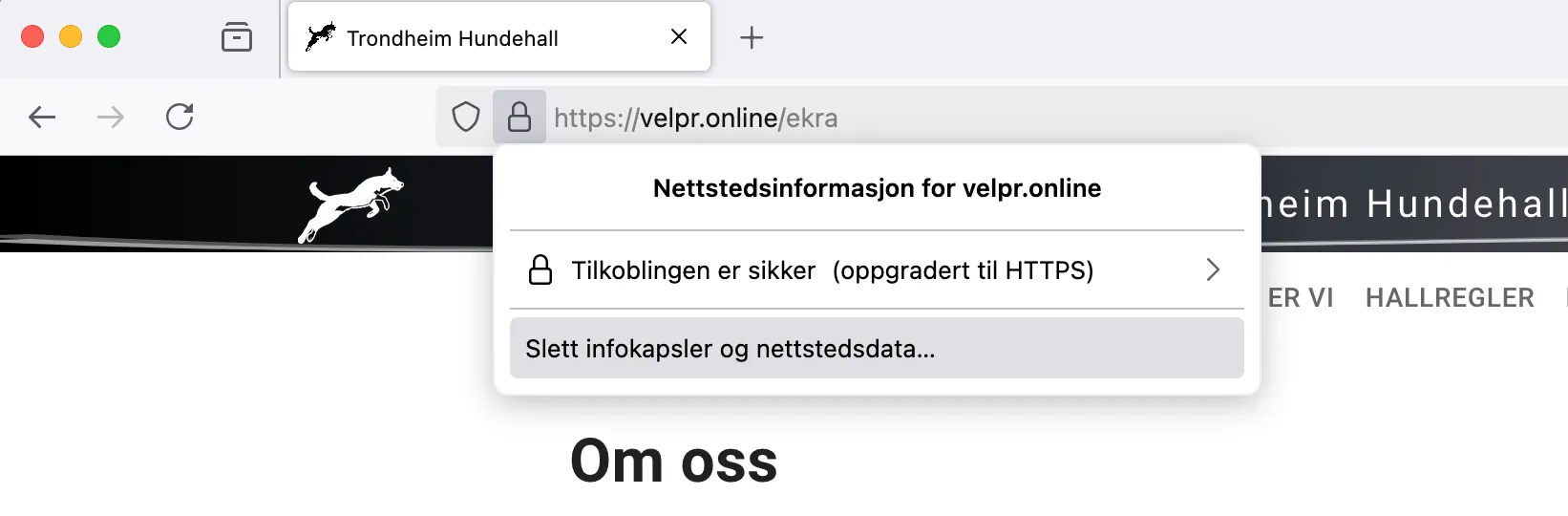
- Click the lock icon in the address bar.
- Choose Remove cookies and site data.
- Confirm the action.

Microsoft Edge
Section titled “Microsoft Edge”- Open Edge and navigate to the site.
- Click the lock icon in the address bar.
- Choose Cookies.
- Delete the relevant cookies for the site.
Safari (Mac)
Section titled “Safari (Mac)”- Open Safari and navigate to the site.
- Click Safari > Settings (or press Cmd+,).
- Go to the Privacy tab and click Manage website data.
- Search for the site, select it, and click Remove.
Browsers on mobile
Section titled “Browsers on mobile”Samsung Internet (Android)
Section titled “Samsung Internet (Android)”- Open Samsung Internet and tap the menu icon at the bottom right.
- Tap Settings
- Choose Personal browsing data
- Choose Delete browsing data
- Tap Delete data



Safari (iOS)
Section titled “Safari (iOS)”- Open Settings on your iPhone or iPad.
- Scroll down and tap Safari.
- Tap Advanced > Website Data.
- Search for the site, swipe left and tap Delete.
Google Chrome (Android and iOS)
Section titled “Google Chrome (Android and iOS)”- Open Chrome and go to the site.
- Tap the lock icon in the address bar.
- Choose Cookies and site data and delete the data.
Mozilla Firefox (Android and iOS)
Section titled “Mozilla Firefox (Android and iOS)”- Open Firefox and navigate to the site.
- Tap the lock icon in the address bar.
- Choose Remove cookies and site data.
Microsoft Edge (Android and iOS)
Section titled “Microsoft Edge (Android and iOS)”- Open Edge and navigate to the site.
- Tap the lock icon in the address bar.
- Choose Cookies and site data and delete the data.