
Groups
A group is a list of people that controls access and discounts. This page is the field reference. The step-by-step guide is in the admin guide.
The setup has two parts: the groups and their members under Groups, and the fields that use the groups under Rental and on events.
The Groups page only exists when the Groups module is turned on under Site → Modules.
The group list — Groups
Section titled “The group list — Groups”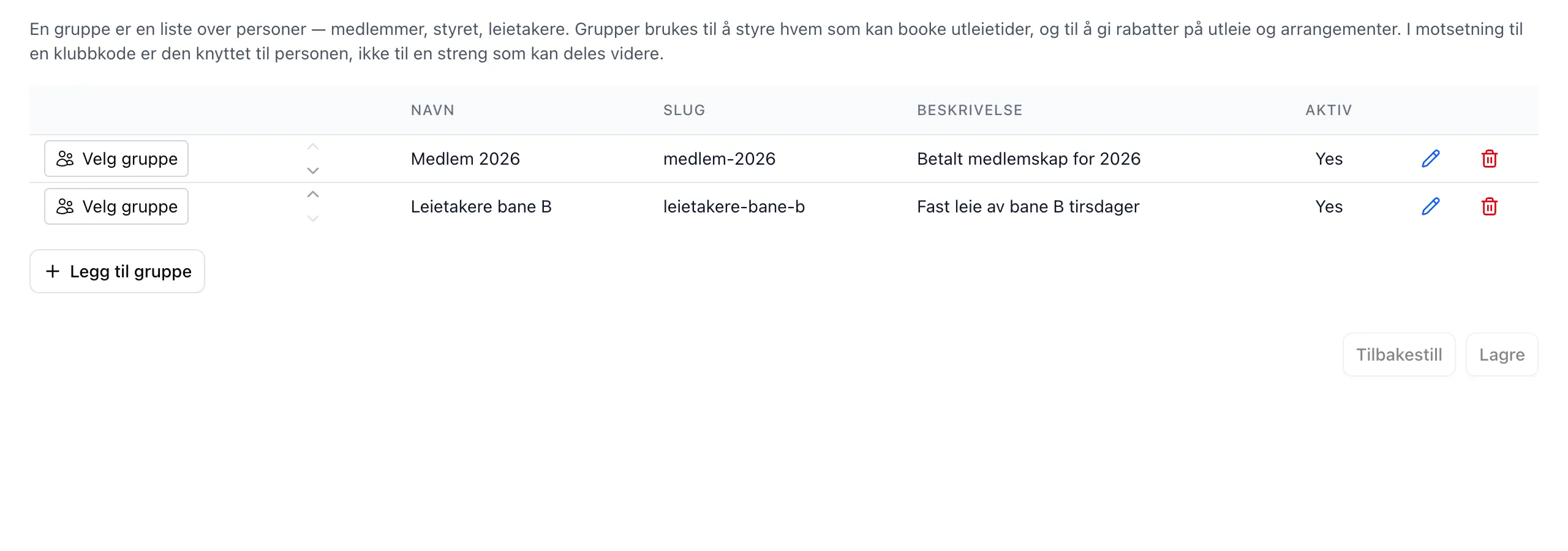
| Field | Explanation |
|---|---|
| Name | What customers see: on grey, locked slots, on the discount line in the cart and on the receipt, and under My groups on Min Side. Can be changed at any time; old receipts keep the name they were bought with. |
| Slug | A short id for the group, used by the discount fields. Generated from the name if you leave it empty (Medlem 2026 → medlem-2026). See Slug and discounts. |
| Description | Shown in grey under the name on Min Side. |
| Active | Off: the group is no longer offered in the checklists under Rental and on events. Does not stop anything already set up — see Active off. |
Buttons on each row:
| Button | Does |
|---|---|
| Select group | Opens members, invitation codes and the usage overview for the group below the list. |
| Arrow up / down | Changes the order the groups appear in everywhere. |
| Pencil | Edits name, slug, description and active. |
| Bin | Deletes the group. See Deleting. |
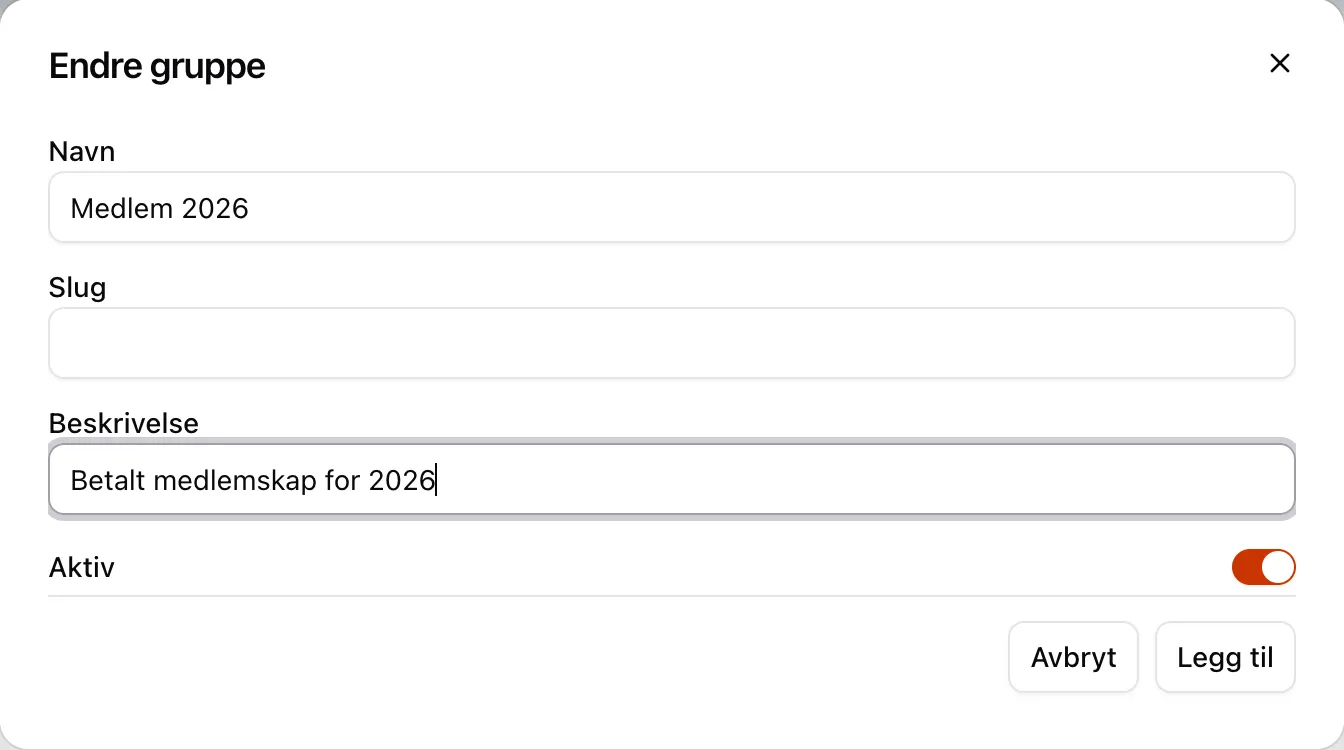
Changes to the list are only saved when you click Save at the bottom.
Members
Section titled “Members”Shown after you click Select group. Changes here are saved immediately — there is no separate save button.
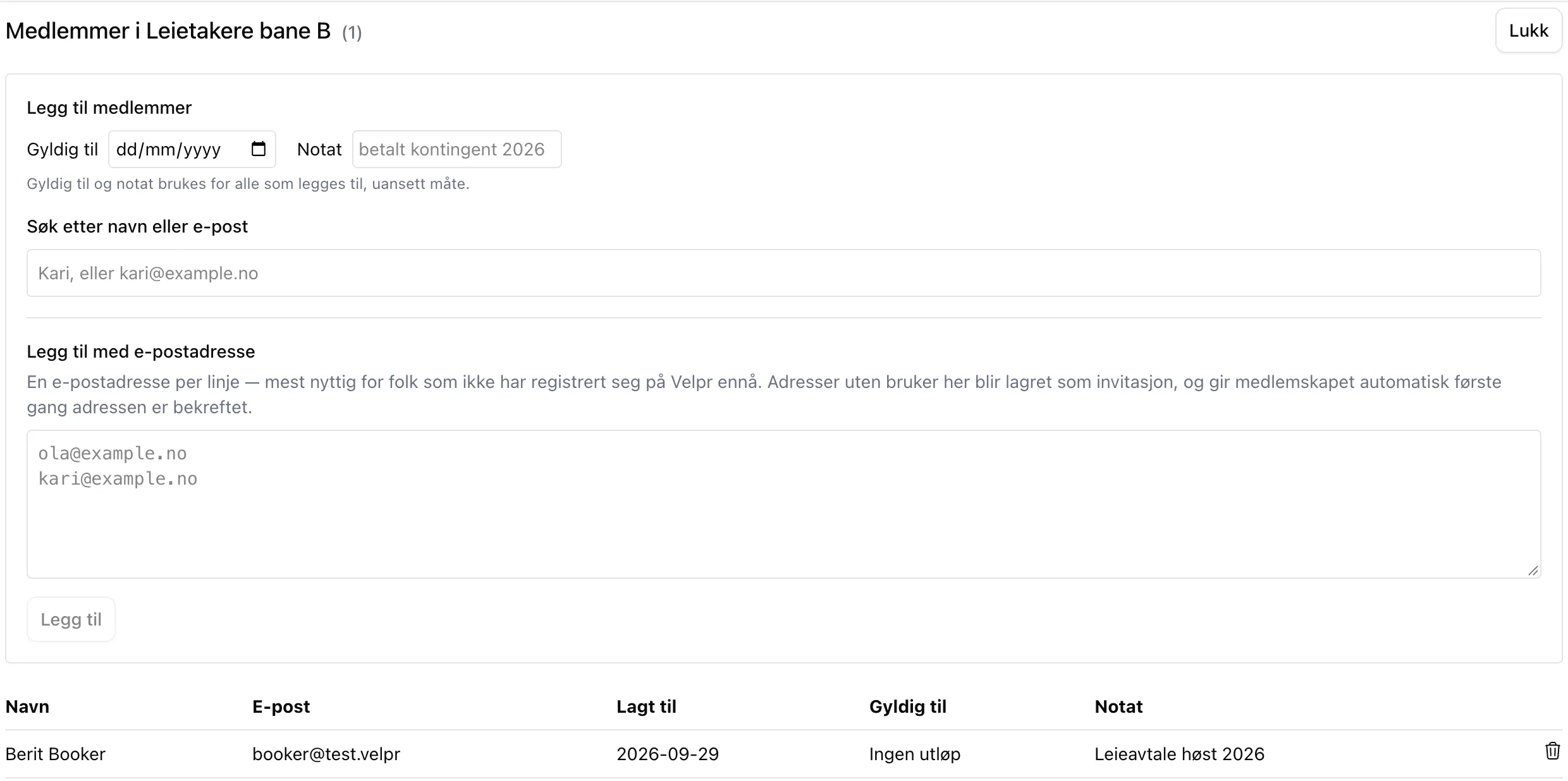
Add members
Section titled “Add members”| Field | Explanation |
|---|---|
| Valid until | When the membership expires. Empty = no expiry. Applies to everyone added by search or email list while the field is filled in. The membership ends at the start of the date. |
| Note | Internal remark, e.g. paid dues 2026. Only shown to admins. Applies to everyone added while the field is filled in. |
| Search by name or email | Searches users who have visited the facility. At least two characters. Add on a match makes the person a member. Already a member means the person is in. |
| Add by email address | One address per line; commas and semicolons work too, and duplicates are removed. Addresses with a user at the facility become members. Those without become invitations — see Pending invitations. |
After an email list, Invited (n): lists the addresses that became invitations rather than members.
If you add someone who is already a member, their row is replaced with the new Valid until and Note. This is how you extend a membership. The search shows Already a member and won’t let you do this — use the email list.
The member list
Section titled “The member list”| Column | Explanation |
|---|---|
| Name | The user’s name. |
| The user’s email. | |
| Added | The date the person became a member. |
| Valid until | Expiry date, or No expiry. If (expired) follows it, the row grants nothing. |
| Note | The remark from when the person was added. |
| Bin | Removes the person from the group immediately. |
An expired membership stays until you remove it. It gives no access and no discount.
Invitation codes
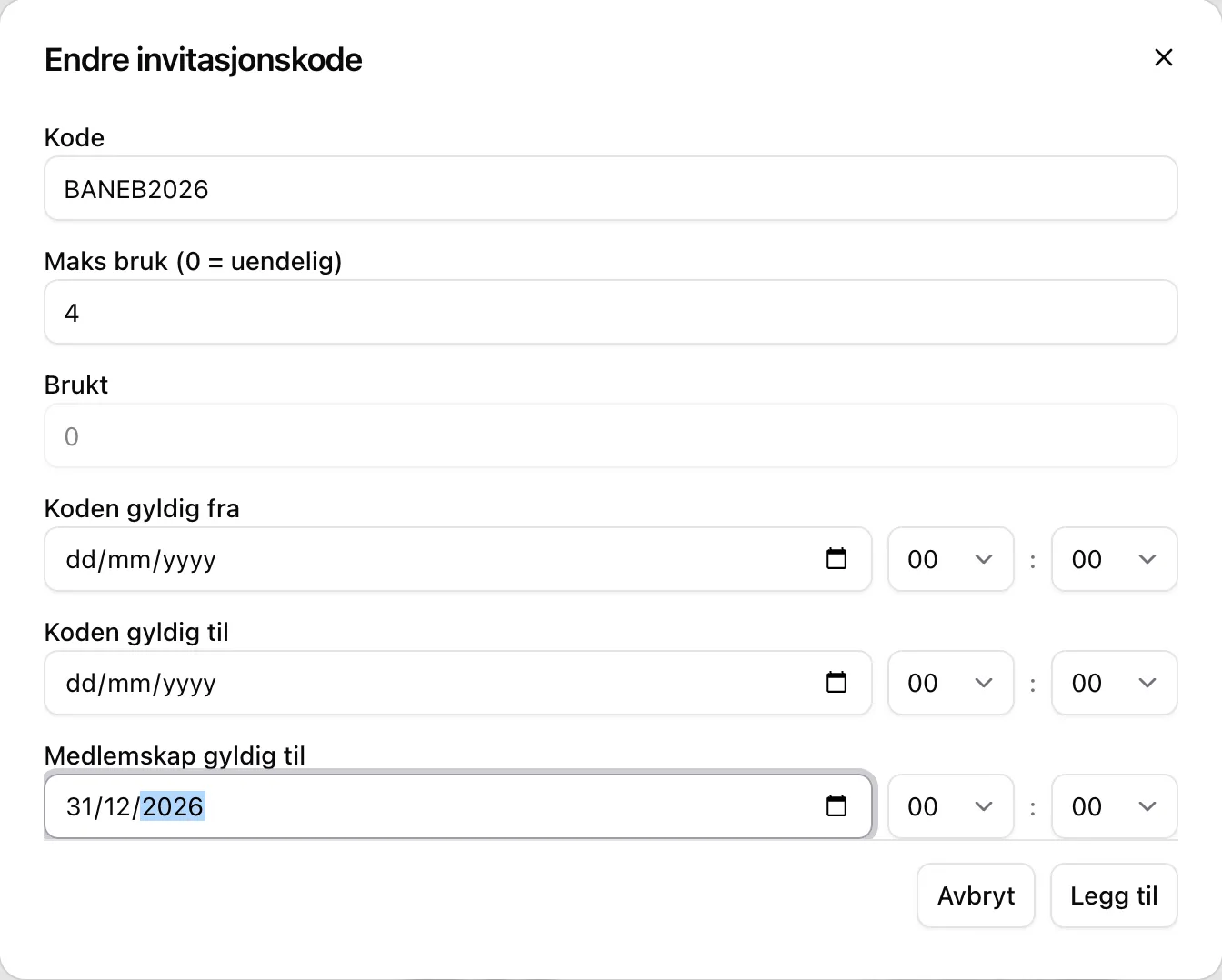
Section titled “Invitation codes”A code customers enter once on Min Side to become a member. Customers see the words group code.
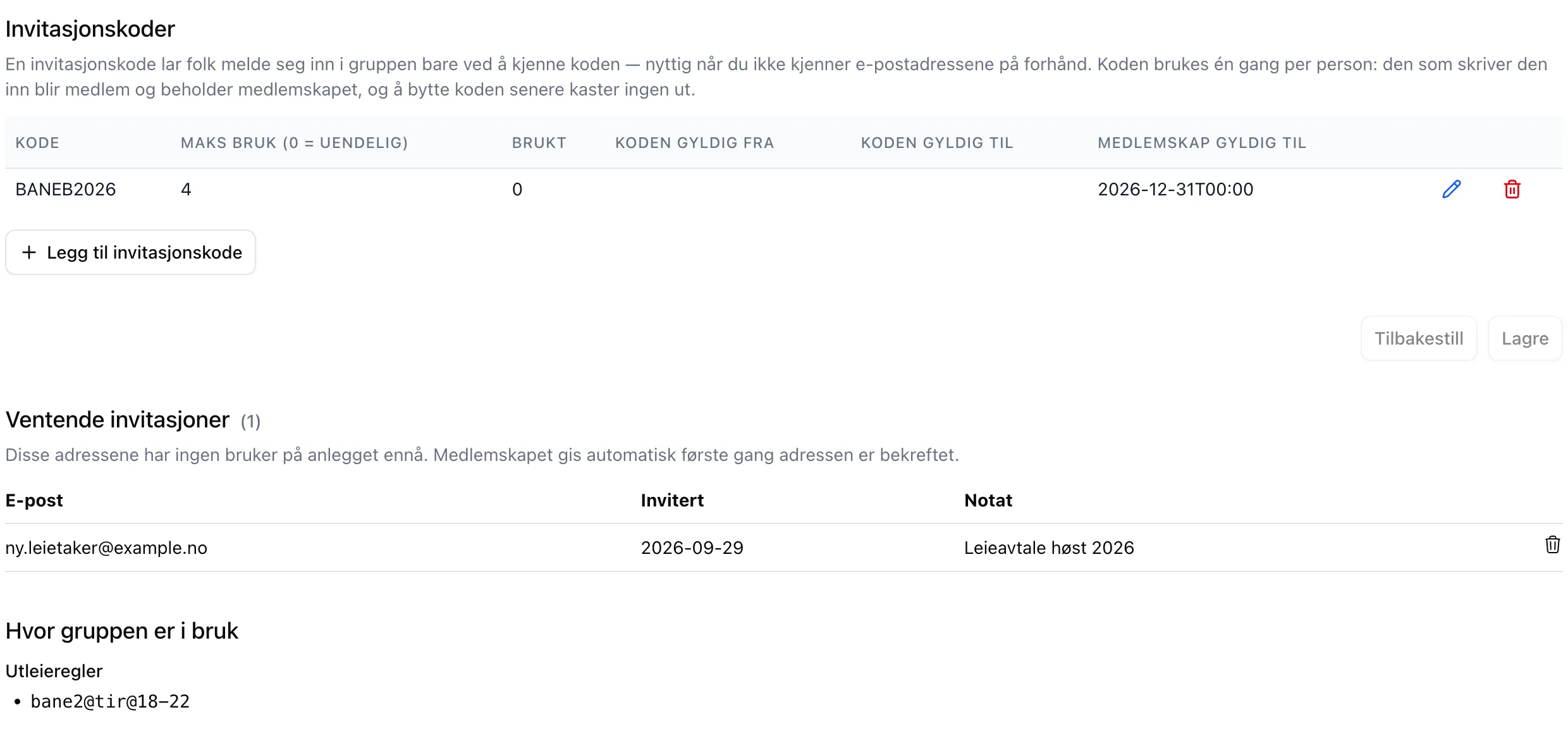
| Field | Explanation |
|---|---|
| Code | The text the customer types. Case-sensitive. Leading and trailing spaces are ignored. |
| Max uses (0 = unlimited) | How many people can use the code. 0 = no limit. |
| Used | How many have used it. Read-only, counted by the system. Correcting a typo in Code does not reset the counter. |
| Code valid from | The code does not work before this time. Empty = immediately. |
| Code valid until | The code does not work after this time. Empty = no end. Does not affect those who have already used it. |
| Membership valid until | The Valid until on the membership the customer gets. Empty = no expiry. |
If it says “One or more codes have reached their maximum uses and no longer work.”, at least one code has reached Max uses. Raise the number or create a new code.
The code list has its own Save button. Changes are not active until you click it.
Changing or deleting a code does not remove anyone from the group. It only stops new people joining.
What the customer sees
Section titled “What the customer sees”| Situation | The customer sees |
|---|---|
| The code works | You are now a member of … |
| The customer is already a member | Du er allerede medlem av denne gruppen — Used is not incremented. |
| Unknown, expired or used up | Ugyldig kode — Koden er ukjent eller ikke lenger gyldig |
The last two messages are currently shown in Norwegian regardless of language. The last three cases deliberately give the same answer. Otherwise someone could guess their way to valid codes by reading the error messages.
Pending invitations
Section titled “Pending invitations”Addresses from the email list that don’t belong to any user at the facility yet.
| Column | Explanation |
|---|---|
| The invited address. | |
| Invited | The date the invitation was created. |
| Note | The note that was filled in when the address was added. |
| Bin | Withdraws the invitation. |
The invitation becomes a membership the first time the person visits the facility with the address verified, or when the person verifies their address. An unverified address never grants membership — otherwise anyone could put a member’s address in their profile and get the access.
Where this group is used
Section titled “Where this group is used”At the bottom of the panel. Lists:
| Heading | What is listed |
|---|---|
| Spaces reserved for the group | Rental units with the group in Restricted to groups. |
| Rental rules | Rental slots with the group in Restricted to groups, shown by time and place. |
The fields that use the groups
Section titled “The fields that use the groups”The checklists only show groups that are Active.
Rental slots — Rental → Rental slots
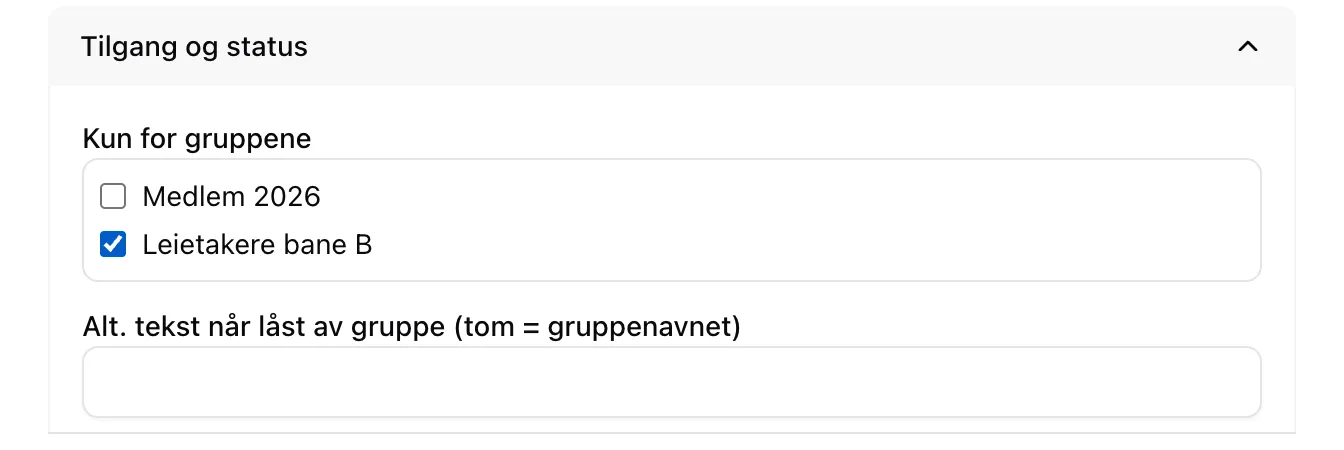
Section titled “Rental slots — Rental → Rental slots”In the Access and status section:
| Field | Explanation |
|---|---|
| Restricted to groups | Empty = open to everyone. One or more groups = only members of at least one of them can book. Others see the slot grey with Unavailable. Also shown as a column in the table. |
| Alt. text when locked by group (empty = the group name) | What others see instead of the activity. Empty = the group names. Members never see this text — to them the slot shows its normal activity. |
If the slot is already booked or unavailable, that is shown as usual — a group lock never hides a booking.
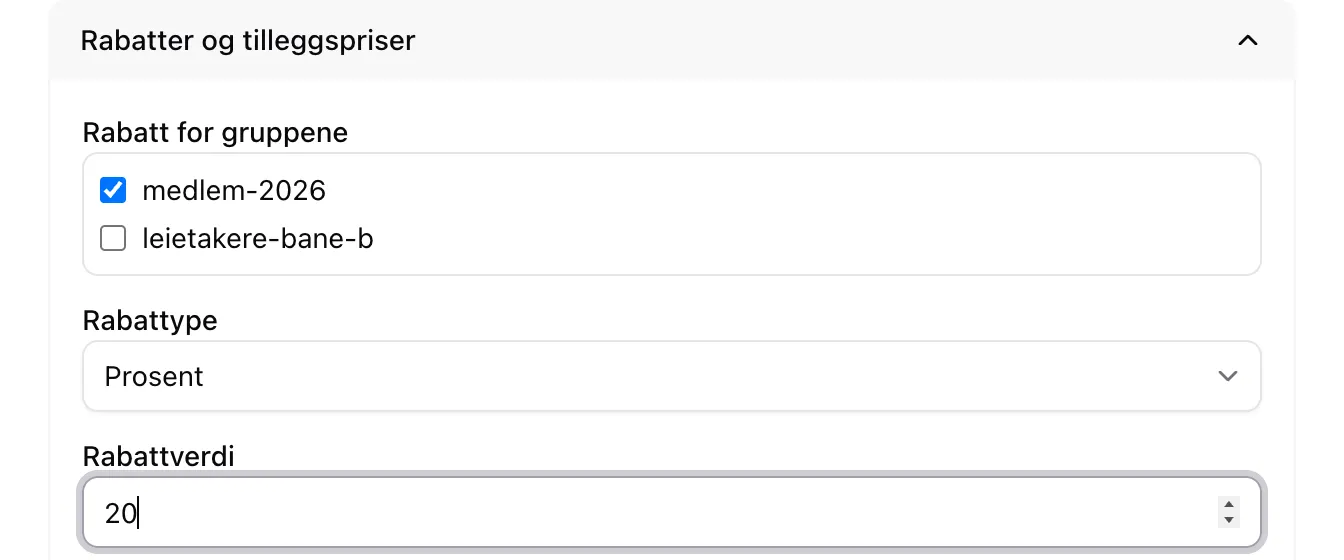
In the Discounts and extra prices section:
| Field | Explanation |
|---|---|
| Discount for groups | Which groups get a discount. Shows the groups’ slug. Hidden until at least one active group exists. |
| Discount type | Percentage or Fixed amount. |
| Discount value | 20 with Percentage = 20 % off. 50 with Fixed amount = 50 kroner off. 0 = no discount, even if groups are ticked. |
Rental units — Rental → Rental units
Section titled “Rental units — Rental → Rental units”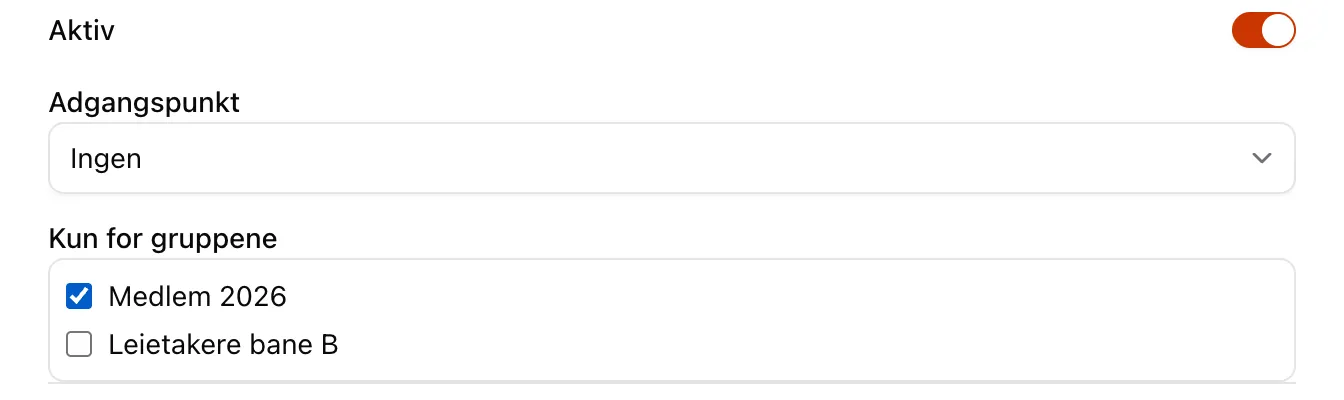
| Field | Explanation |
|---|---|
| Restricted to groups | Empty = visible to everyone. One or more groups = the unit is not shown in the slot picker to anyone else, including admins who are not in the group. Applies in addition to the rental slot’s lock. |
A rental slot without Restricted to groups in a private unit is still only for members. Both locks must be passed.
Ticket groups — event → Tickets
Section titled “Ticket groups — event → Tickets”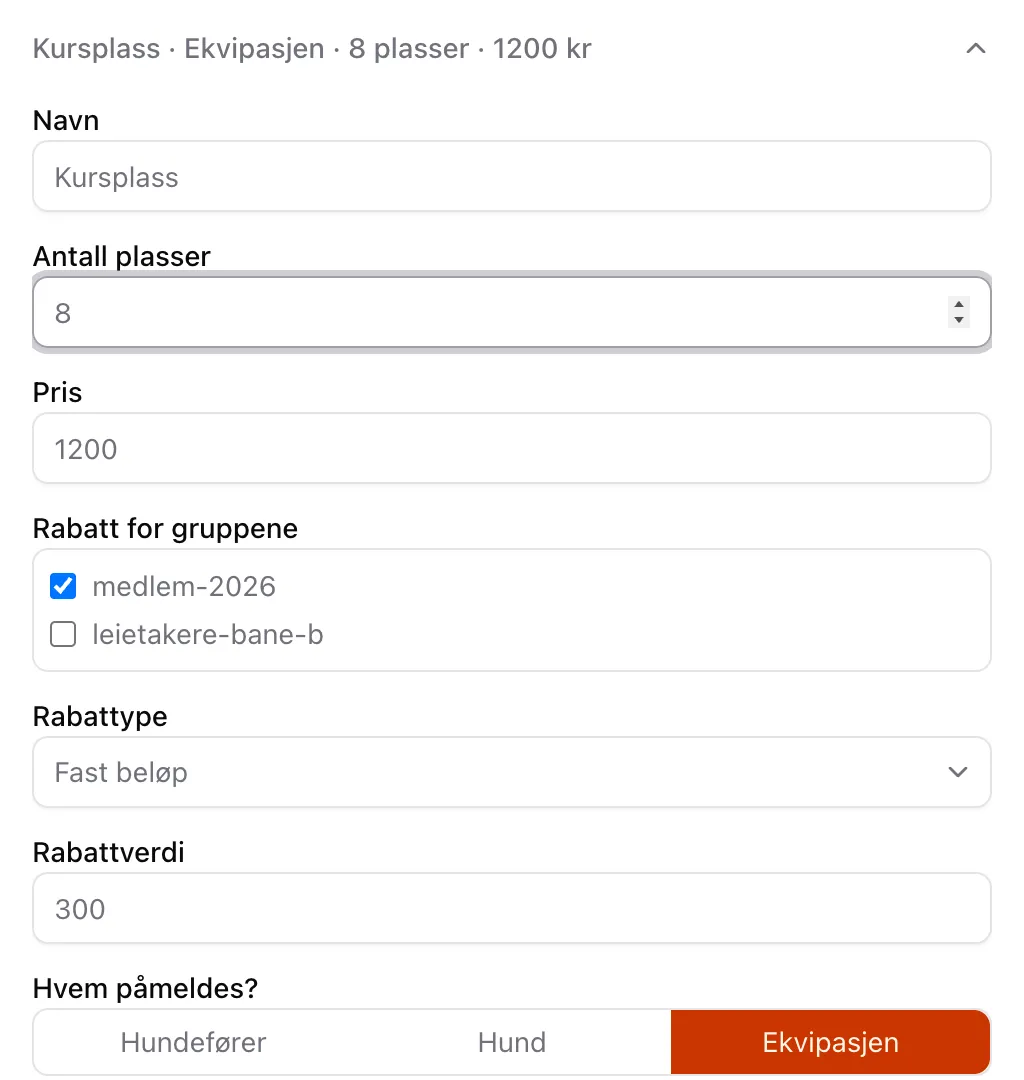
| Field | Explanation |
|---|---|
| Discount for groups | Same as on rental slots, per ticket group. Hidden until at least one active group exists. |
| Discount type | Percentage or Fixed amount. |
| Discount value | 300 with Fixed amount on a 1200 ticket = 900 for members. |
If the ticket group also offers optional prices, the customer gets the lower of the group discount and the price they choose.
Which discount applies?
Section titled “Which discount applies?”Discounts are never combined. If the customer has several that match — a group, a club code, an optional price — the one giving the lowest price applies. If two discounts give the same price, an optional price wins over a club code, and a club code over a group.
Slug and discounts
Section titled “Slug and discounts”The discount fields store the group’s slug, not the group itself. If you change the slug of a group that gives a discount, the discount stops working — it points at a slug nobody has any more. Tick the group again in the discount fields if you have to change it.
The Name can be changed freely.
Active off
Section titled “Active off”Active only controls whether the group is offered in the checklists. An inactive group:
- still locks the rental slots and rental units it is set on,
- still gives a discount where it is ticked,
- still accepts new members through invitation codes.
To retire a group, remove it from the fields and delete the codes first.
Deleting
Section titled “Deleting”If you delete a group and click Save:
- All memberships of the group are removed. If you later create a group with the same name, it is empty.
- Rental slots and rental units that were reserved for the group become reserved for nobody — they do not open up to everyone. Remove Restricted to groups from them if you want to open them.
- Discounts that pointed at the group no longer give a discount.
- Bookings already made are not touched.
When membership is checked
Section titled “When membership is checked”When the slot or ticket is booked. If someone is removed from the group or the membership expires afterwards, they keep what they have booked.
Admins
Section titled “Admins”Admins are treated like everyone else: if you are not in the group, you see the slots grey and Unavailable, and private rental units are not shown to you in the slot picker. Add yourself to the group to book on behalf of a member.
The Preview at the bottom of the Rental page shows the group name on reserved slots, so you can see where the locks are.