
Invoice
With invoice, the order is confirmed right away, and the customer pays to the facility’s account afterwards. You follow up the payment yourself under Invoices.
Step 0 — turn on invoice
Section titled “Step 0 — turn on invoice”Go to Site → Modules, turn on Invoice — allow payment by invoice and press Save.
Step 1 — fill in the seller and payment information
Section titled “Step 1 — fill in the seller and payment information”- Under Site → Owner information: fill in Owner legal name, Org. no., Address line 1 and Email.
- Under Payment → Invoice: choose Mode, fill in Account number, look over the limits, and press Save.
The fields are listed on Payment.
Step 2 — check as a customer
Section titled “Step 2 — check as a customer”Book a slot with Pay by invoice as an ordinary user. The invoice should arrive by email and show under Min side → Invoices and under Invoices in admin.
Following up the invoices
Section titled “Following up the invoices”Go to Invoices. The tabs at the top sort by status.
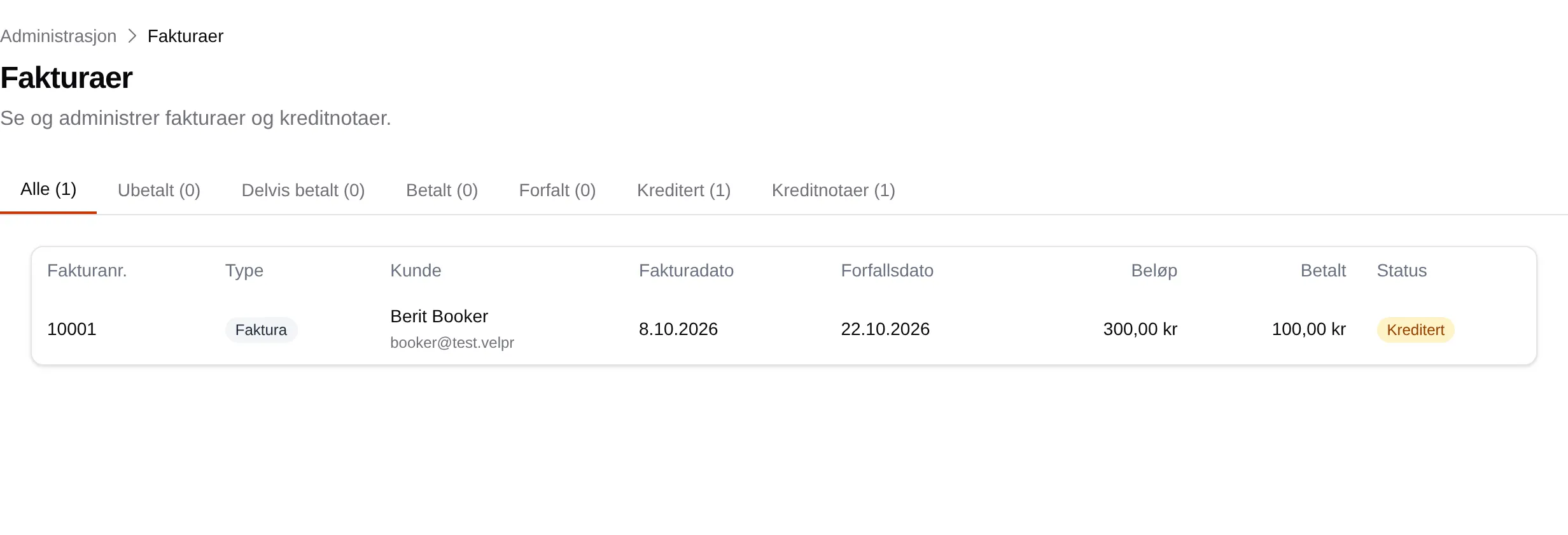
Press an invoice to open it.
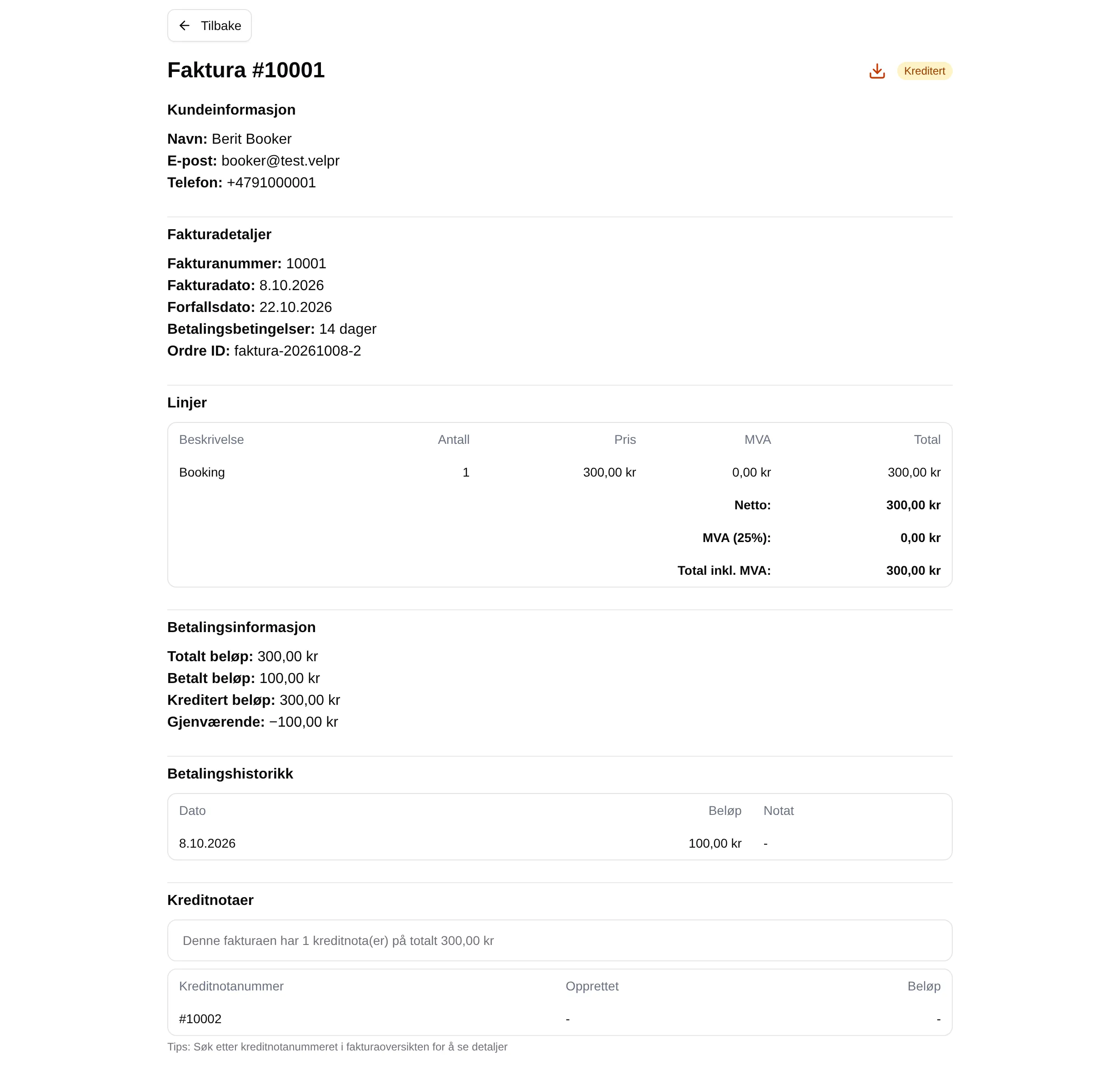
Under Actions at the bottom:
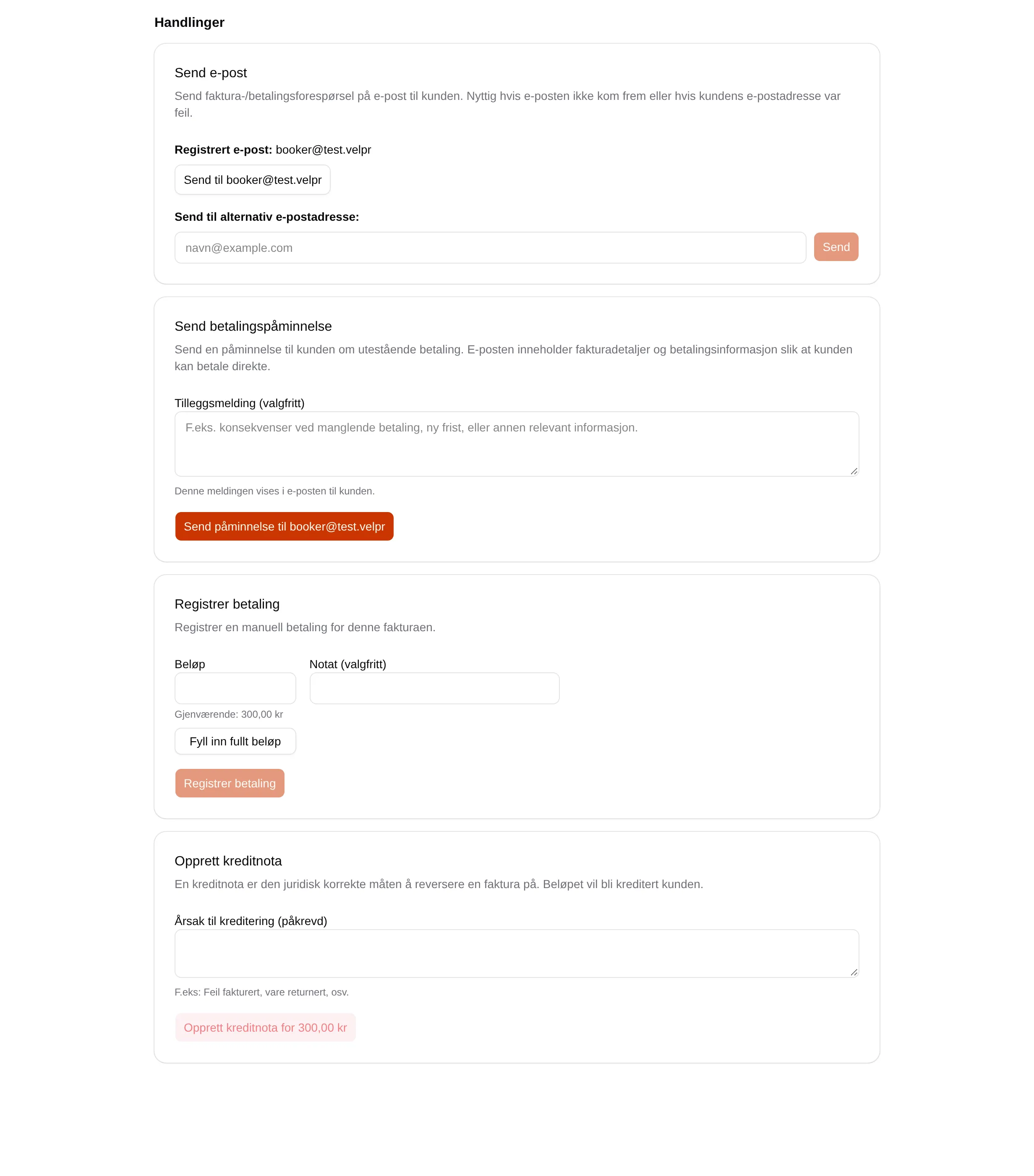
| When the customer … | You do |
|---|---|
| has not received the invoice | Send email — to the registered address, or another address. |
| has not paid | Send payment reminder, preferably with an Additional message. |
| has paid to the account | Register payment with the amount. Fill in the full amount fills in the rest. |
| should not pay after all | Create credit note with a Reason for crediting. The customer gets the credit note by email. |
Velpr sends no reminders by itself, and does not cancel anything if the invoice is not paid.
Every field and every rule: the admin reference for invoices. The customer’s side: Invoice.