
Facility
The facility page defines how the website should look and which features it should have.
Account
Section titled “Account”The account section shows which plan the facility subscribes to. If the plan is “free”, the account status field shows whether the facility has gone over the free limit and therefore can no longer complete orders.
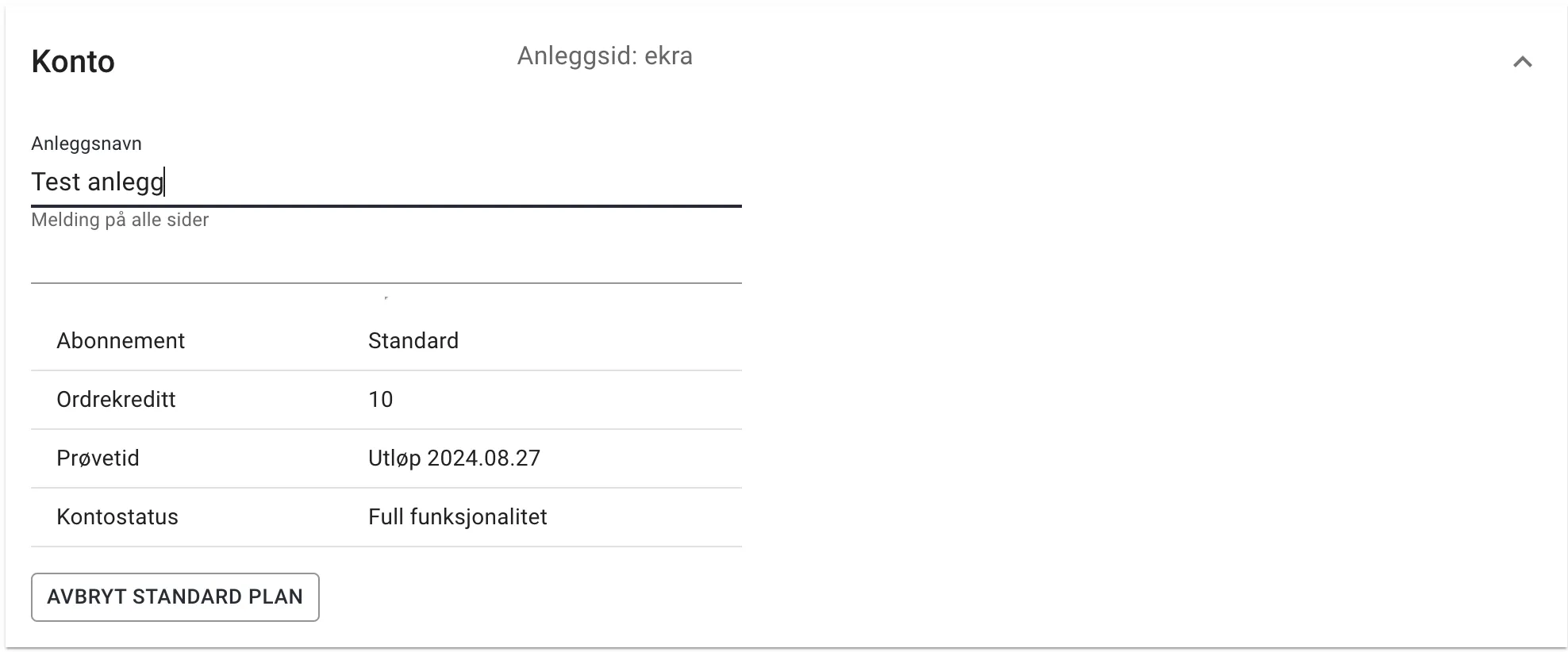
| Field | Explanation |
|---|---|
| Facility name | This is the heading of the website and the name used in receipts. |
| Site-wide message | This can be used to give a message to the users. |
| Subscription | One of Free, Standard or Custom |
| Order credit | How many orders before you have to pay the monthly price for the current month. |
| Trial period | All facilities get some trial time at the start. During the trial the credit limit does not apply. |
| Account status | If you are on the free plan and the order credit is used up, this shows ‘restricted’ |
The button(s) at the bottom of the account section are used to change the subscription status.
Confirmation text
Section titled “Confirmation text”The text the customer sees after a successful order — in the confirmation on the screen and in the receipt by email.
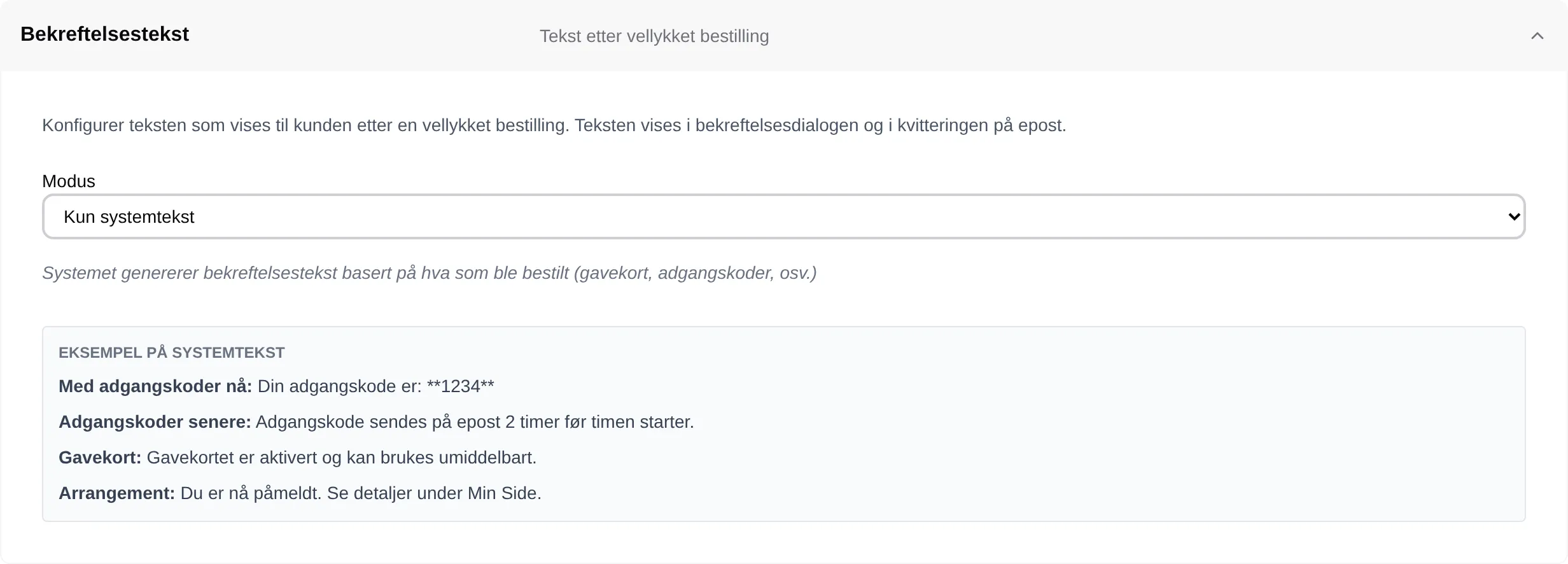
| Mode | The customer sees |
|---|---|
| System text only | The text Velpr makes from what was ordered: access code, gift card and so on. |
| Custom text first | Your text, then the system text. |
| Custom text last | The system text, then your text. |
| Custom text only | Only your text — no access code or gift card information. |
If you choose anything other than System text only, Custom text appears. It is written in Markdown.
Modules
Section titled “Modules”Here you can switch on and off which features should be available for the facility. All account plans support all modules, but not every facility needs or wants to use everything the system supports.
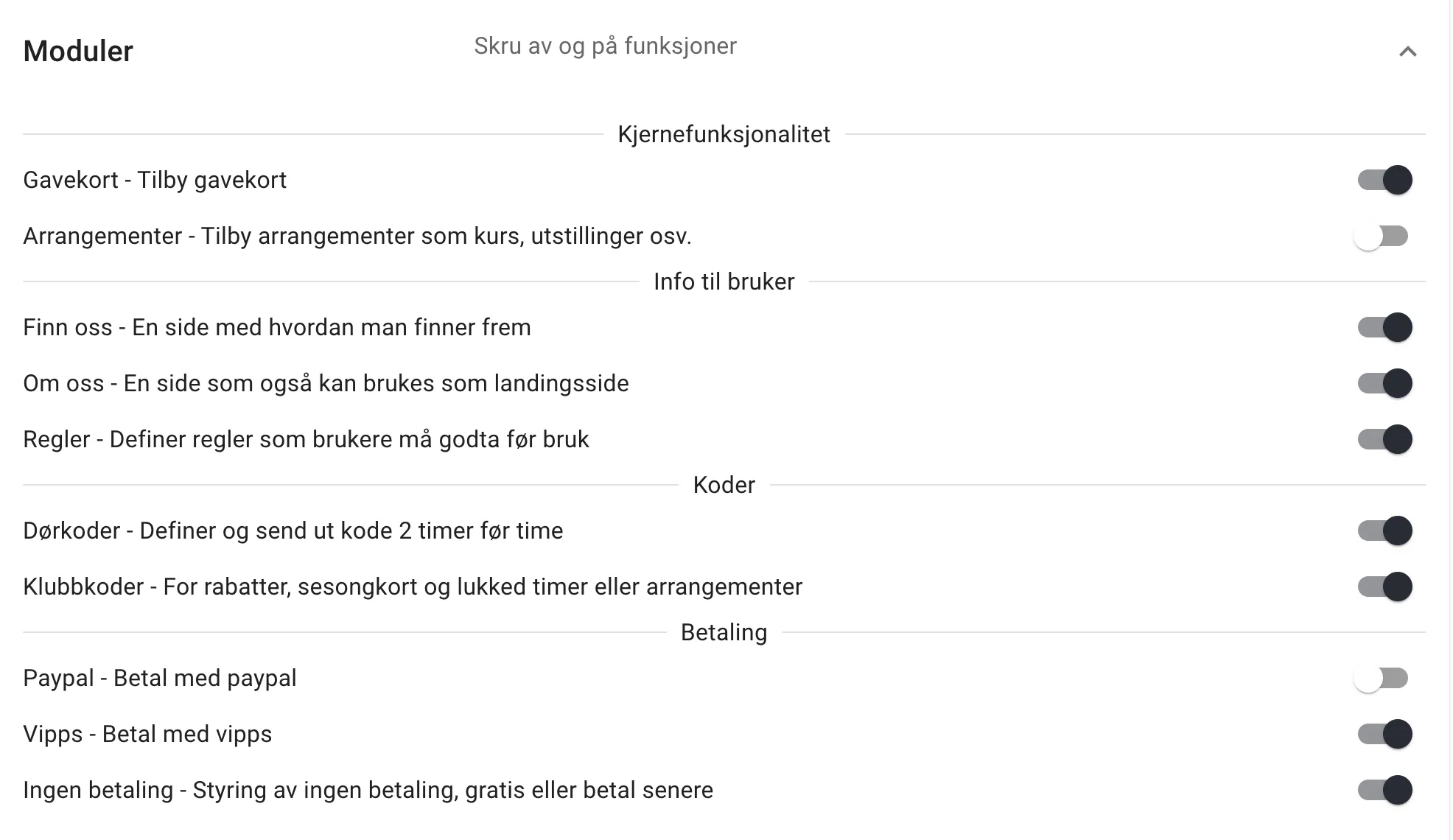
Groups under Core functionality turns on the Groups page in the admin menu, and the fields Restricted to groups and Discount for groups under Rental and on events. See the admin guide for groups.
Optional prices
Section titled “Optional prices”Prices the buyer can choose themselves, such as a student or senior price. The prices are defined here once, and are then turned on per rental time under Rental and per ticket group on each event.
See the field reference and the admin guide.
Here you give others on the staff a role: Owner, Administrator or Supporter. Only owners can change the table.
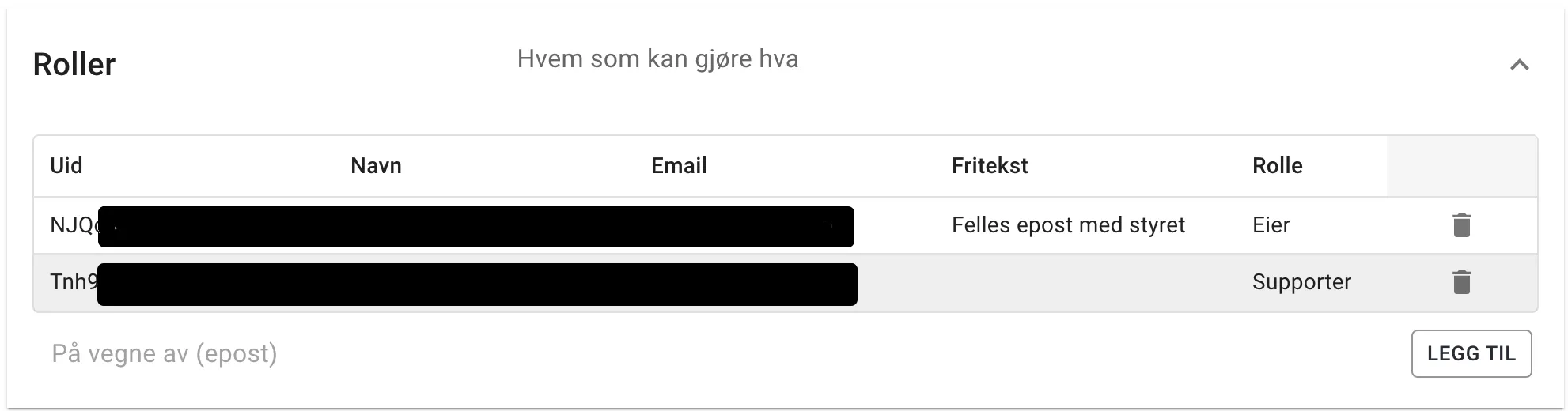
What each role can do: the admin reference for users and roles. Step by step: the admin guide for users and roles.
Appearance
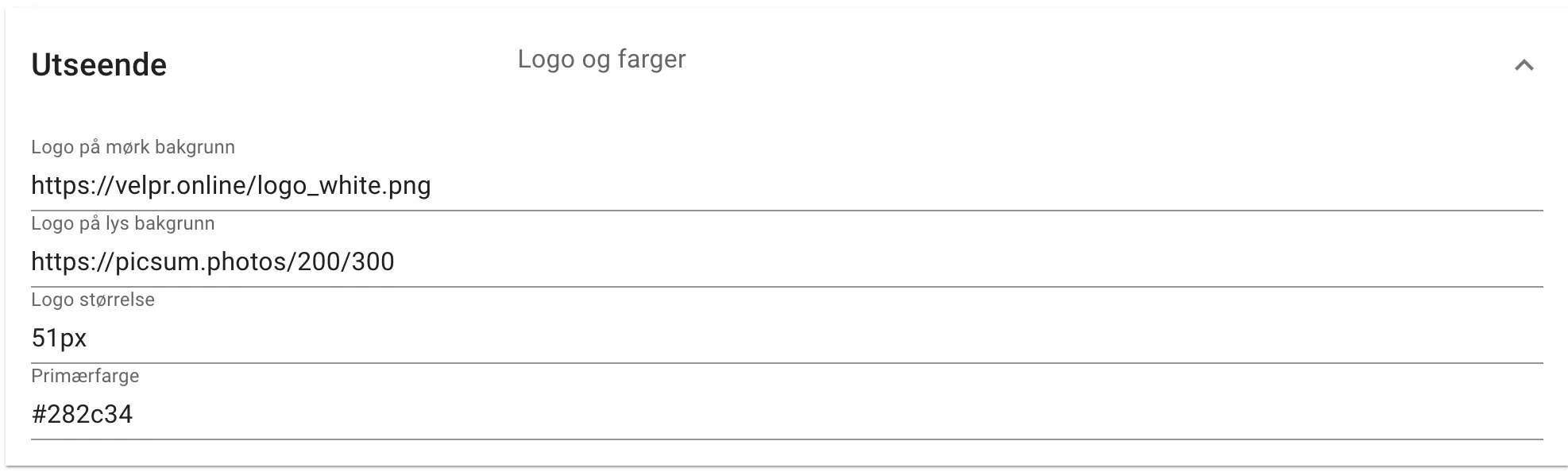
Section titled “Appearance”The system uses 2 different logos and a theme colour for the colour of headings and the colour of buttons. The logos are used at the top left of the facility page as well as on receipts, code and gift card emails.
The size field can be used to adjust how the logo is placed at the top left of the facility page.
Navigation
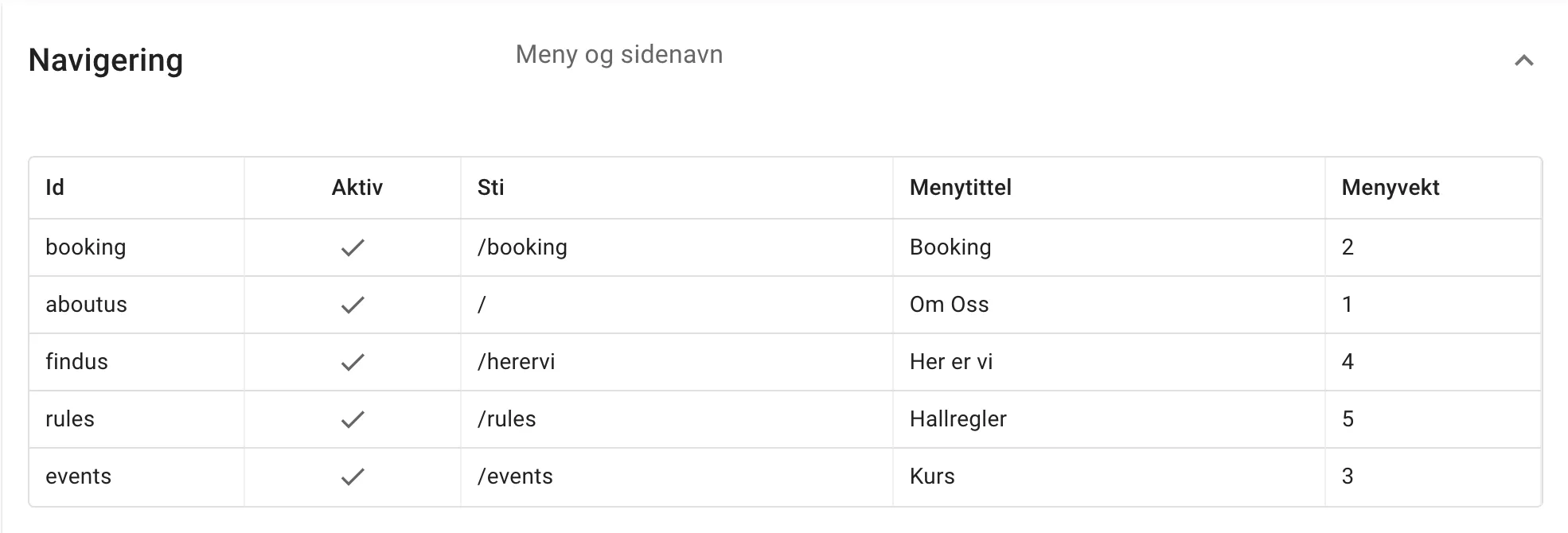
Section titled “Navigation”Here you decide which page is the front page, what the pages are called in the menu and in which order they appear — for example “Courses” instead of “Events”. Step by step: Pages, blog and images.
Owner info
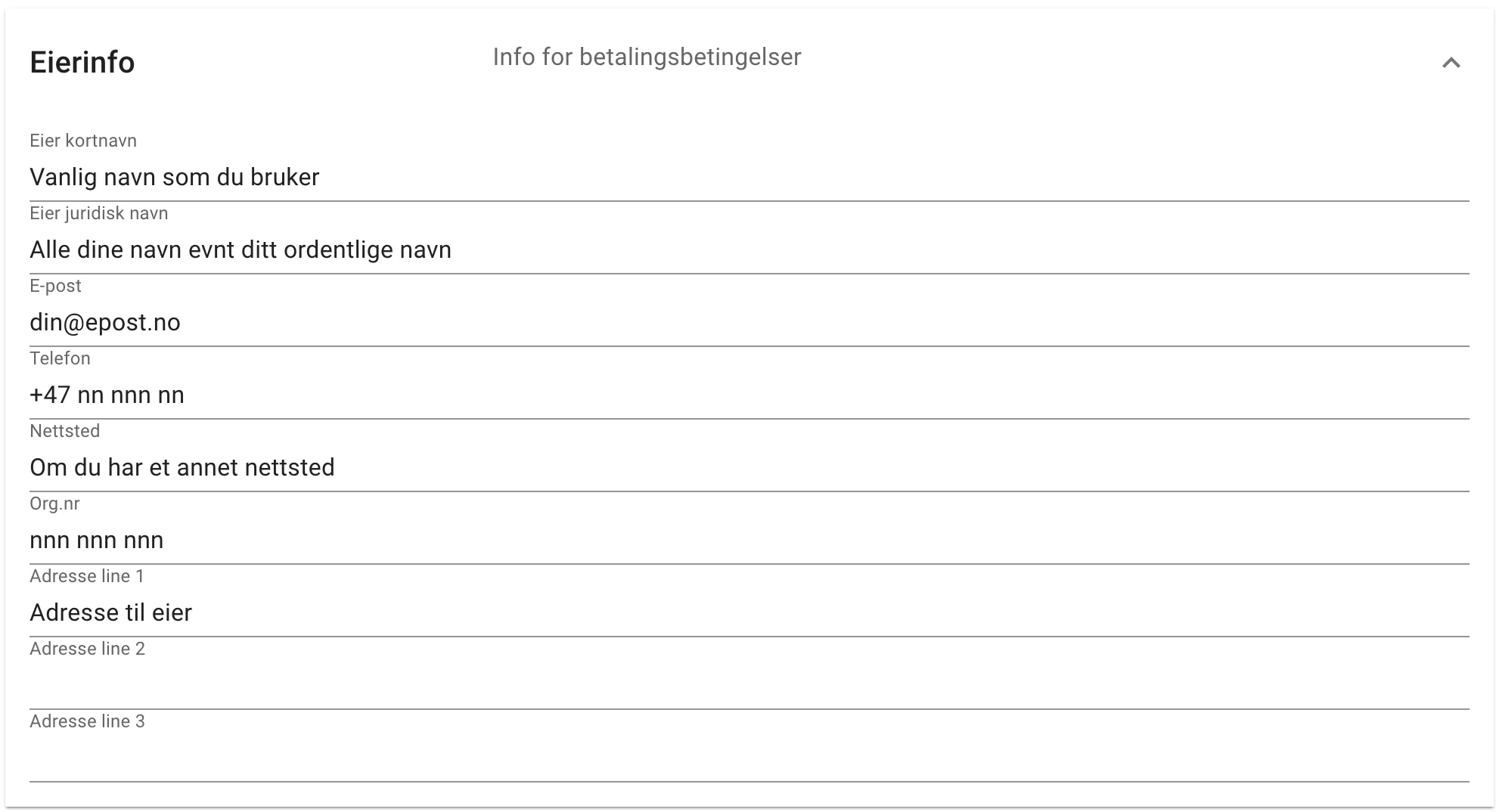
Section titled “Owner info”Owner info is used to generate the payment terms. If you change the owner info after you have generated the terms, they will not pick this up automatically. You then have to delete the existing terms and create new ones.
Location info
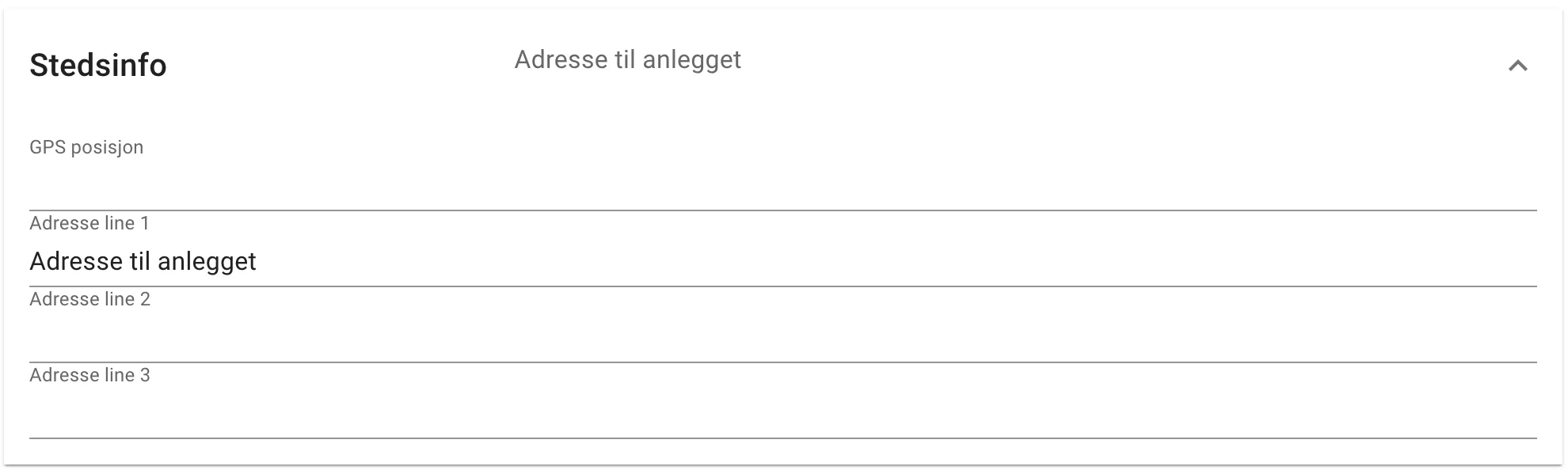
Section titled “Location info”The GPS address is not used yet, but will be used to integrate map services.
The address is used in receipt emails.
Close the facility
Section titled “Close the facility”Takes the whole facility out of operation — for example during renovation, or when the facility is shutting down.
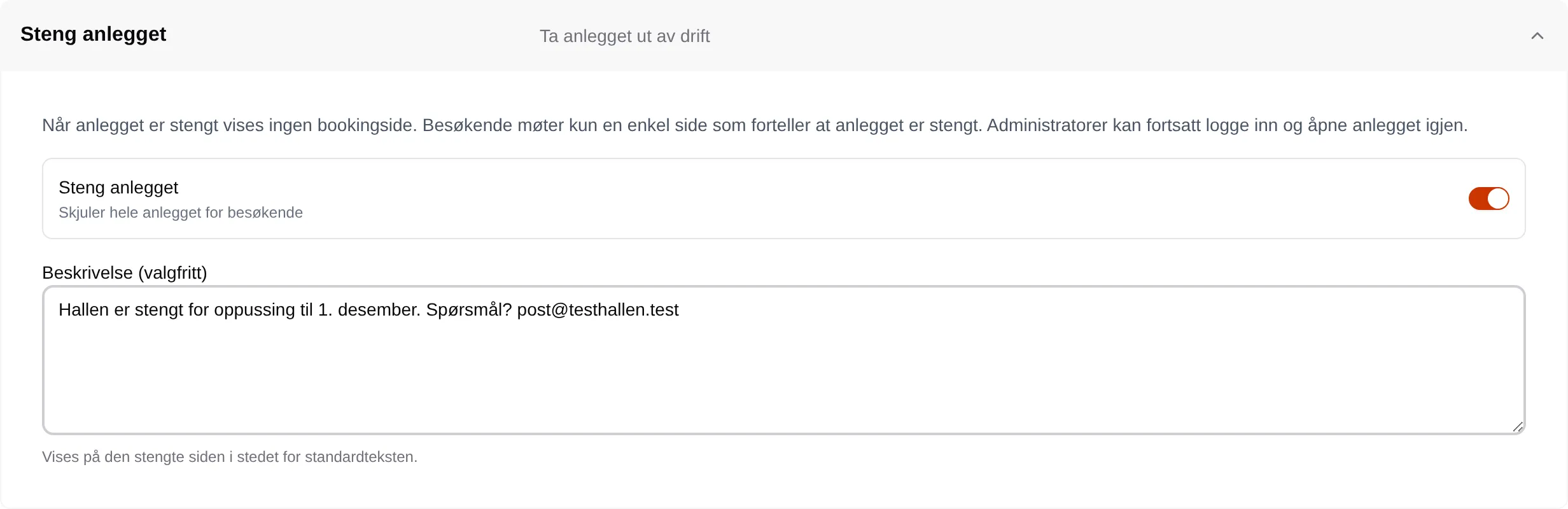
| Field | Explanation |
|---|---|
| Close the facility | On: visitors only see a page saying the facility is closed. No one can book. |
| Description (optional) | The text on the closed page. Empty gives “This facility is no longer in operation.” |
Press Save. Visitors then see this:
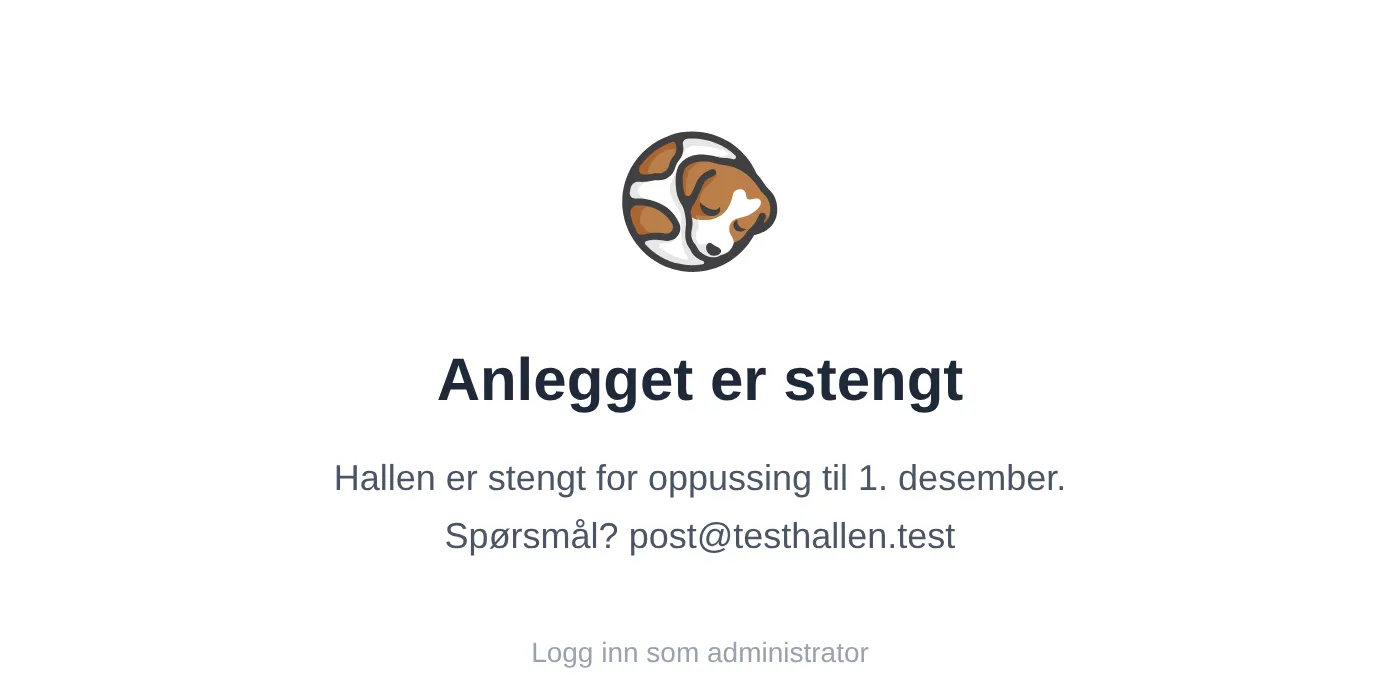
Administrators and owners see the facility as usual and can reopen it here. If you are logged out, use Log in as administrator on the closed page.
Experimental
Section titled “Experimental”Features that are not finished. Press Save after you have changed something.

| Option | Does |
|---|---|
| Activity colours | Shows the activities in colours in the calendars and in the booking. Does not work everywhere yet. |